
Appearance
Receipt printing
Goal
Get receipts printing again — and know which of the three faults you had when they stop. Nothing comes out of the printer, the wrong printer is chosen, or the receipt carries the wrong store name or logo. Each section below starts from the symptom you can see and ends with what you should see once it is fixed.
Where this happens
- On the till (Retail POS App or Restaurant POS App): the printer that receipts go to is chosen, and the shape of the receipt is set.
- On the PC the till runs on: the printer is installed, and the paper, the cable or wireless link and the print queue are checked.
- In the back office (Core App): the store name, address, logo and message that are printed on a receipt are set.
Prerequisites
- The printer is switched on, the paper is loaded, and the cable or wireless link is connected at both ends.
- You know which store and which till you are on. A printer fault is normally one till, not the whole store.
- You can open the till's own settings screen. That screen is permission-controlled — if it does not open for you, ask your supervisor. See Till roles and screen access.
Steps
1. Nothing prints and there is no error message
This is the most common case. The sale is not lost — a printing failure does not undo the transaction, so the receipt can be printed again as soon as the printer is working.
- Check the printer itself: it is switched on, the paper is loaded and not jammed, and the cable or wireless link is connected.
- Print a test page from the PC. Open the printer list in Windows, open the printer, and print a test page. If the test page does not print either, the fault is the printer, the paper, the cable or the PC — not Lytning.
- Check the Windows print queue. A job stuck in the queue will not print until it is released; clear the stuck job and send the test page again.
- Check which printer the till is set to use. Open the till's device settings screen and go to its printer section, then check the printer chosen for receipts. The full path is on Till settings (printer, scale, customer display) and, for the Retail POS App, on Device settings, updates and support (Retail POS App).
- Save the setting, close the till app, and open it again. Some printer settings only apply after the till restarts — close the app, do not power the PC off.
- Print a receipt. The quickest way is to reprint a sale you have already made, from the invoice history on the till — see Invoices, reprints and refunds (Retail POS App).
Expected result: a receipt comes out of the chosen printer, with your store's name on it.
2. The wrong printer is selected
Receipts go to the printer the till has been told to use, and that choice is made on the till — not in the back office. A store with more than one printer (a front counter, a back counter, a kitchen) has to pick which one each till uses.
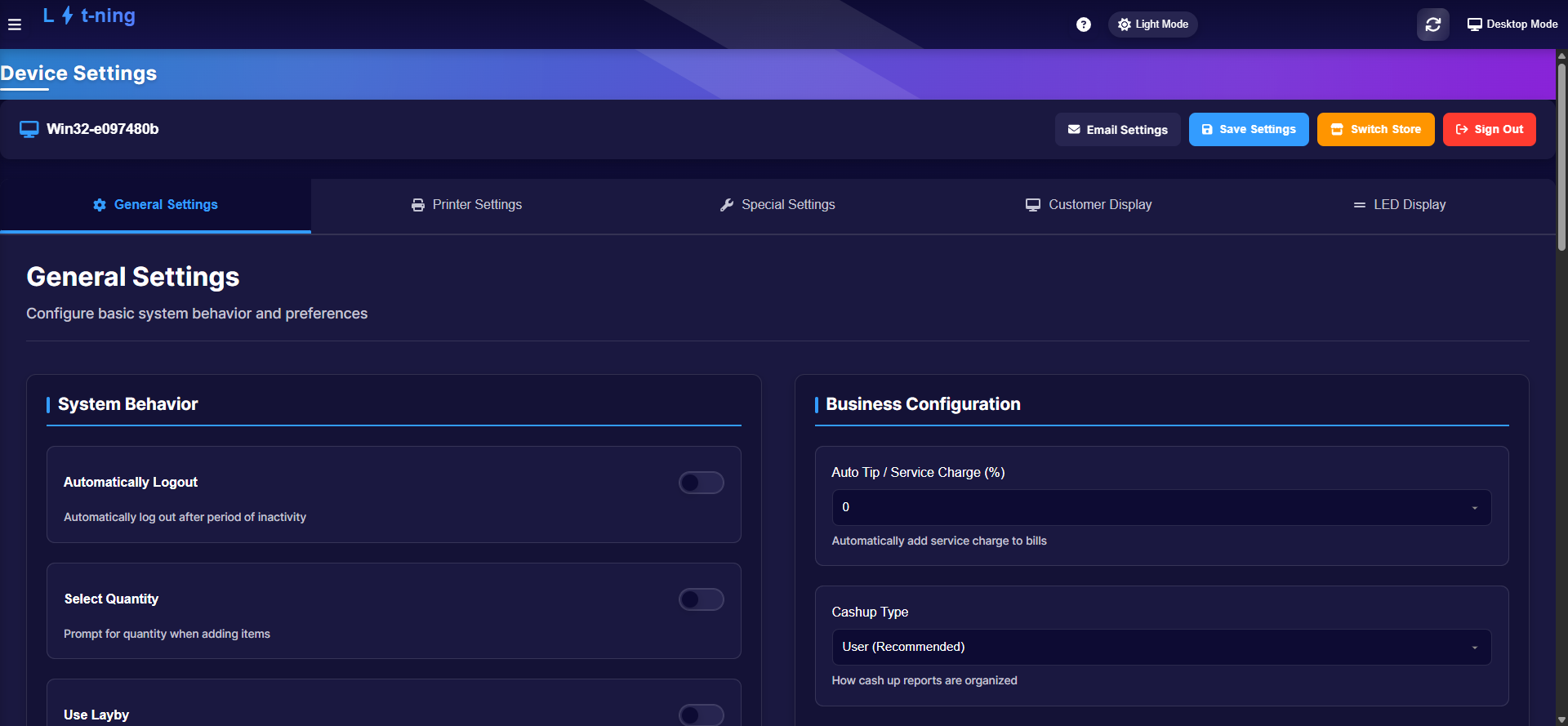 The Retail POS App device settings screen. The printer section is the second tab along the top.
To change it:
- Open the till's device settings screen and go to the printer section.
- Choose the printer that should print receipts. On a restaurant till you can also point the other printers in the store at separate stations, and choose which printer opens the cash drawer.
- Check the receipt format the till is set to. It controls the shape and size of the customer receipt — if it does not match the paper loaded in the printer, the till prints nothing or prints a cut-off receipt.
- Save the setting and restart the till app so the change takes effect.
- Print a receipt and check that it came from the right printer.
Expected result: receipts come from the printer you chose, and the receipt fits the paper loaded in it.
Full paths and every field on this screen: Till settings (printer, scale, customer display), Device settings, updates and support (Retail POS App), and Restaurant settings and the Table Server.
3. The receipt header or logo is wrong
The store name, address, logo and message printed on a receipt come from the store's settings in the back office, not from the till. A change on the till will not change them, so do not spend time on the till for this fault.
- Sign in to the back office and open the store's settings.
- Check the store name and the address shown for the store.
- Check the logo that is printed on receipts, and the message printed under the receipt details.
- Save the settings.
- Reprint the receipt on the till, so the customer has the corrected copy — see Invoices, reprints and refunds (Retail POS App).
- If the reprint still shows the old details, close the till app and open it again so the till picks up the change.
Expected result: a reprinted receipt carries the correct store name and logo.
Ask your supervisor or franchise administrator to make the change if you cannot reach the store's settings yourself.
Expected result
- The customer has a printed receipt, or the on-screen reference for the sale, whether or not the printer is fixed on the spot.
- The receipt comes from the printer the store chose, with the right store name, address and logo.
- You know which of the three faults you had — printer and paper, printer selection, or store details — so the next occurrence is a five-minute fix.
Edge cases
- The printer is not listed at all. The till can only show printers it can see on the PC. Check the cable or the wireless link, then refresh the list of detected printers from the same screen. If it still does not appear, raise a ticket.
- The receipt prints but the cash drawer does not open. The cash drawer is linked to one of the printers, and that link is set in the till's printer section. Ask your supervisor to point it at the printer that is actually at the counter.
- The till prints but Windows does not, or the other way round. The two use the printer separately. Work out which of them is failing before you change any setting.
- The printer prints the wrong characters. The character set the till is using does not match the printer. Ask your supervisor to correct it in the till's printer section.
- The receipt is cut off, or the wrong size. The receipt format set on the till does not match the paper in the printer. Change one of the two, not both.
- Reprinting an old invoice asks for a supervisor. Old-invoice reprints are permission-controlled by design — see Till roles and screen access.
- A kitchen printer stays silent when an order is saved. That is the order-ticket printer, not the receipt printer — see Restaurant kitchen orders (KDS).
- The receipt is a ZRA Smart Invoice receipt. A reprint keeps the same QR code and Mark ID, so the reprinted copy is still valid — see ZRA Smart Invoice (Zambia fiscal receipts).
Before you open a ticket
Send Support these details and the fault is usually fixed in one round trip:
- A photo of the screen, or a written note that there was no error message at all and nothing printed.
- The printer make and model, and the till or PC it is connected to.
- The result of the Windows test page — did it print, and what did the screen say.
- Whether reprinting an older invoice works, even when a new receipt does not.
- The store, and the branch or till name.
- Anything you changed in the till's printer settings before the fault started.