
Appearance
Floor and tables (Restaurant POS App)
Goal
Open a table, take an order to it, and manage the table — pay, bill, split, transfer, or merge — through the guest's meal.
Where this happens
On the Tables screen — the floor list. Handhelds reach it from the bottom bar; desktop tills from the New Sale flow. Every table card shows its name, who owns it, the item count and the running total.
Open a table and take an order
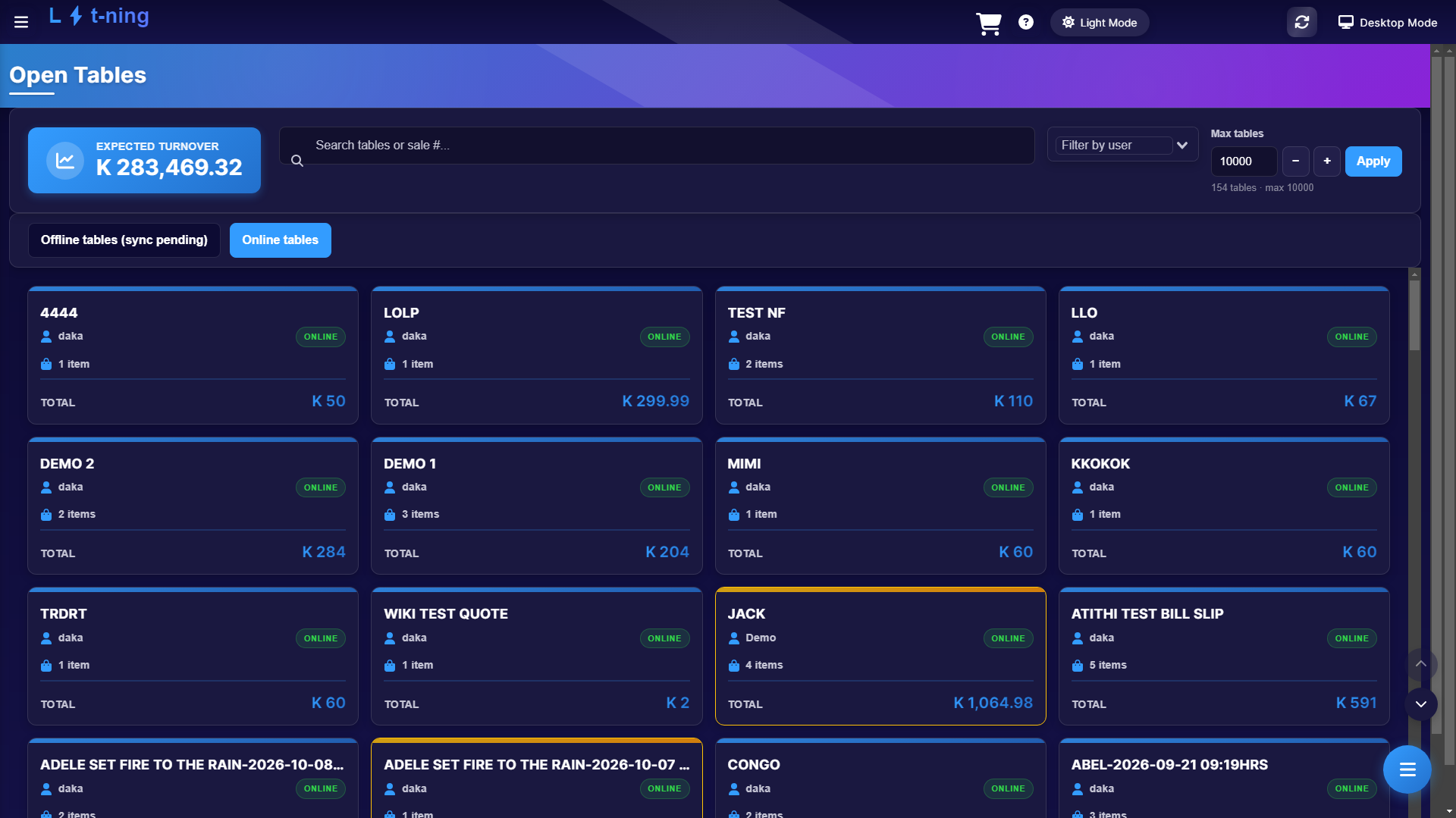 Open Tables: expected turnover for the period, search and filters, and every table with its owner, item count and total. The floating button at the bottom right opens the menu.
- On Mobile POS, tap Tables (desktop: Open Tables).
- Tap an open table to reopen it, or create a new one (below).
- Add the guest's order from the menu, then Save Table. Saving prints the order to the kitchen — with each line's cooking instructions — and adds it to the table.
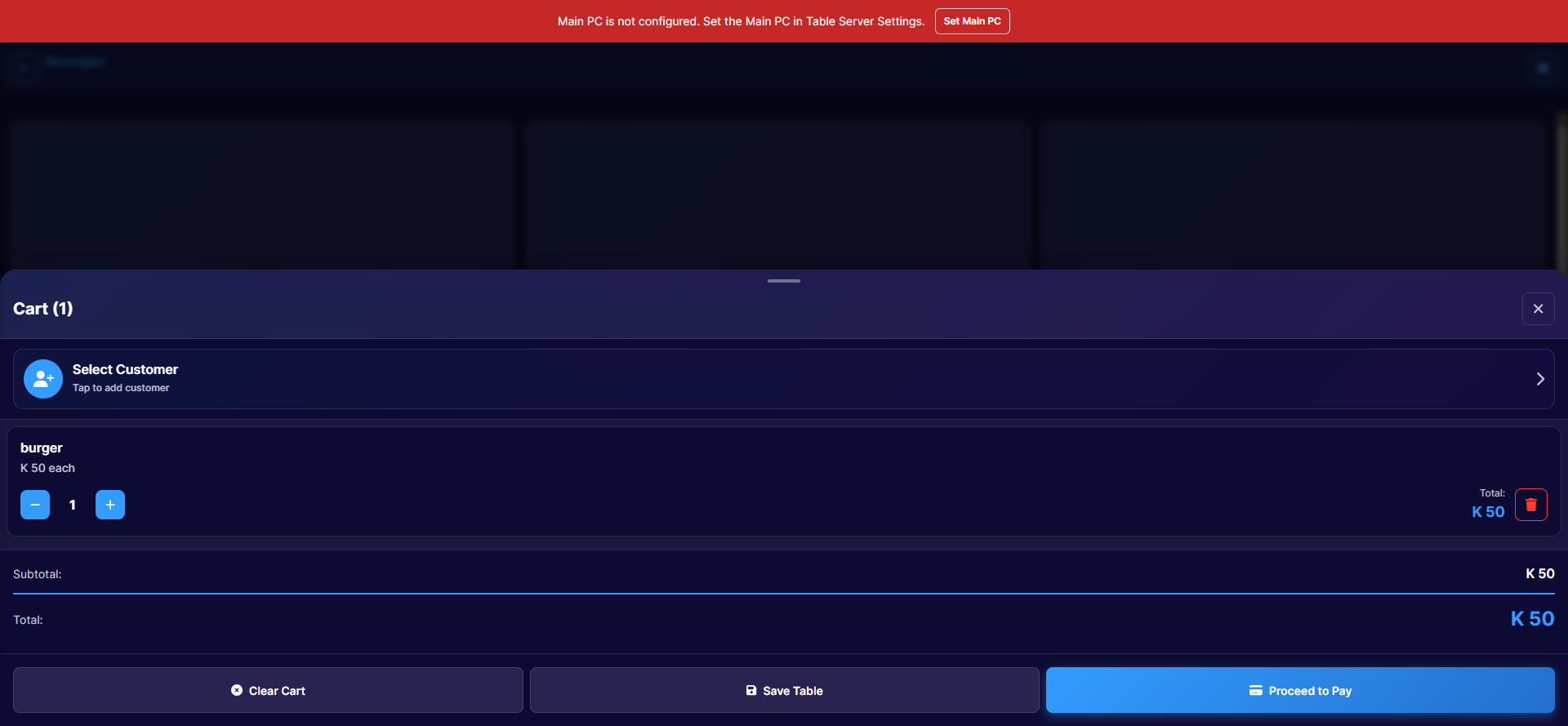 The mobile cart's Save Table parks the order on the table and fires the kitchen print.
Create a table
- On the Tables screen, tap Create Table.
- Pick a quick number (TABLE #1…#20) or type a name, and set the head count.
- Confirm — the till reserves the table and opens it ready for the first order.
Work a table
Tap an open table to open its sheet:
| Action | What it does |
|---|---|
| Save | Keep the order and fire the kitchen print |
| Pay | Take payment for the table |
| Bill | Print a bill slip for the guest |
| Transfer lines | Move items to another table (guests moving seats) |
| Split | Split the table into two — pick lines one by one or whole lines |
| Proforma | A pre-invoice for approval before payment |
Saving, transferring, splitting and merging tables are permission-controlled — the till asks for a supervisor when your group does not include them. See Till roles and screen access.
Merge tables
When guests join tables: on the Tables screen choose Merge Tables, tick two or more tables, give the merged table its new name and waiter, and confirm. The orders combine under one table.
Offline tables
When the Table Server link is down, tables you save are held as Offline tables (sync pending) and sync when the link returns — the Tables screen separates them onto their own tab with a Sync Offline Tables button. See Restaurant settings and the Table Server.
When the customer accepts - quotes management
Saved quotes are managed from the View Quotes screen. Open a quote and the action box gives you everything in one place:
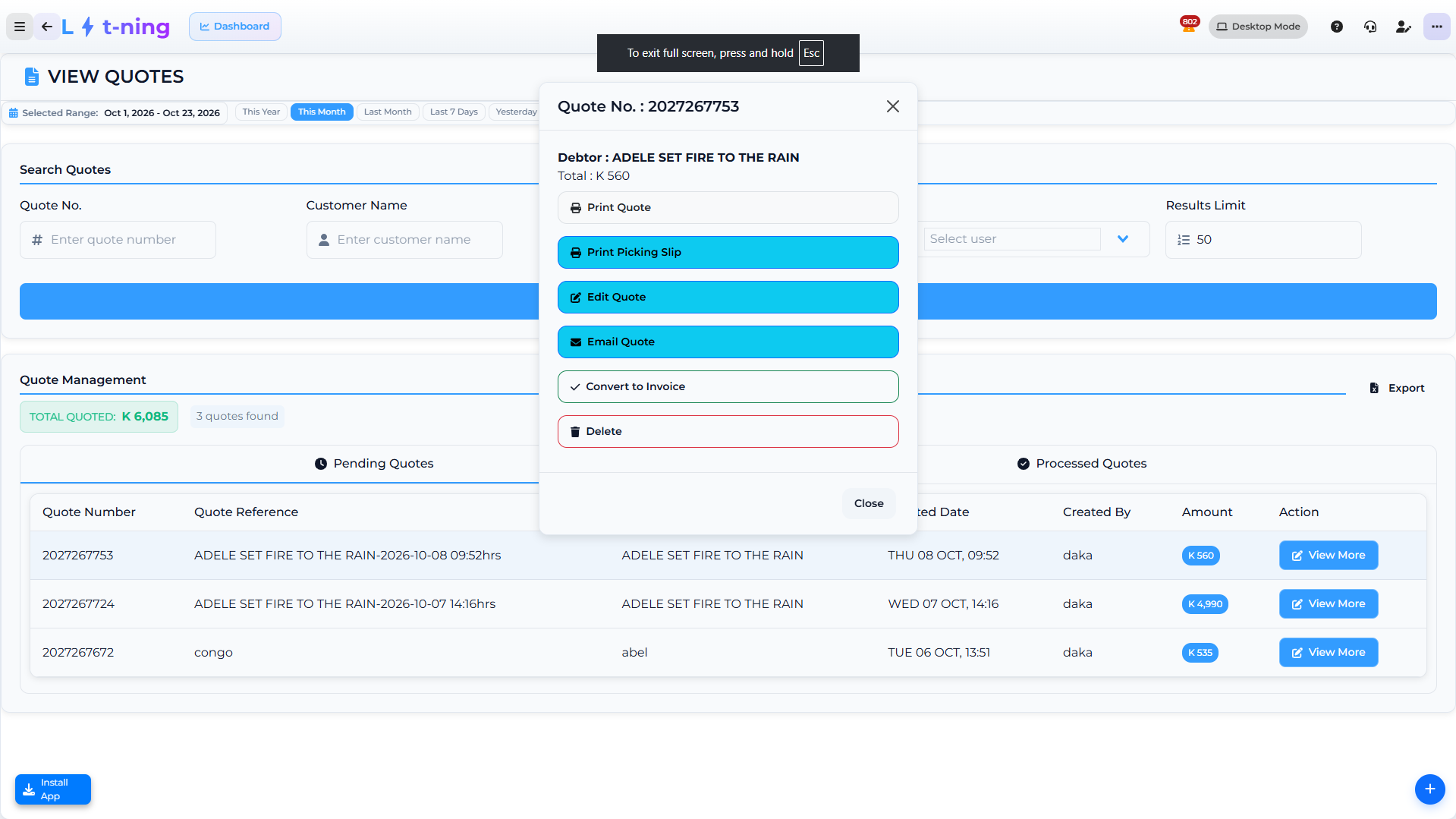 Print the quote or a picking slip for the kitchen, edit it, email it to the customer, convert it to an invoice, or delete it.
- Print Quote / Print Picking Slip - documents for the customer and the kitchen.
- Edit Quote - change lines or quantities before converting.
- Email Quote - send it straight to the customer.
- Convert to Invoice - the customer accepted; the quote becomes an invoice. A quote saved on the DSR field-sales app is settled here too.
- Delete - remove a quote that was never accepted.
Expected result
Every table on the floor matches a live order with the right owner, and the kitchen has printed exactly what the guest ordered.
Edge cases
- A table card shows a lock. Another user has it open — work a different table.
- The till will not save the table. If a supervisor is required, your group lacks the permission; call one over.
- Merge is greyed out. You need at least two tables ticked — and the link must be online.
- Tables are not syncing between handhelds. The Table Server is down — see Restaurant settings and the Table Server.