
Appearance
Warnings reports (Analytics)
Goal
See every operational warning the system raised in the period, and what to do about each.
The Warnings Reports section in the drawer is the operational-watchdog hub — the system flags exceptions (an uncashed-up sale, a stock-take variance that exceeds a threshold, a payout without a linked expense) and you resolve them here.
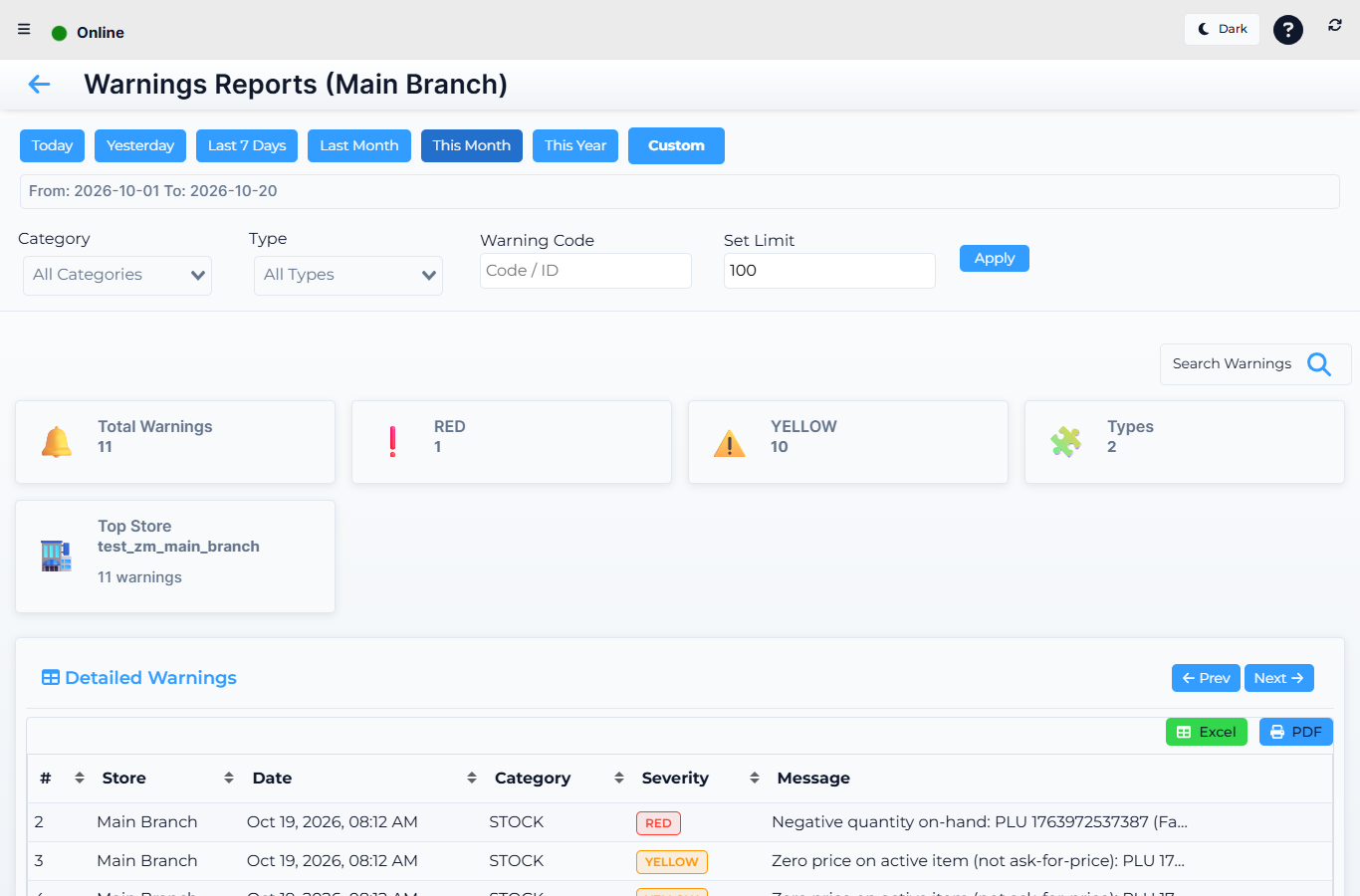 Lytning Analytics v2.2.6 at https://analytics.pos.co.zm/dashboard, captured 2026-10-19. See the evidence doc for the full route inventory.
Where this happens
Open the menu and click Warnings Reports. You land on the warnings list.
The screens
| Route | What it shows |
|---|---|
| Warnings Reports | The list of warnings in the period — by store, date, type, status (open / acknowledged / resolved) |
| Warnings Reports / :id | A single warning in full — what triggered it, the linked record (invoice, cashup, transfer, etc.), the suggested action, and the audit trail of who saw and resolved it |
How to read a warning
- On the Warnings Reports list, filter by store, type, and status to see what needs attention now.
- Click a row to open the detail.
- Read the warning type and the linked record, then follow the suggested action (acknowledge, resolve, or open the linked report).
- Use Export to send the open-warnings list to the manager at the start of the day.
Expected result
Every warning is recorded, addressed, and traceable. Nothing in the operational list is silently ignored.
Edge cases
- A warning references an invoice you don't recognise. Drill into the invoice — see Invoices, reprints and refunds (Retail POS App) for the till-side view.
- A warning stays "open" after you think you've resolved it. Resolution is logged on the warning detail screen; refresh the list and check the status column.
- A warning type is new to you. Raise a ticket via Support & escalation and include the warning ID.
- The list is empty. The system has no exceptions in the period — a good day. Check the date range if you expected something.