
Appearance
Till roles and screen access
Goal
Understand who can see and do what on a till — and what to do when a screen is missing or the till asks for a supervisor.
Where till access is decided
Till access is not set on the till. It is set in the back office (Core App) under Finance & Administration → Supplier & Employee Management → Employee Security, and every till follows it. See Grant employee permissions for the setup steps.
How it works:
- Every staff member belongs to a security group (for example Cashier, Supervisor, Stock Controller).
- The group lists the actions that role may do — refund, discount, cashup, stock take, and so on.
- The till reads your group at sign-in and shapes the app around it: screens you may use appear, and actions you may not are hidden, blocked, or guarded by a supervisor check.
The group names are conventions your franchise chooses — the till has no fixed "cashier role" built in. If your store uses different names, everything on this page still applies to whatever groups your franchise owner set up.
What each role typically does
| Group (typical name) | Typically can | Typically needs a supervisor for |
|---|---|---|
| Cashier | Sign in with a PIN, sell, take cash / card / split / Kazang payments, print receipts, save quotes or tables, look up customers, raise support tickets | Refunds, discounts, price edits, voids, cashup, stock take, settings |
| Supervisor / Manager | Everything a cashier does, plus refunds, voids, discounts, cashup, cashup records, device settings | Rarely anything — this is the role that approves others |
| Stock Controller | Stock take and stock transfers, alongside normal selling | Cashup, settings, back office |
These are starting points — your franchise owner decides the real split. When a till action is not in your group, one of three things happens.
The three ways a till blocks an action
| What you see | What it means | What to do |
|---|---|---|
| The menu item is missing | Your group hides that screen (for example Stock Transfer, or the Back Office link) | Ask your supervisor if you need it; only the back office can add it |
| Nothing happens when you click | Your group blocks that action quietly (for example Stock Take, Cashup Records, Device Settings) | Ask your supervisor to either do it or widen your group |
| A "Supervisor Approval Required" box appears | The action is allowed for your role only with approval (for example Refund, Void, Discount, open cash drawer, reprint an old receipt) | Call a supervisor to enter their password, or wait for back-office approval |
The supervisor approval box
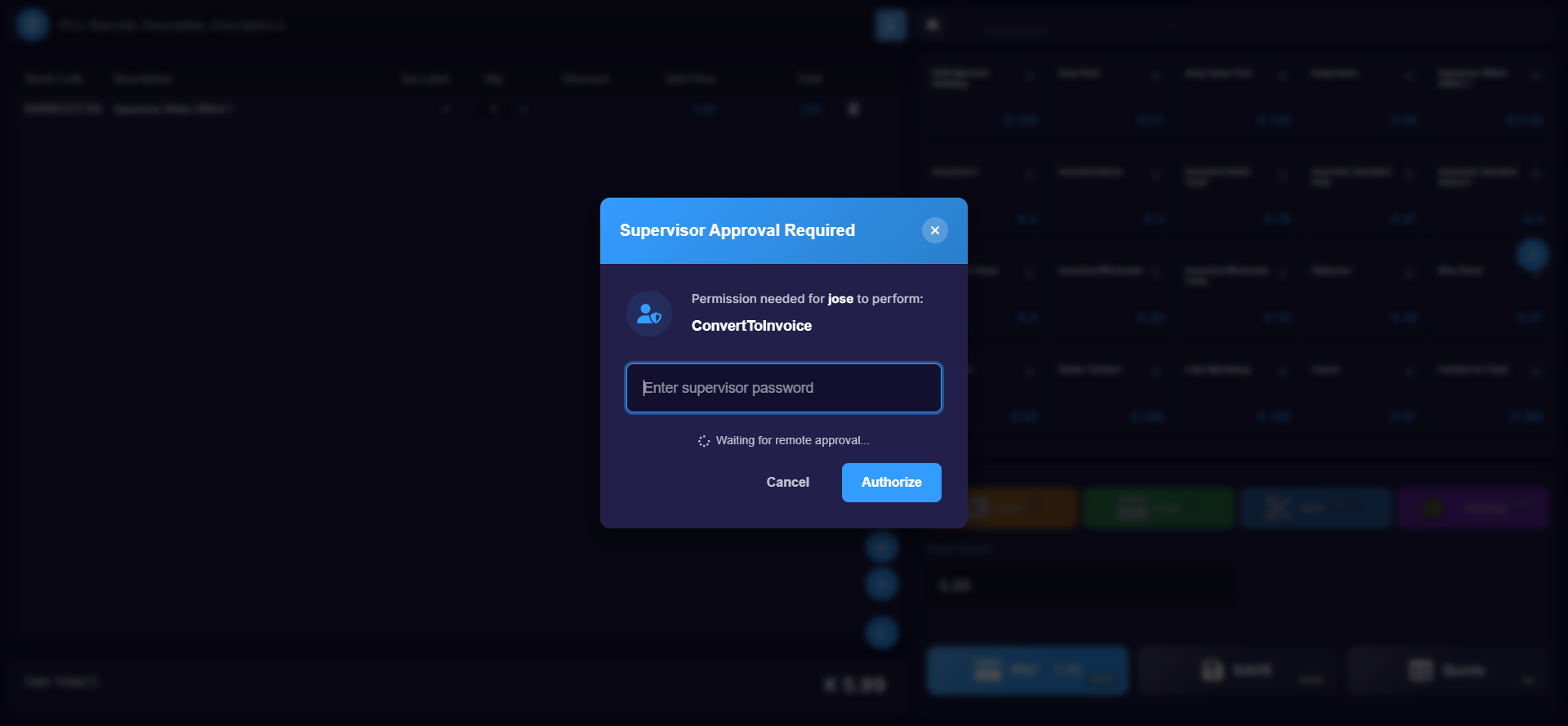 The till names the action and waits — a supervisor types their password, or the request goes to the back office for approval.
When the box appears, the till names the action you asked for and waits for a supervisor:
- A supervisor on the till enters their own password to approve. The approval is recorded — who approved, who asked, and what for.
- The approving supervisor must also have that permission in their own group. A supervisor whose group excludes refunds cannot approve a refund.
- Some approvals can instead be granted remotely from the Supervisor App on a supervisor's phone: the request arrives there within seconds and one tap unblocks the till. See Supervisor App — approve overrides from anywhere.
- Cancel the box and the action simply does not happen — nothing is saved, printed, or charged.
Approvals land in an audit record, so your franchise can always answer "who refunded this?" afterwards.
Edge cases
- "No security group found" when you sign in or act. Your user has no group, or the group name does not match. Do not keep trying — ask the franchise owner to check Employee Security, then sign out and back in.
- A menu item disappeared after your group changed. Sign out and back in to reload your permissions. If it is still missing, it was removed on purpose — check with the franchise owner.
- The supervisor password is rejected. Confirm it is a supervisor's own sign-in password, and that their group allows the action. Repeated failures: raise a ticket via Support & escalation.
- Two staff share one sign-in. Stop. Every approval is recorded against the signed-in user — shared sign-ins make the record wrong. Give each person their own PIN.
- You can sell, but a colleague cannot (or the reverse). That is the group settings, not a broken till.
Expected result
You can point at any till screen and say who reaches it: it is either in your group, or your franchise owner can see exactly which permission to add. Supervisors know their approval is recorded, and cashiers know the three ways "no" looks on a till.