
Appearance
Save and reuse quotations (Retail POS App)
Goal
Park an unfinished sale under a name, come back to it later, and turn it into a sale or merge it with another one.
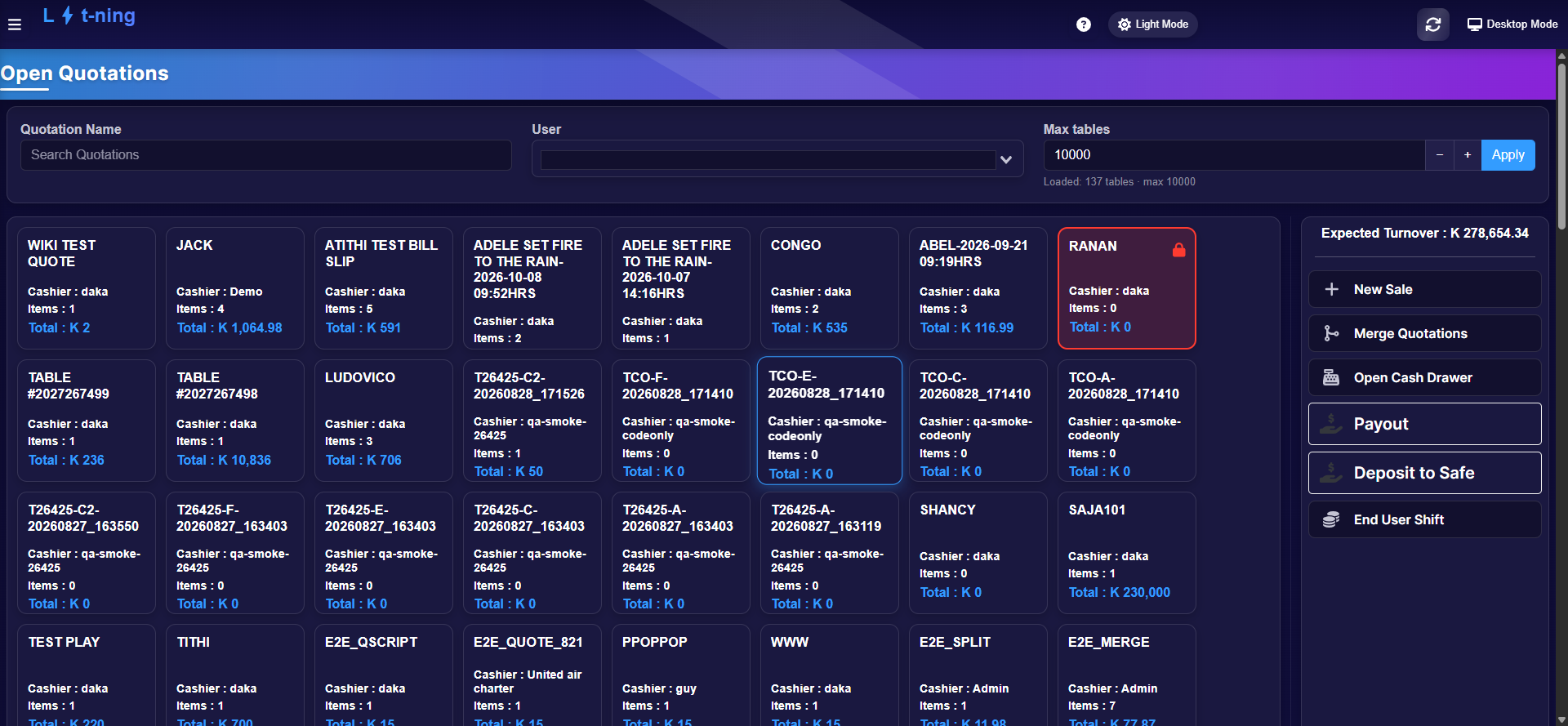 Open Quotations: one card per saved sale, with its cashier, item count and total. The panel on the right holds the quick actions.
Where this happens
On the Sales screen. SAVE parks the current sale; Quote opens the saved ones.
Save a sale as a quotation
- Build the sale as usual (see Sell at the till).
- Click SAVE.
- Type a Quotation Name the team will recognise — for example the customer's name.
- Click Save Quotation.
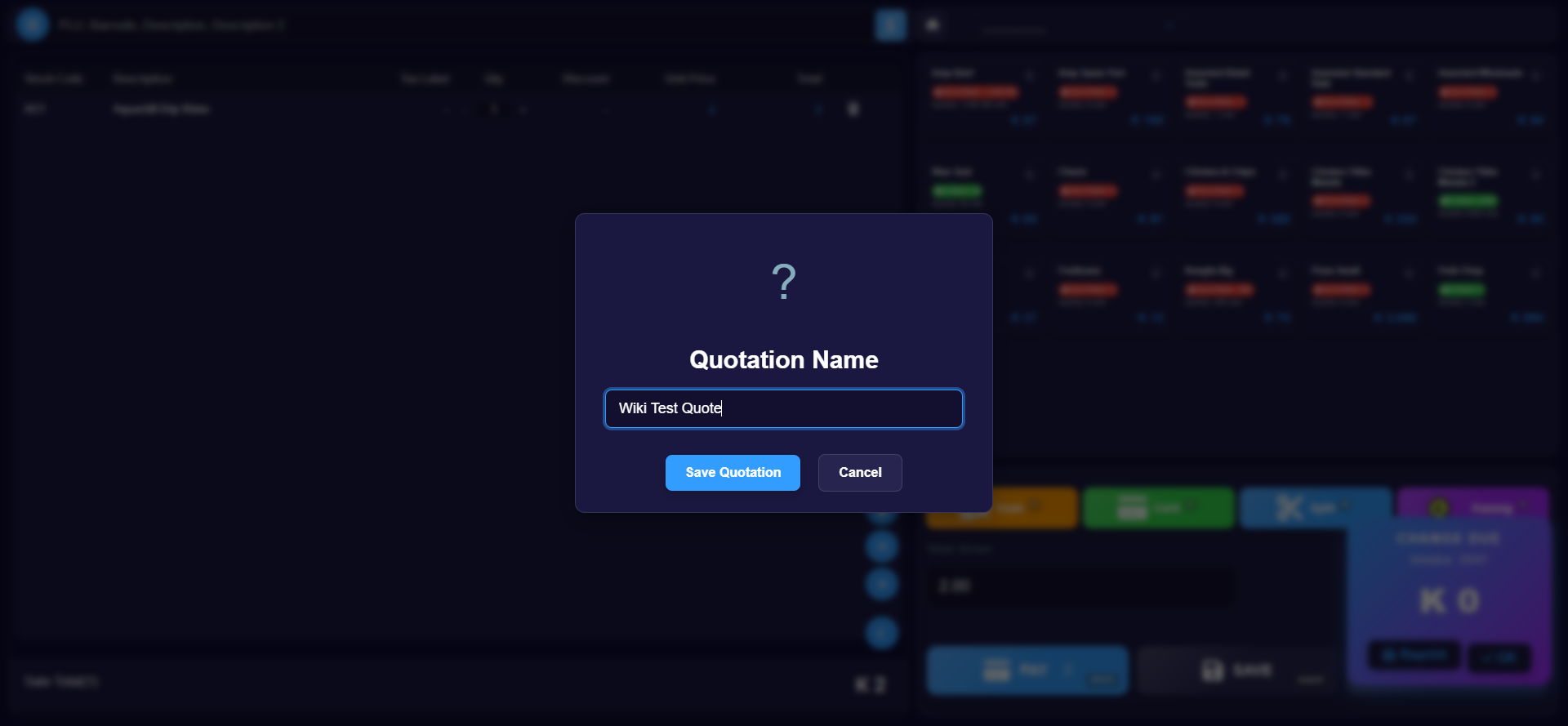 The till confirms: "Quotation … Saved". The sale is cleared from the Sales screen.
Reopen a quotation
- On the Sales screen, click Quote. Open Quotations lists every saved sale — search by name, filter by user, or scroll.
- Click the card. A sheet opens with the quote's lines and four actions:
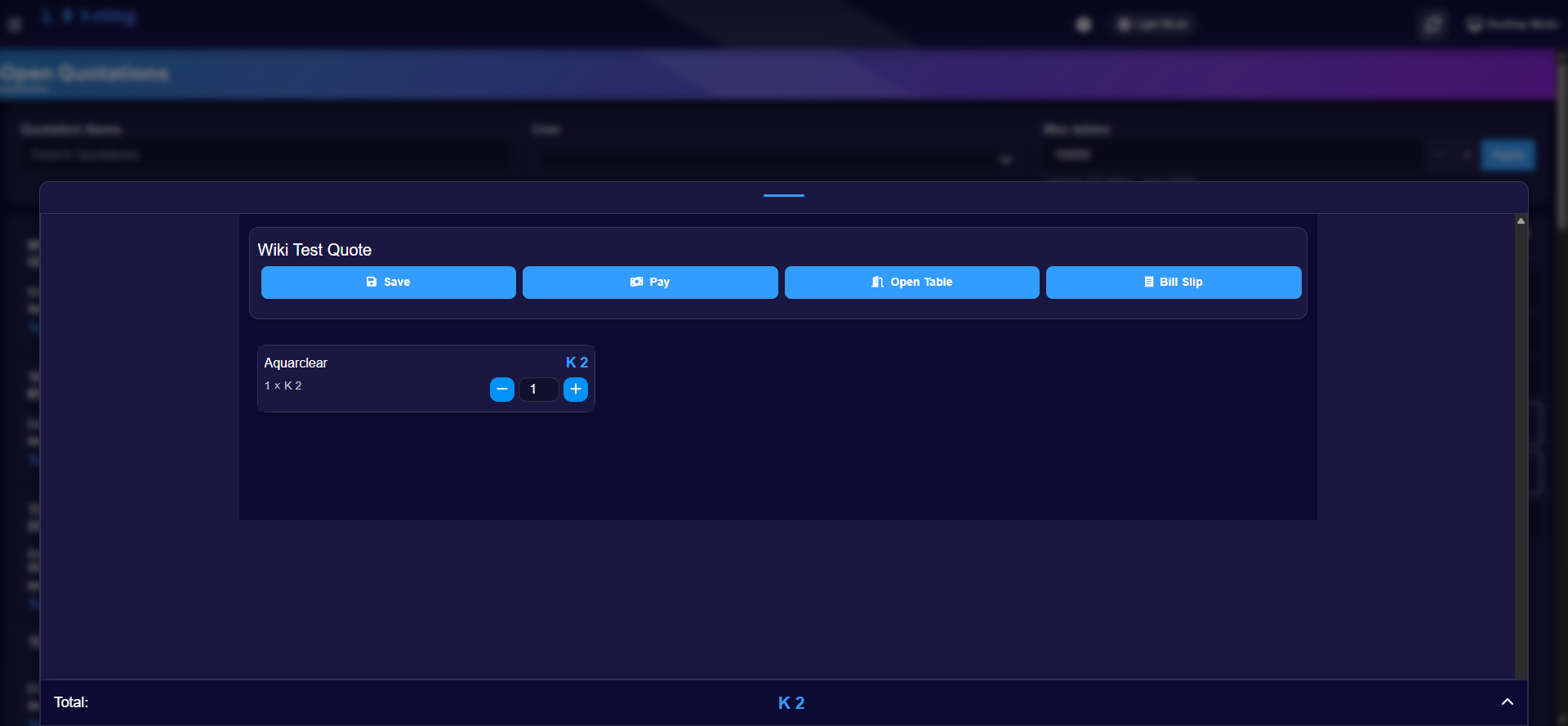
| Action | What it does |
|---|---|
| Save | Keep the quotation as is |
| Pay | Take the quotation straight to payment |
| Open Table | Load the quotation back onto the Sales screen to edit it |
| Bill Slip | Print a bill the customer can take away |
Merge two quotations
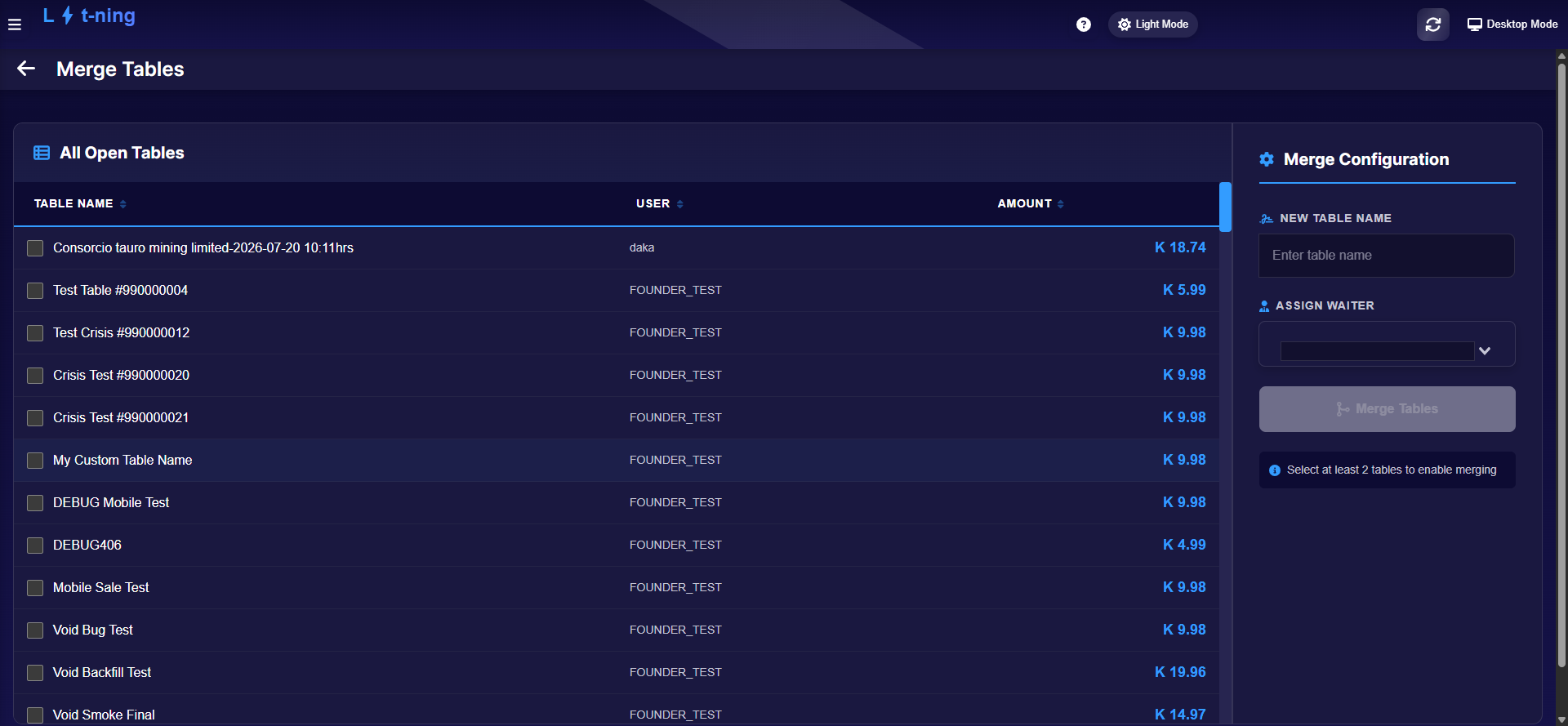
- In Open Quotations, click Merge Quotations in the right panel.
- Tick at least two quotations — the merge button stays off until you do.
- Type the New Table Name and assign the Waiter who owns it.
- Click Merge Tables. The two quotes become one under the new name.
When a quotation will not turn into a sale
A quotation only becomes a sale when every line on it can be sold. Three things stop that: a line with no usable quantity, an item the store is short of, and a role that is not allowed to make the change. Work through them in that order — the first two are on the quotation, the third is on your sign-in.
A line has no usable quantity
If any line on the quotation has a quantity of zero, or a quantity the till cannot read as a number, the quotation's Save and Pay buttons stay greyed out and pressing them does nothing — no error, no message. Both are in the four actions listed under Reopen a quotation.
Open the quotation back onto the Sales screen, correct the quantity on that line, save the quotation again, and reopen it from the list. A line left at zero is the most common reason a quotation will not turn into a sale.
The store is short of an item
Selling takes the stock off the shelf, so a quotation can only become a sale when the store has stock for every line on it. What happens when it does not is decided by one store setting. That setting permits selling when the available quantity is insufficient:
- When that setting is off, the sale is refused. The till shows an error naming the item, how many units it could not take, and how many are on hand. Check that item's stock, then either receive the stock in (see How to receive stock (GRV)) or take the line off the quotation and try again.
- When that setting is on, the sale goes through and the item's quantity on hand drops below zero. The quotation is not the problem — the shortfall shows up on the item and in your stock reports, and you correct it with a stock adjustment (see Stock).
Your franchise owner controls that setting in the back office under System Settings. Ask before it is changed, because a store that sells below the available quantity carries the difference on its own stock record.
The quotation list shows the item count and the total, not the stock position. Check the stock for each line before you turn a quotation into a sale, especially one that has been sitting for a few days.
Your role does not allow the change
Quotation actions are permission-controlled, like the rest of the till. When your security group does not include the action, the till either does not show it or does nothing when you press it — there is no error message to read. Till roles and screen access explains the three ways a till says no and how a Supervisor widens a group. Groups are set in the back office under Employee Security — see Grant employee permissions for the steps.
Doing it from the back office
A quotation can also be raised and turned into an invoice from the back office, by a Supervisor or franchise admin. Open Sales Management → Quote, or Customer Management → View Quotes, then open the quotation and turn it into an invoice. How to manage customers shows that step; Sales covers the wider back-office path.
Three things stop the back office in the same way:
- The store has not turned on online invoicing. The back office refuses the conversion and asks for online invoicing to be enabled. Your franchise owner controls this.
- The quotation has no lines left. If every line was removed from the quotation there is nothing to convert, and the back office says it cannot find any sale lines. Open the quotation and check its lines first.
- The quotation has already been converted. A quotation that has become an invoice cannot be converted again — the option is no longer offered and the quotation moves into the processed list. Look for the invoice instead.
Expected result
Saved quotes keep their lines and totals until someone opens, pays, or merges them — nothing expires silently during the day.
Edge cases
- The till asks for a supervisor when saving or merging. Quotation actions are permission-controlled — see Till roles and screen access.
- A card shows a lock icon. Another user has that quotation open; leave it alone until they are done.
- The quotation list is very long. Use the Quotation Name search or the User filter, and set Max tables to control how many load at once.
- You saved with the wrong name. Open the quote, click Open Table, then SAVE again with the correct name.
- A quotation will not turn into a sale. Work through When a quotation will not turn into a sale — usually a line with no usable quantity, an item the store is short of, or a role that is not allowed to make the change.
- You are in the back office. A quotation can also be raised and turned into an invoice there — see Sales.
Before you open a ticket
- The quotation number, as it appears on the quotation
- The error message, or a screenshot of it
- Whether stock is on hand for each line, and how many
- Whether you were on the till or in the back office, and which store