
Appearance
Saved orders and documents (DSR)
Goal
Find Every quote you have saved, re-read it, and get the document to the customer.
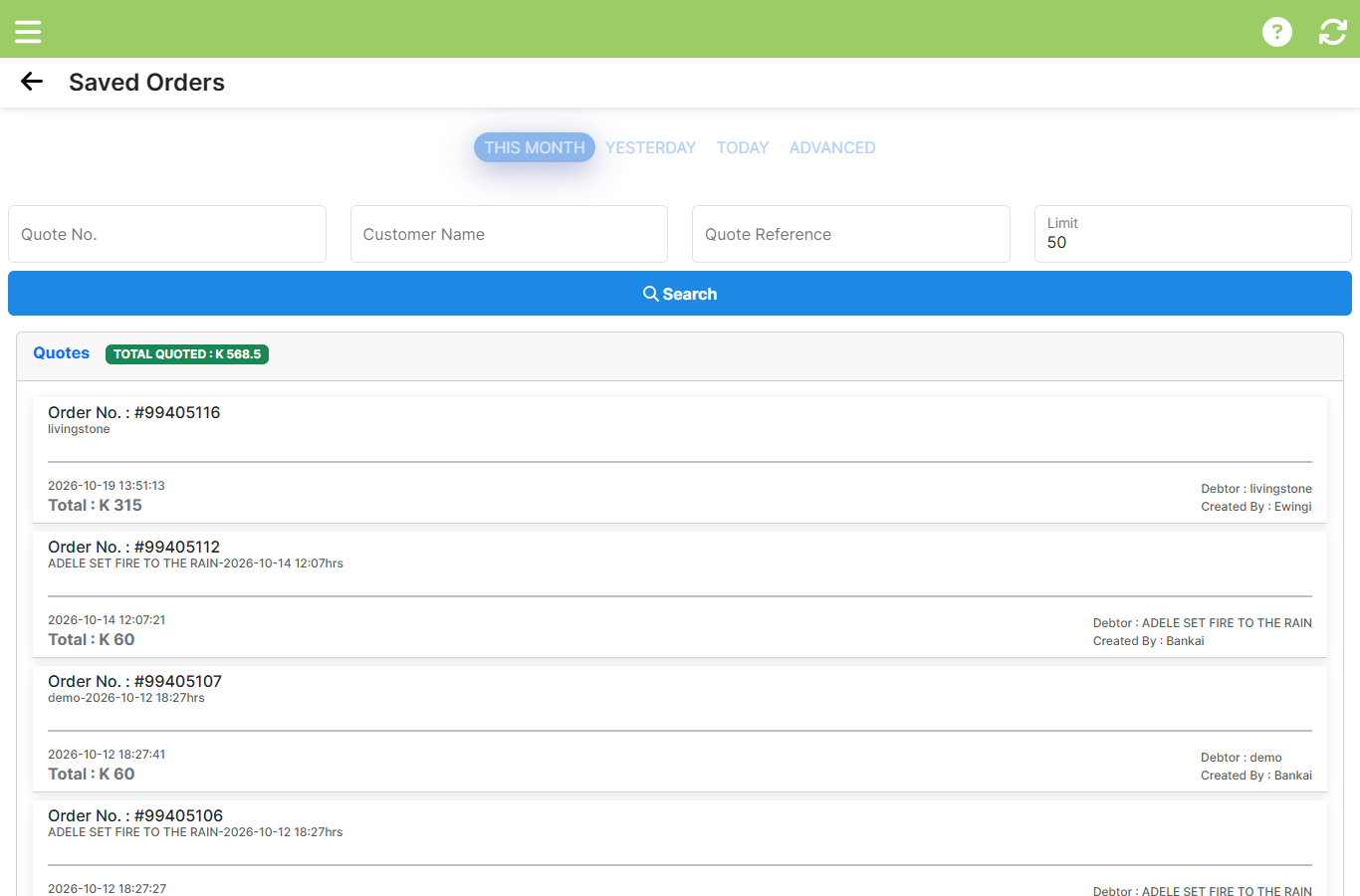 Every saved quote with its reference, total, debtor and the rep who created it.
Where this happens
On the Sales screen, the Saved Orders area (the quotes list) holds everything you have issued from this device.
Steps
1. Open Saved Orders
Open the list. Pick a period first — This Month, Yesterday, Today, or Advanced for a custom range.
2. Narrow it down
Search by Quote No., Customer Name, or Quote Reference, set a Limit, then Search.
3. Read the order
Each order shows its Order No., the reference, the date and time, the Total, the Debtor it belongs to, and Created By — the rep who issued it. The banner shows the Total Quoted for the period.
Deep links
A saved order can be opened from a link — the order details are encoded in the address, so a rep can be sent straight to a customer's order without browsing.
Expected result
You can find any order you issued, confirm its reference and total, and hand the customer the document again.
Edge cases
- An order is missing. Check the period — the list defaults to This Month. Widen it to Advanced if the order is older.
- Created By is someone else. Orders belong to the rep who issued them, not to the customer. Ask that colleague if the customer is asking about it.
- You cannot find a document to download. Re-open the order from this list and use Download; if the device has been reinstalled, the print history is gone but the order is still in the store.