
Appearance
Sign in on the DSR app
Goal
Get from a cold start to the DSR selling screen: franchise → store → your PIN.
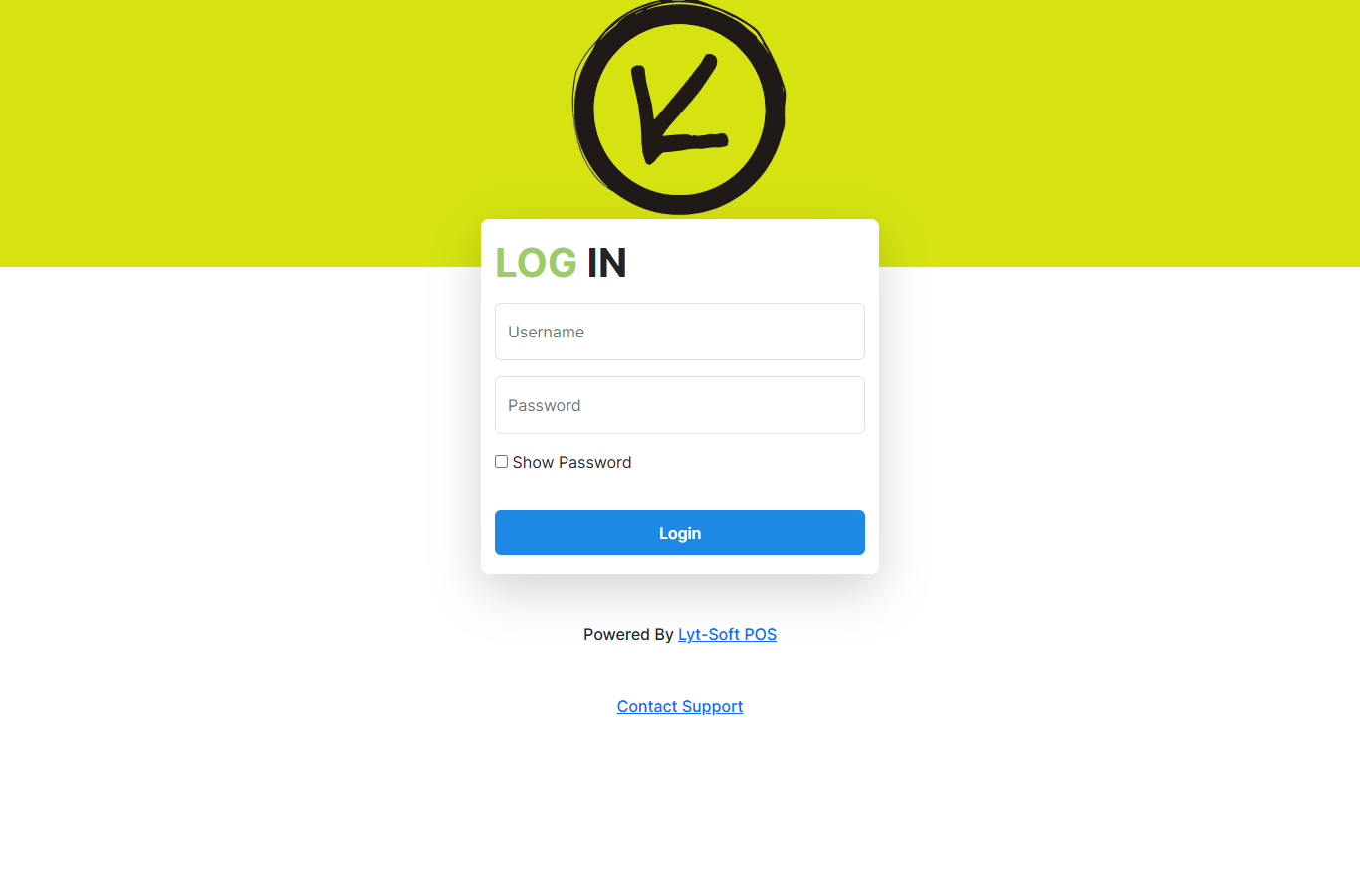 Sign in with the franchise username and password you use for the back office.
Steps
1. Sign in to the franchise
Open https://dsr.pos.co.zm/pos (or launch the Android build). Enter your username and password, then Login. Passwords are stored encrypted on the device.
2. Set the store
The first sign-in on a device asks you to Set Default Store: choose your store from the list and click Save. The device remembers the store — you only do this once.
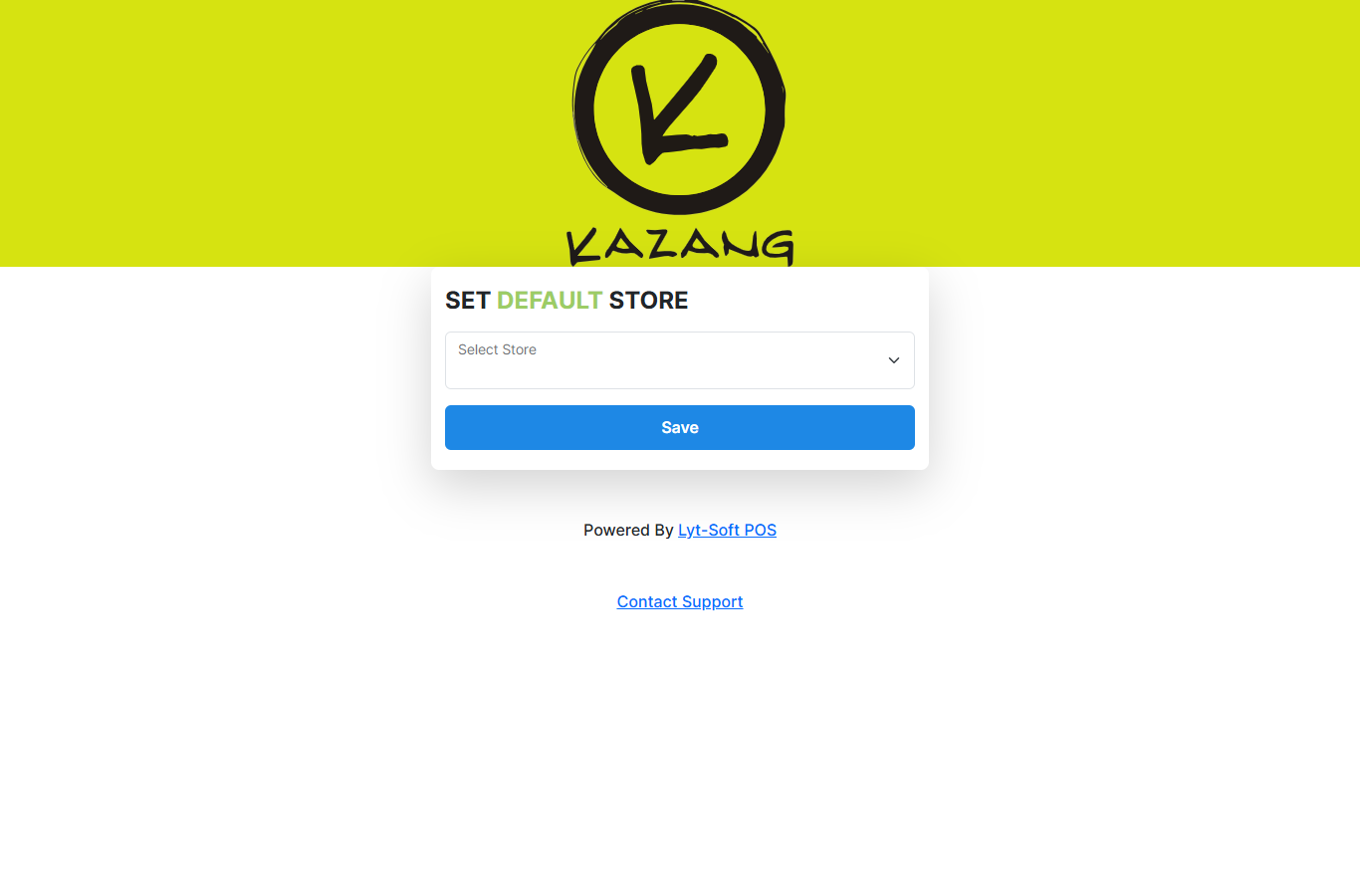 One store per device. To change it later, use Sign Out Of Store in Settings.
3. Enter your PIN
The till switches to the cashier PIN screen. Type your 4-digit PIN and click Login. Use Show PIN to check what you typed; Forgot PIN? Reset asks a supervisor to reset it.
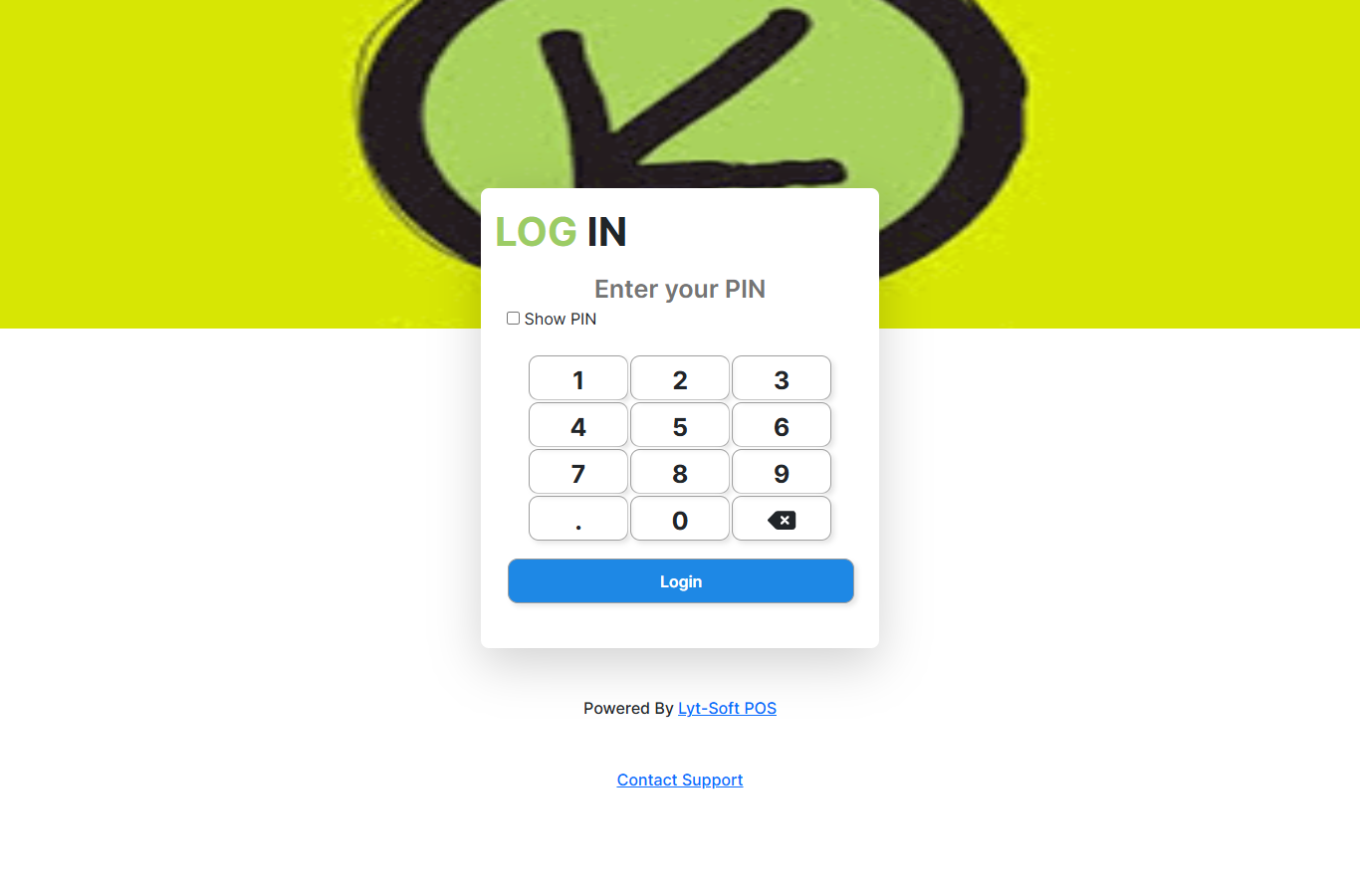 Your name and role appear in the menu once you are in.
4. You are in
The Sales screen opens and your name, role and store show in the menu.
Expected result
You land on Sales with the right store selected and your name and role visible in the menu.
Edge cases
- "User Not Found" on sign-in. DSR needs an email-style sign-in; a plain username will not be found. Use the email address on your account.
- The store list is empty. Your account is not linked to any store. Ask your franchise owner.
- PIN rejected. Re-enter it; if it keeps failing, ask a supervisor to reset it.
- The wrong store is set. A device keeps one store. Use Settings → Sign Out Of Store, then sign in and set the right one.