
Appearance
Sign in on the Restaurant POS App
Goal
Get a waiter or cashier from the login screen to a selling table in under a minute.
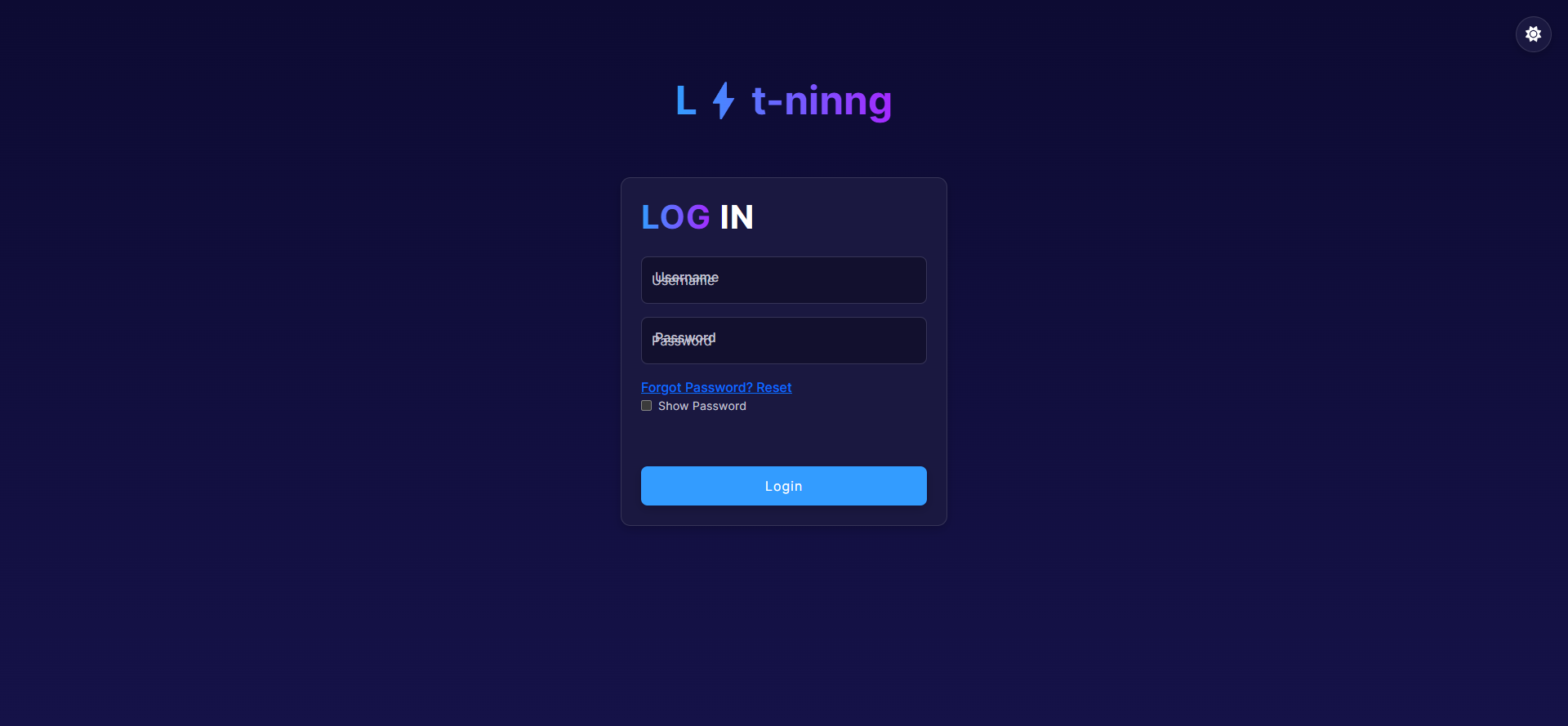 Restaurant POS App sign-in — enter your franchise username and password.
Before you start
- You have your franchise username and password (from your franchise owner).
- You know your store and your personal PIN. Never use another person's PIN.
Steps
1. Sign in to the franchise
- Open the Restaurant POS App.
- Type your Username and Password.
- Click Login.
If the app opens on a store list straight away, a franchise is already signed in on this device — skip to step 2.
2. Select your store
- Click your store in the Select Your Store list — for example RESTAURANT/ BAR/ TAKEAWAY.
- Click Continue.
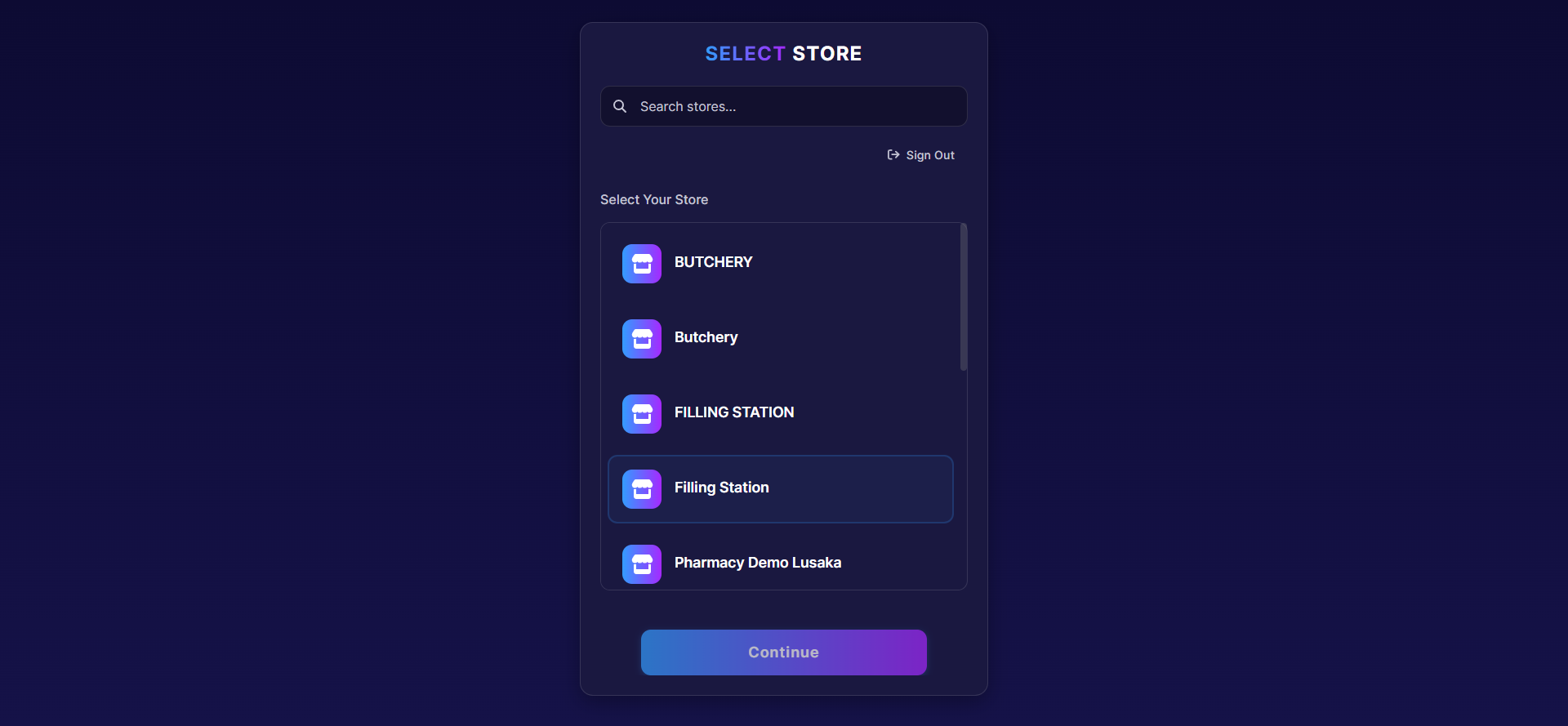 One device can serve any store in the franchise — pick the one this till belongs to.
3. Enter your PIN
- Type your 4-digit PIN on the keypad.
- Click Login.
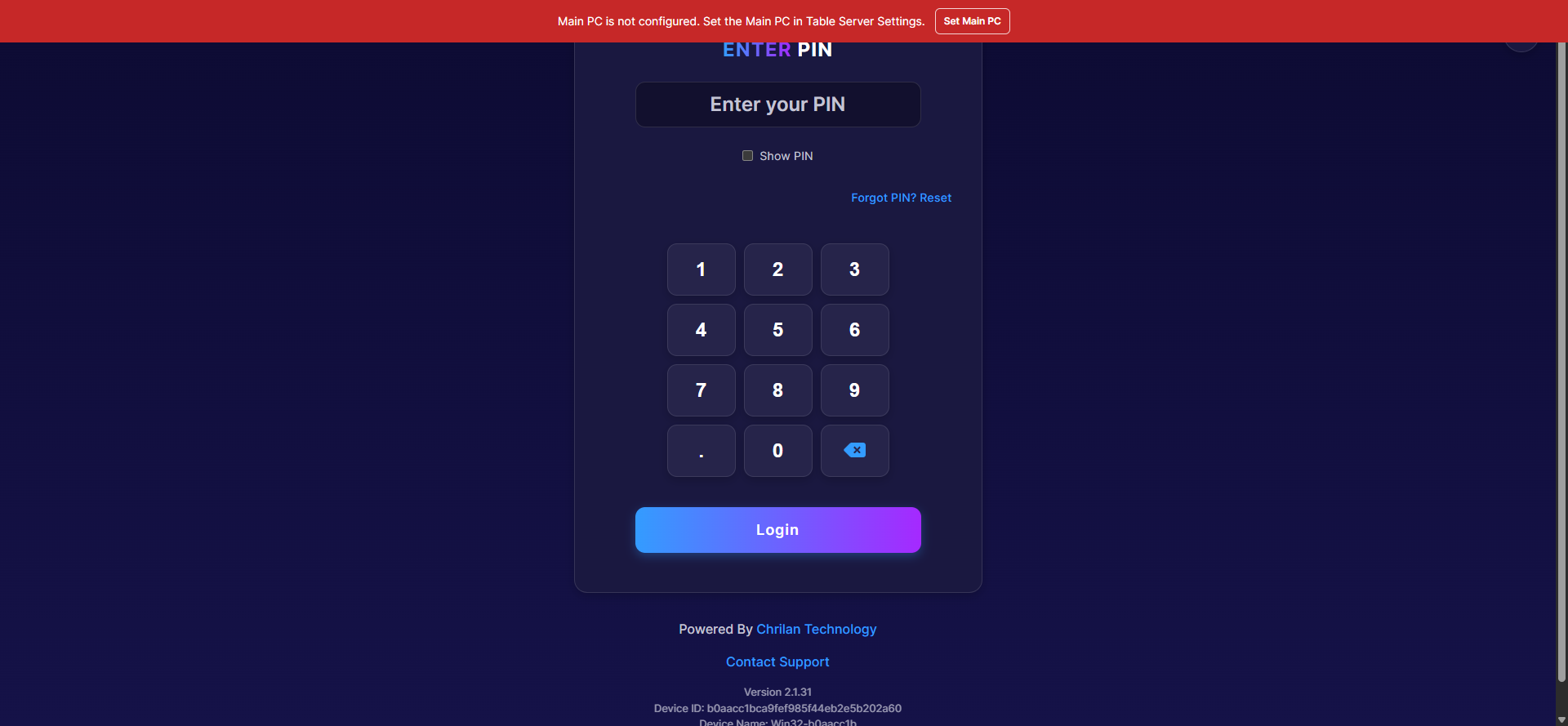 Tap Show PIN to check what you typed. Forgot PIN? Reset asks your supervisor to reset it.
4. Start your shift
- If your role handles cash, the float screen asks you to count in your starting cash. Enter it and click Start Shift.
- Waiter devices without a float go straight to the floor — this is normal.
5. You are in
- On a desktop till you land on Sales.
- On a handheld or tablet you land on the Mobile POS tables screen - the same shift, sized for the floor.
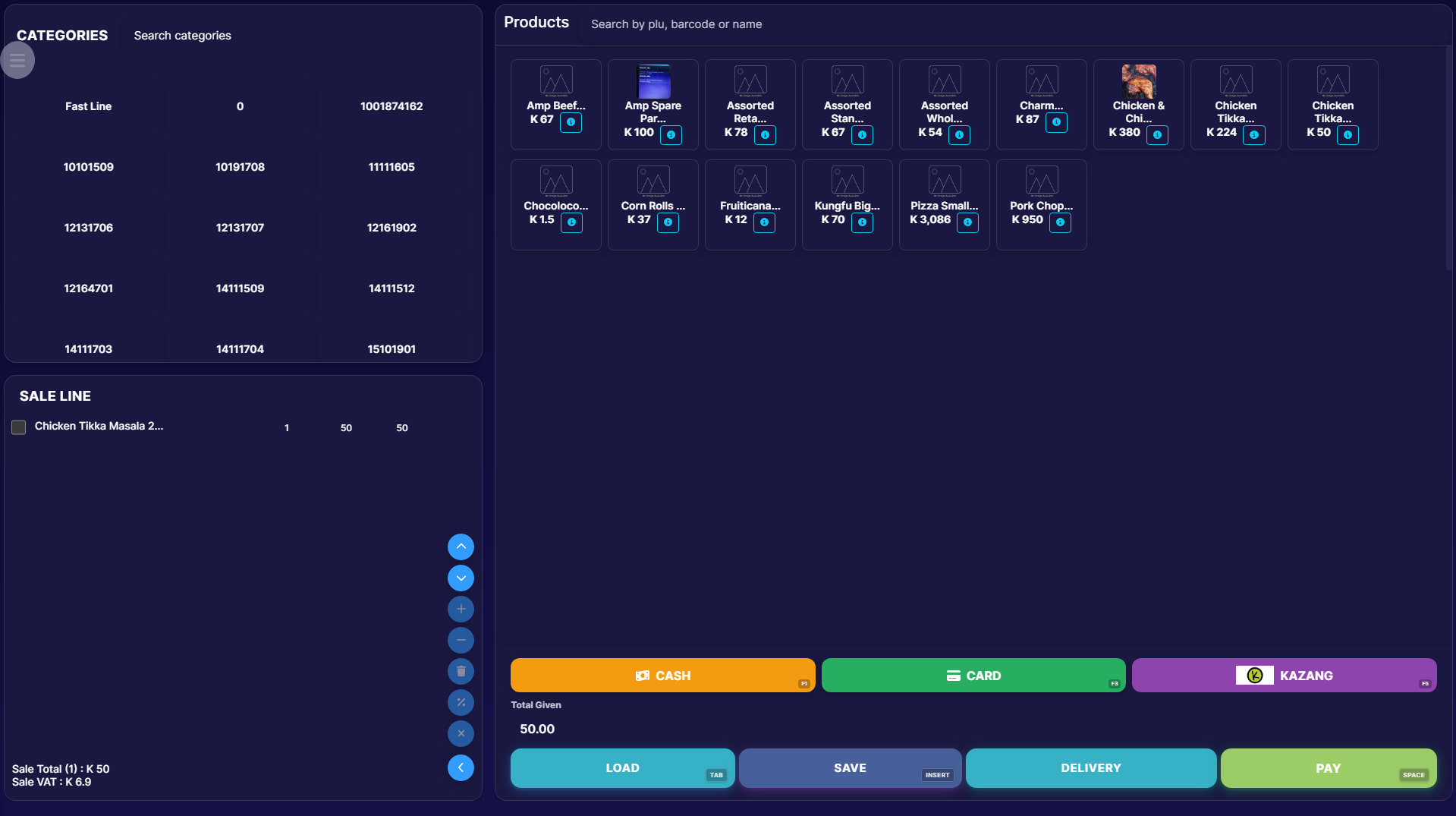 Desktop till: build the order, then take payment - CASH, CARD, KAZANG, then LOAD / SAVE / DELIVERY / PAY.
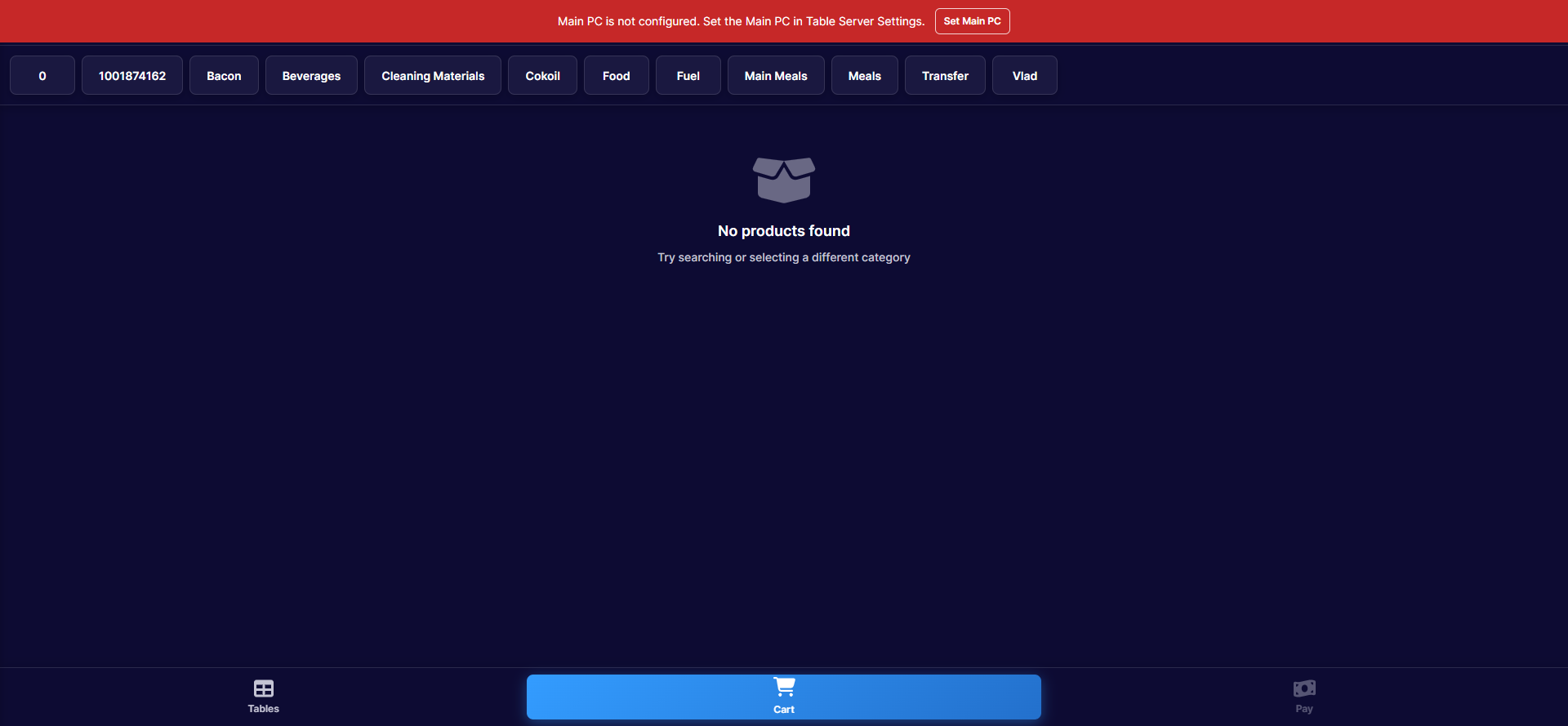 Handhelds and tablets land on the floor layout: Tables, Cart, Pay.
To end a session, open the menu and click Log out - the next person signs in with their own PIN at step 3.
Expected result
Your name and role show in the menu, the store name shows beside them, and you can open a table or the Sales screen for your store.
Edge cases
- "Incorrect PIN". Re-enter it slowly. Still failing? Ask your supervisor to reset your PIN from the back office, then use Forgot PIN? Reset.
- Your store is not in the list. The device is signed in to the wrong franchise. Click Sign Out and use the franchise sign-in from step 1.
- "This till can't be used until it's updated." The app is out of date. Follow the on-screen steps to request the update before signing in.
- "Main PC is not configured." The till cannot reach the Table Server that keeps tables in sync. Click Set Main PC on the banner and follow the Table Server steps, or ask your supervisor.
- The menu shows fewer items than a colleague's. Your sign-in's permissions differ. See Till roles and screen access.