
Appearance
Sign in to the Supervisor App
Goal
Get signed in to the right store so you start receiving that store's override requests.
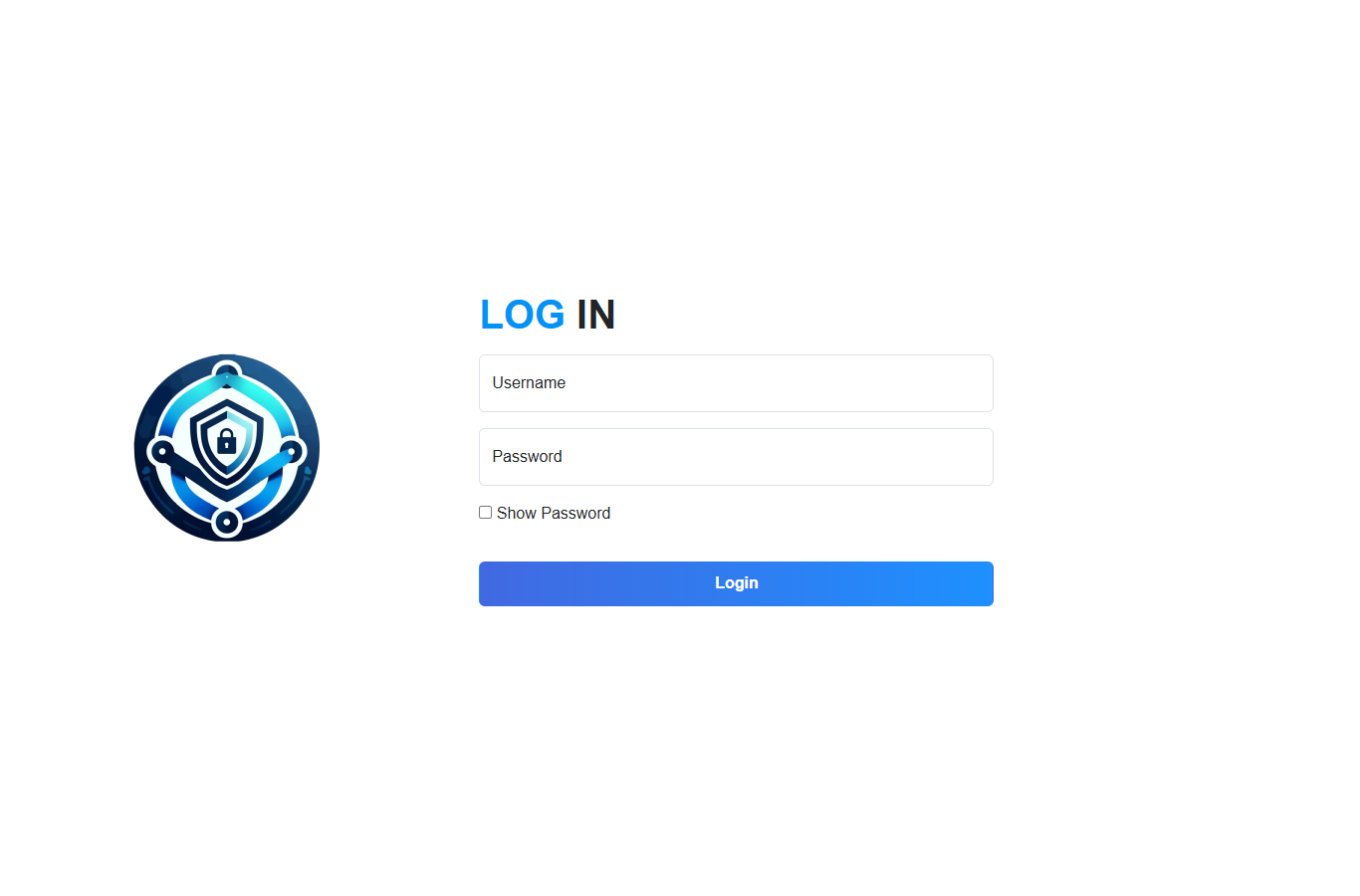 Sign in with the franchise username and password you use for the back office.
Steps
1. Sign in to the franchise
Open https://supervisor.pos.co.zm/ (or the Android build). Enter your username and password and click Login.
2. Set the store
Choose the store this device will monitor and click Save. One store per device.
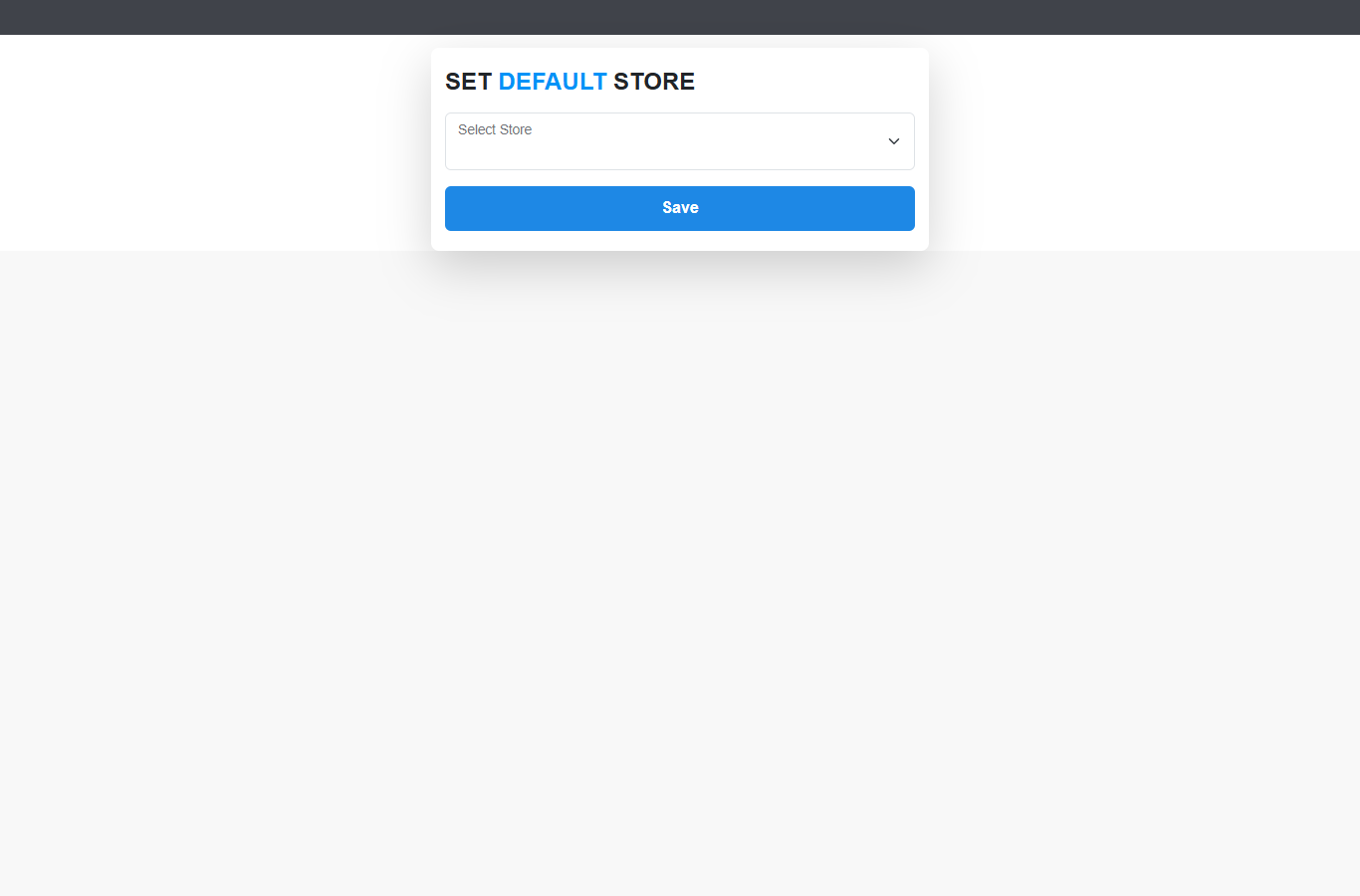 You only receive override requests for the store set here.
3. Enter your supervisor PIN
The app asks for your own PIN — the same PIN you use to sign in elsewhere. Type it and click Login.
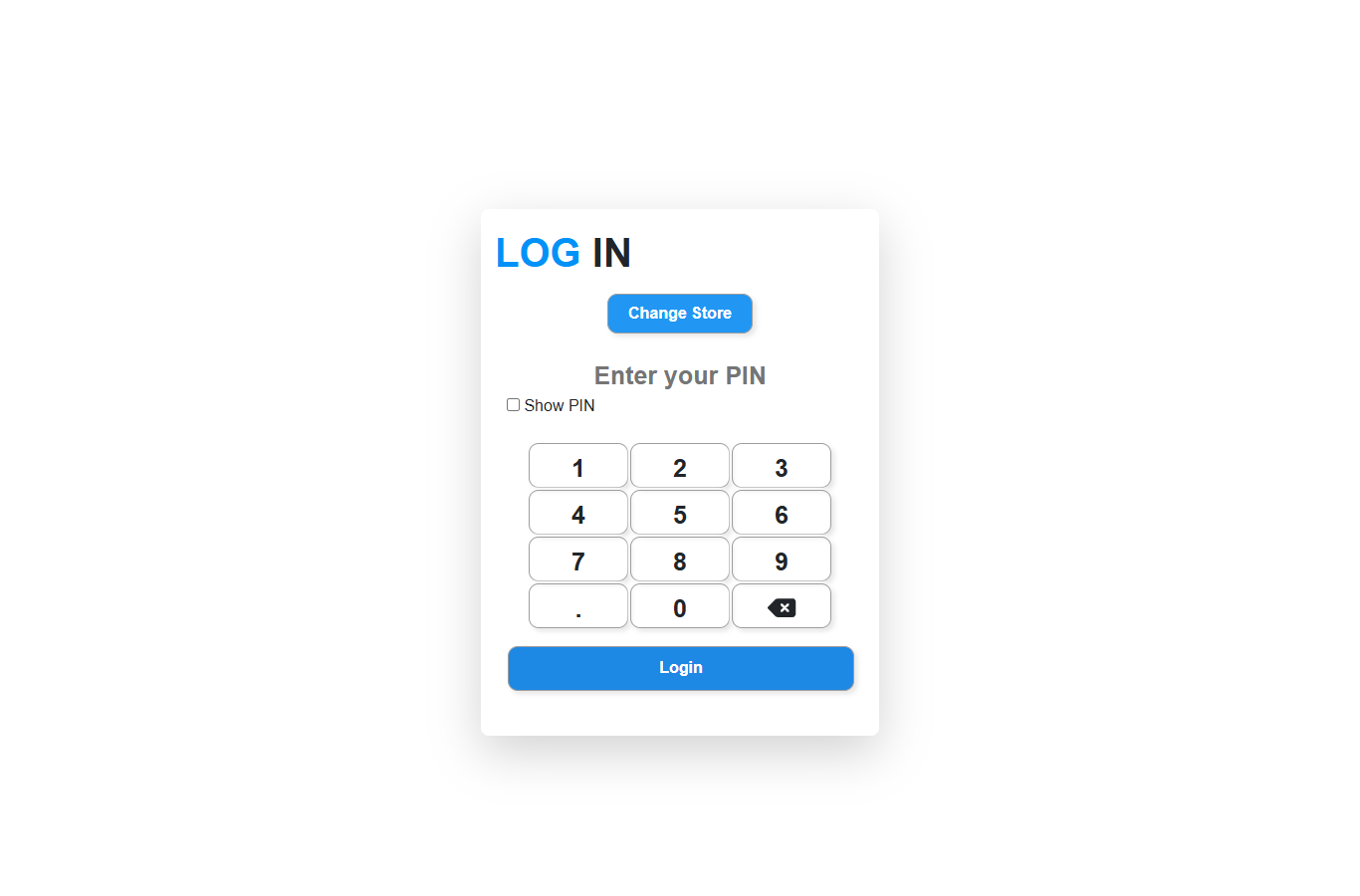 Change Store is available here if the device is pointed at the wrong store.
You are then on the Override Requests list.
Expected result
The Override Requests screen opens, showing the pending requests for the store you selected.
Edge cases
- "User Not Found" on sign-in. The app needs your email-style sign-in, not a short username.
- PIN rejected. The PIN must match your own employee PIN. If you cannot sign in with it anywhere, ask the franchise owner to reset it.
- Requests for the wrong store. Use Change Store on the PIN screen, sign in again and pick the right one.