
Appearance
End-of-day checklist
Goal
Close the day cleanly so cash, stock, and tomorrow's start-of-shift all match. Use this page as a printable checklist at the till or supervisor's desk.
Where this happens
- In the back office (Core App): open Till Management → Store Cashups for the cashup, Till Management → Edit Float for the safe, System & Settings → System Settings for offline-sync checks, Sales Management → Active Specials for tomorrow's specials, and Support & Documentation → Report an Issue for anything worth flagging.
- On the till (Retail POS App or Restaurant POS App): open End User Shift (or
/cashup) to close the shift and reconcile the day's totals. Open Support on the till home screen to raise a ticket from the till.
The supervisor owns the end-of-day run. The cashier helps with the cashup count and signs off the safe.
Prerequisites
- Signed in to the correct store and till.
- A supervisor is available to approve variances and unlock the safe.
- The day's cash, slips, and approved expense paperwork are at hand.
Steps
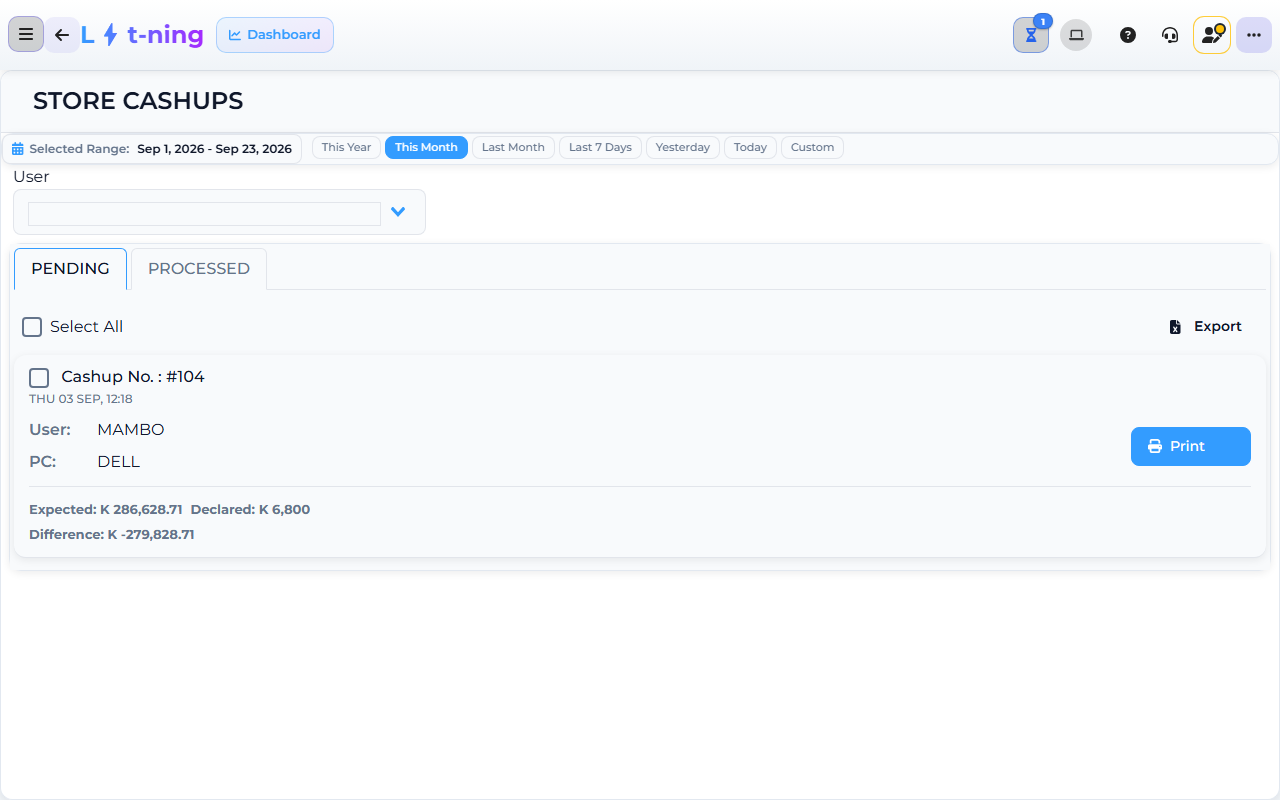
The image shows the Core App Store Cashups screen. Screens may differ slightly by version.
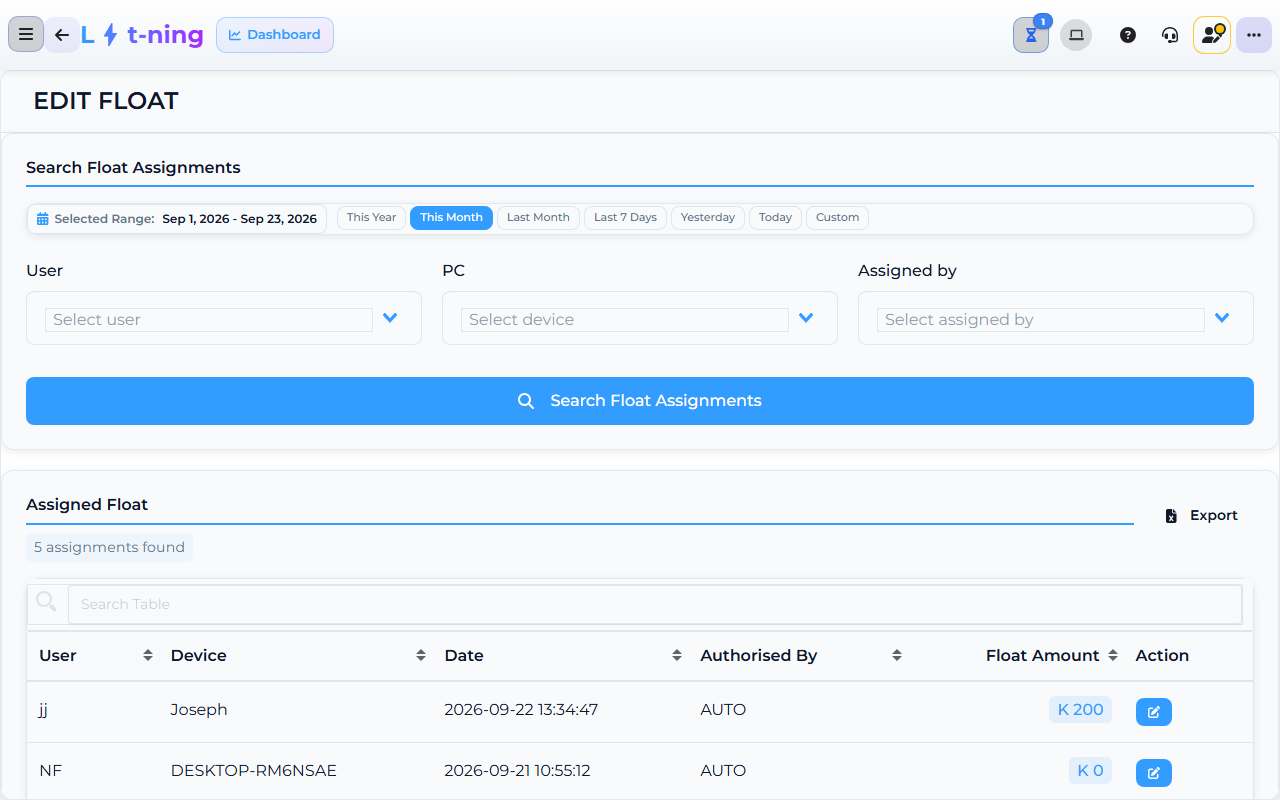
The image shows the Core App Edit Float screen. Screens may differ slightly by version.
1. Cashup
- Open Till Management → Store Cashups in the back office (or End User Shift on the till, where the counting happens).
- Review each cashup record for the day: the Expected total, the Declared total, and the Difference.
- Select the records that check out and click Finalize to process them.
- Keep the Cashup No. reference from each record. The day's totals now match the cash drawer.
2. Float and safe
- Open Till Management → Edit Float to review the float assigned to each till user and device; click Edit Float on an assignment to correct its amount.
- Open Finance & Admin → Financial Management → Cash and Accounts to check the safe: the Balance, total Money IN, total Money OUT, and the transaction list.
- Record any approved movements and save the entry.
3. Offline sync check
- Open System & Settings → System Settings and confirm Allow offline invoicing is set correctly and Max offline hours is reset for the new day.
- On the till, open the Offline Invoices drawer item and confirm any saved offline sales have uploaded.
- If any offline invoices still show, leave the till powered on so they can sync; do not clear device data.
4. Tomorrow's specials
- Open Sales Management → Active Specials in the back office.
- Check the promotions scheduled to start tomorrow are set up correctly with the right items, prices, and dates.
- Disable any specials that should not carry over and add any new ones the team has agreed.
5. Support tickets
- Walk the store for anything the team could not solve today: a screen that errored, a label that was unclear, a receipt that did not print, a payment that did not match.
- Open Support & Documentation and raise one ticket per issue with the store name, screen, action, date, time, and reference number.
- Tell the team what you raised so the supervisor can follow up tomorrow.
6. Anything else worth flagging
- Note damaged stock, missing items, low-stock lines, and any GRV (goods received voucher) that is still pending.
- Leave a short note for the next shift: open cashup, anything unusual, what to check first thing.
- Hand the keys to the closing supervisor.
Expected result
- The day's cashup is saved with a reference and the totals can be explained.
- The safe is counted and balanced, with any approved movement recorded.
- Offline invoices have uploaded and the offline settings are reset for the new day.
- Tomorrow's specials are correct, and any failing or confusing part of today has a Support ticket.
- The next shift has a short handover note.
Edge cases
- Cash does not match. Recount each payment type separately; never change figures to remove a variance. Tell your supervisor before saving the cashup.
- An offline invoice has not uploaded. Leave the till powered on and connected; do not clear device data. If it still has not uploaded by morning, raise a ticket.
- A special is missing for tomorrow. Set it up in Active Specials now or tell your supervisor so it is ready before opening.
- The team finds something they cannot solve. Do not skip it. Raise a Support ticket before the day ends so tomorrow starts clean.