
Appearance
Device settings, updates and support (Retail POS App)
Goal
Set up the till's hardware, keep it updated, and get help — everything on the till that is not selling.
Device Settings
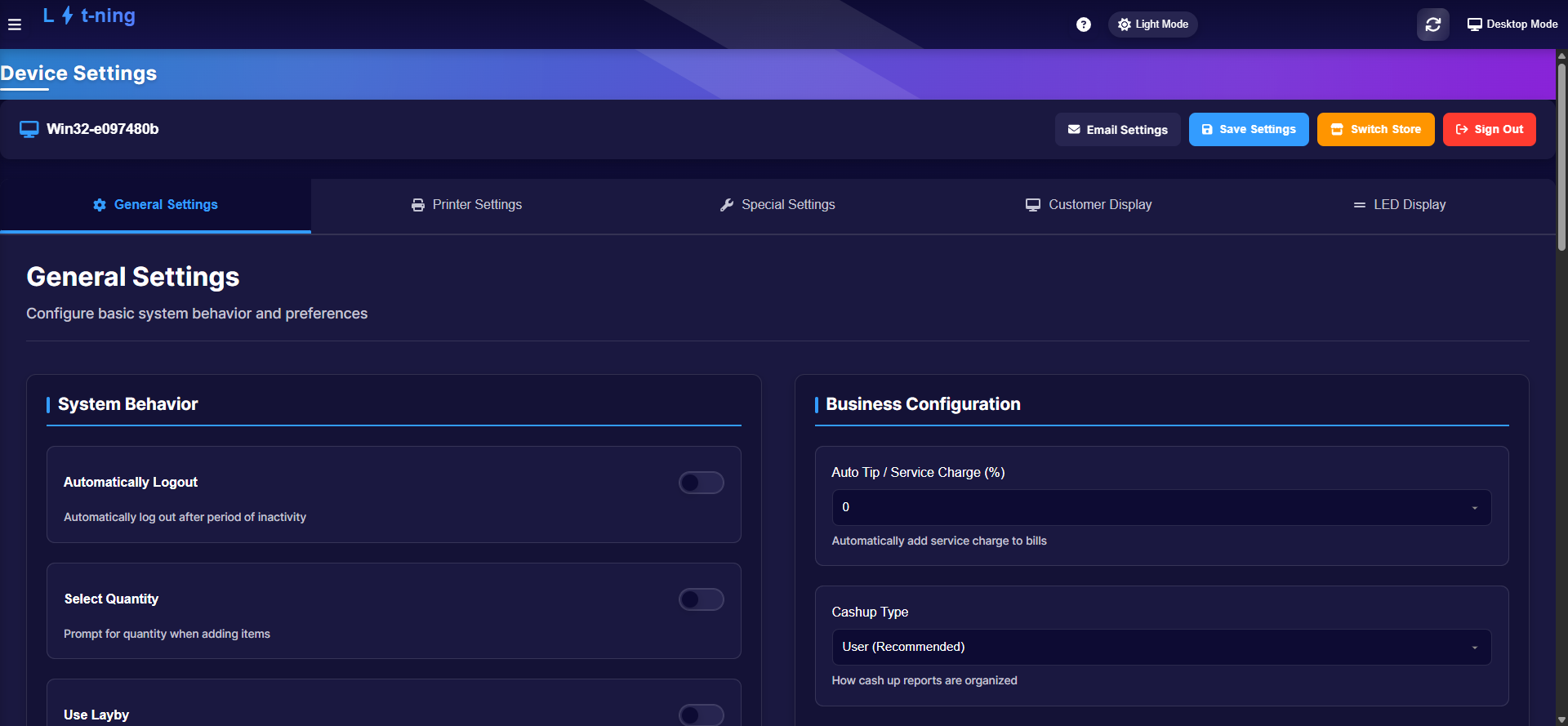 One place for the till's own configuration — general behaviour, printers, receipts, displays and email.
Open the menu and click Device Settings. The tabs cover:
| Tab | What lives there |
|---|---|
| General | Store behaviour for this device, sign out, switch store |
| Printer | Receipt printers, receipt format, additional printers |
| Special | Void settings and document options |
| Customer Display | The second screen facing the customer |
| LED Display | Line-busting LED panels, where fitted |
Link Your Email Address (email setup) is reached from here too. Device Settings is permission-controlled — if the menu click does nothing, your group does not include it.
Download & Update
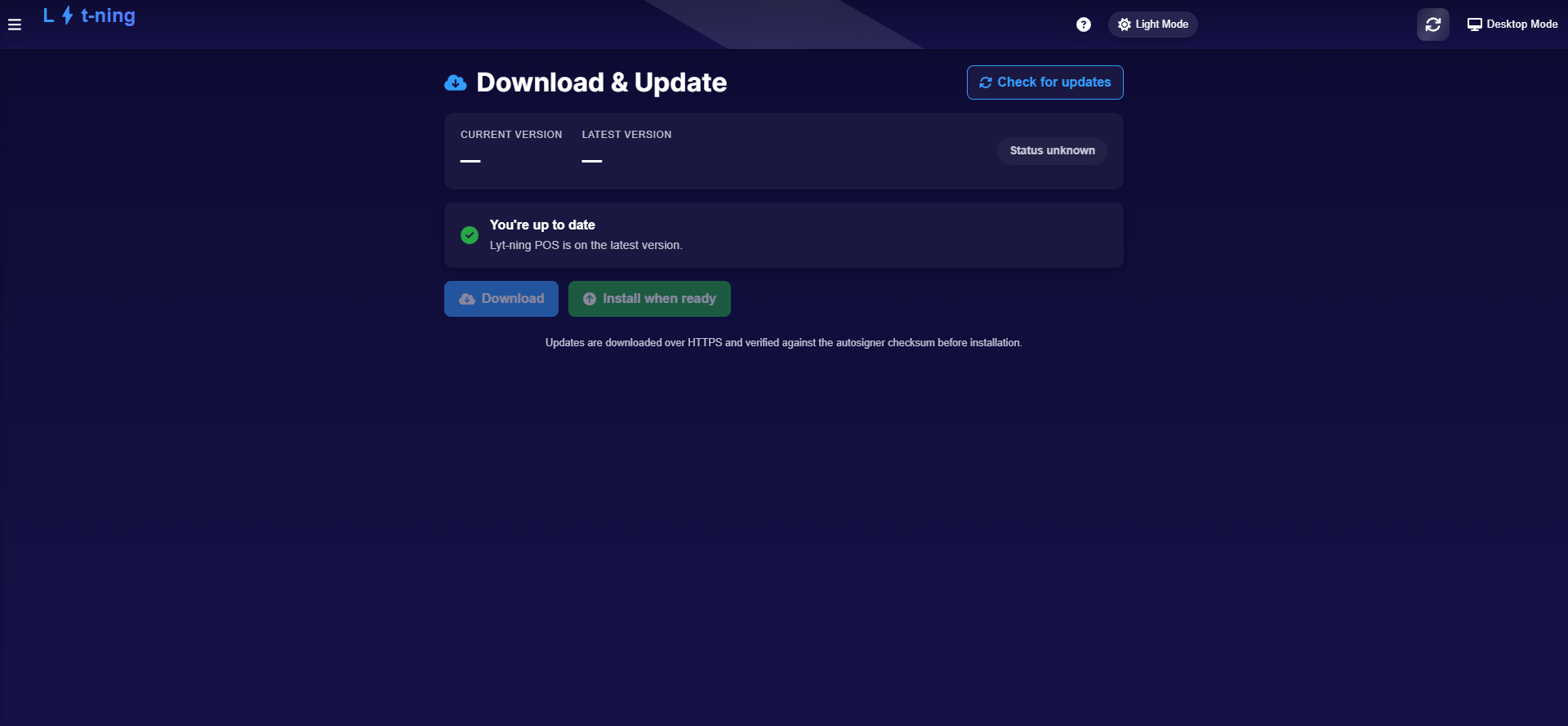 Current version against the latest, with release notes and a progress bar during download.
The menu shows a red dot when an update is available. Click Download & Update to read the release notes and install. A till that is too far behind is locked at sign-in until it updates — see Sign in on the Retail POS App.
Raise and follow a support ticket
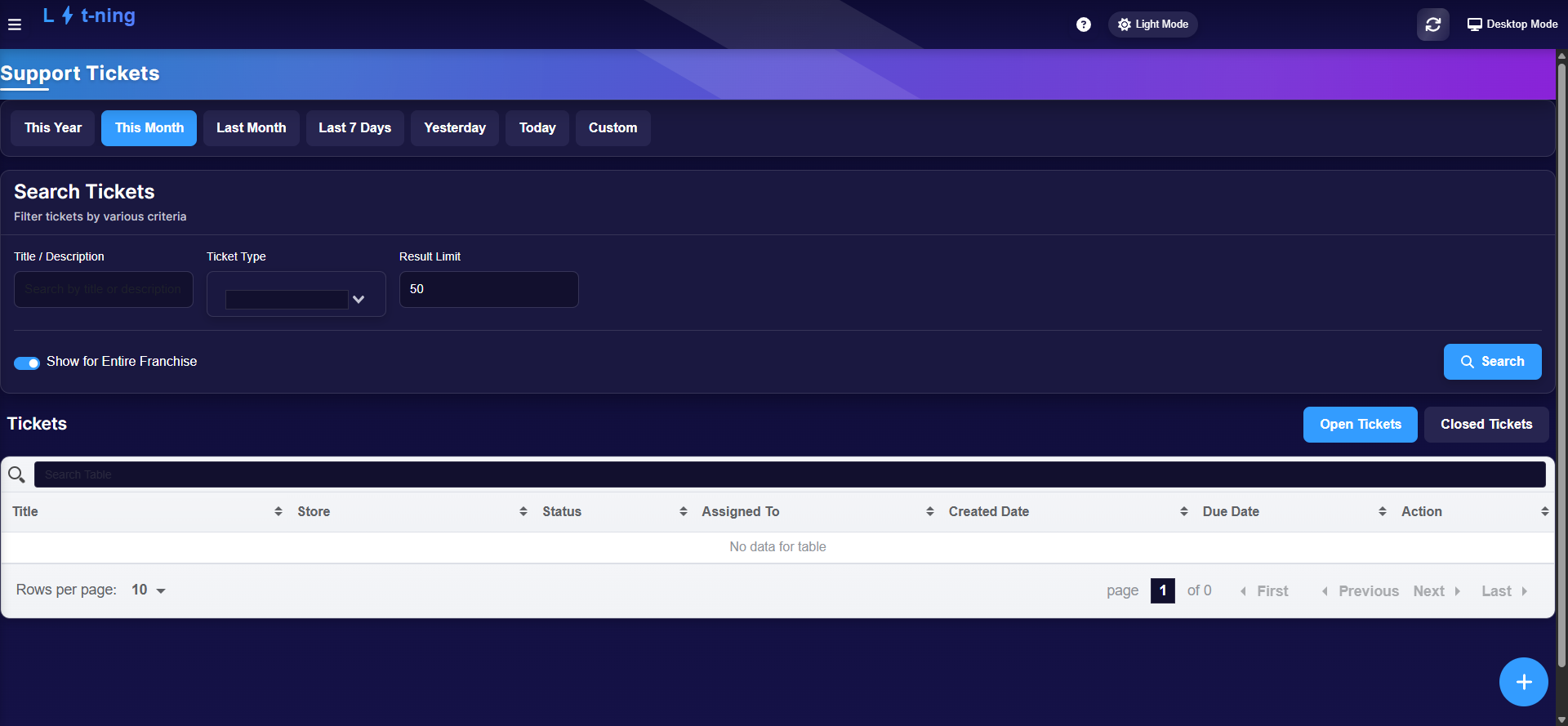 Open and closed tickets, searchable — every till ticket is traceable.
- Open the menu and click Report an Issue.
- Describe the problem and submit — it becomes a ticket.
- Follow progress under View Tickets (open and closed lists, with details and notes).
For anything urgent, Support & escalation has the full contact paths.
Built-in user manual
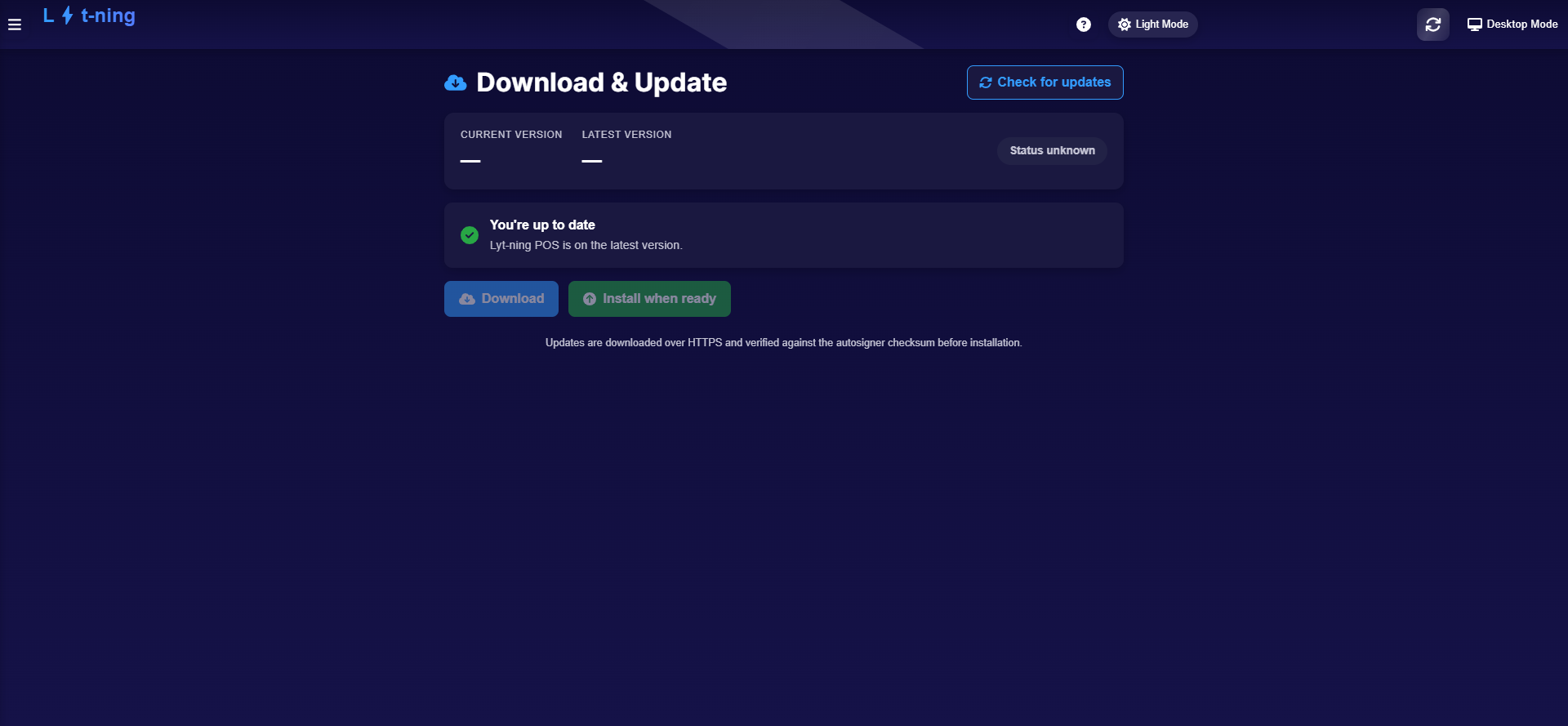 A searchable manual inside the till — also reachable from the ? icon on the top bar.
The User Manual in the menu opens the till's built-in help. This wiki is the fuller guide; the in-app manual covers the same ground when you cannot leave the screen.
Expected result
The till's hardware and receipt setup live in one place, updates install without a Support call, and every problem raised has a ticket number you can follow.
Edge cases
- Device Settings click does nothing. Permission missing — ask a supervisor.
- "This till can't be used until it's updated." Update before selling; see Download & Update above.
- The printer tab shows no devices. Check the printer's cable or network first, then click refresh; if it still does not appear, raise a ticket.
- You closed the app by mistake. Reopen it and sign in — your session and settings are kept on the device.