
Appearance
Invoices, reprints and refunds (Retail POS App)
Goal
Find a past sale, reprint its receipt, or refund some or all of it — from the till's Invoices screen.
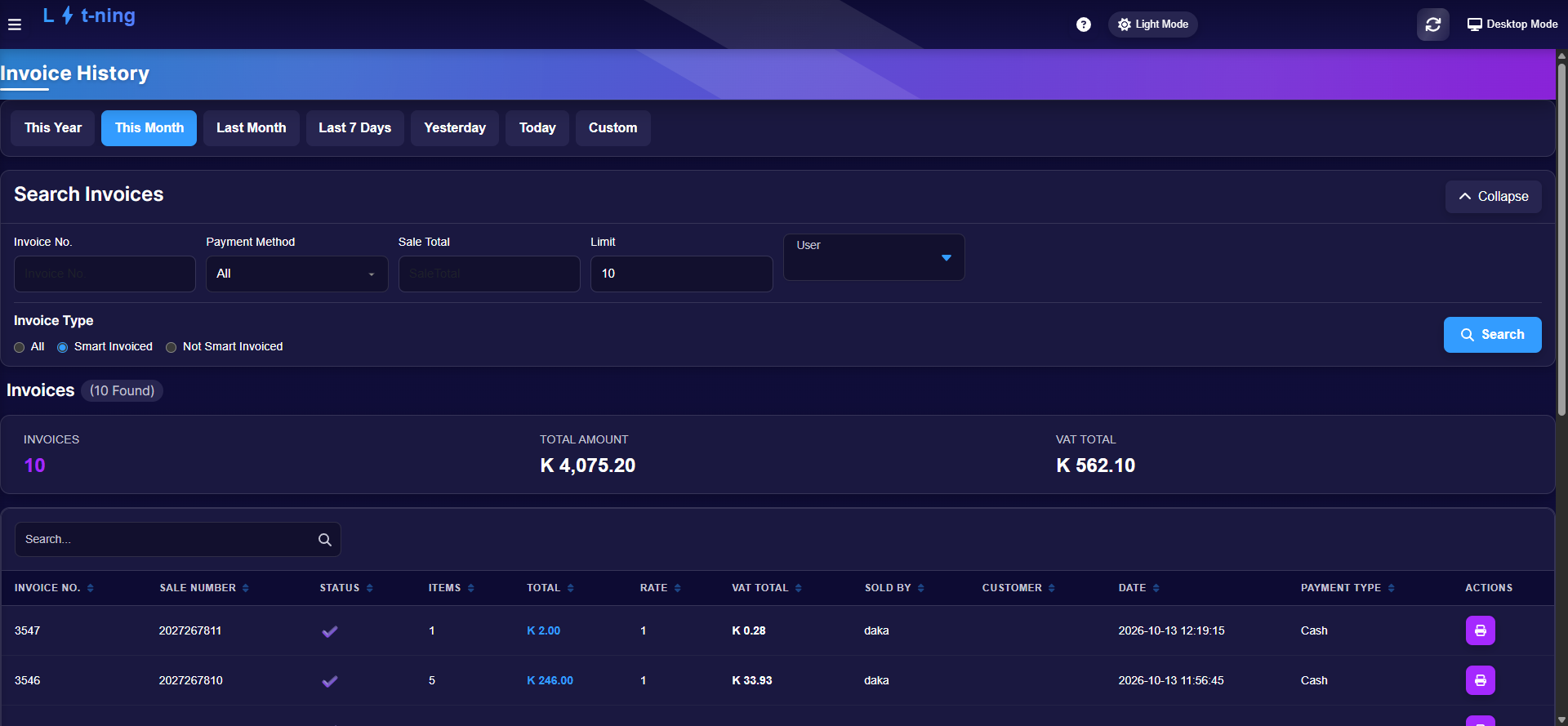 Invoice History: date tabs and filters on the left, totals on top, one row per invoice with a Reprint action.
Where this happens
On the till, open the menu and click Invoices. Every completed sale for this store is listed — newest first.
Find an invoice
| Filter | Use it for |
|---|---|
| Today / Last 7 Days / This Month / … | Narrow by when the sale happened |
| Invoice No. | You know the invoice number |
| Payment Method | Cash, Card, Split, Kazang and store extras |
| User | Sales by one staff member |
| Search… | Quick text search over the list |
The cards on top summarise the list: how many invoices, total amount, and VAT.
Open an invoice
Click the invoice's row (for example #3547) to open its detail page: sale total, cashier, date, payment type, every line with stock code and VAT, and the Refund and Reprint actions.
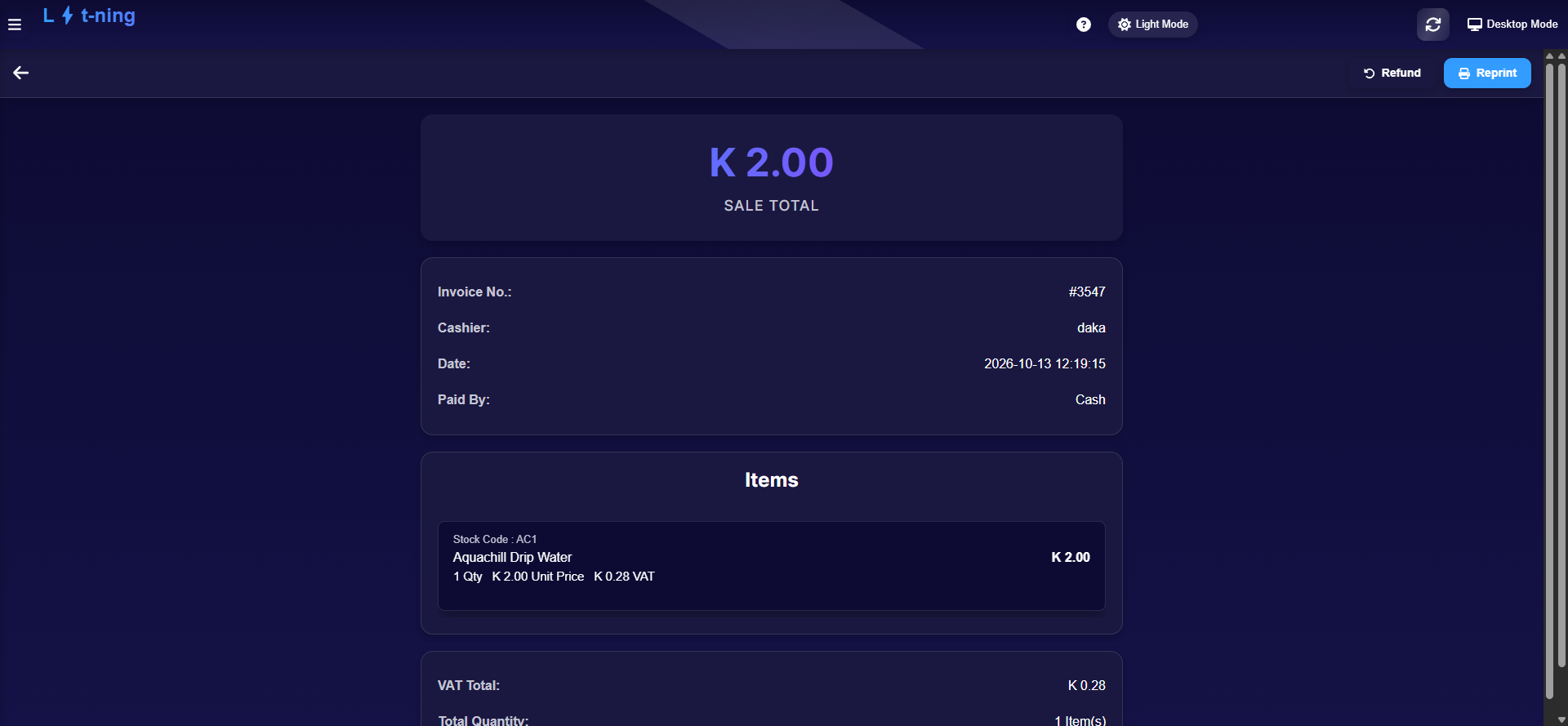 The invoice detail — totals, lines, and the Refund / Reprint actions at the top.
Reprint a receipt
- Open the invoice.
- Click Reprint.
Reprinting needs permission — if the till asks for a supervisor, see Till roles and screen access.
Refund an invoice
- Open the invoice and click Refund.
- Select the items to refund — Select All Items, or tick single lines and adjust each quantity with the + / − stepper for a partial refund.
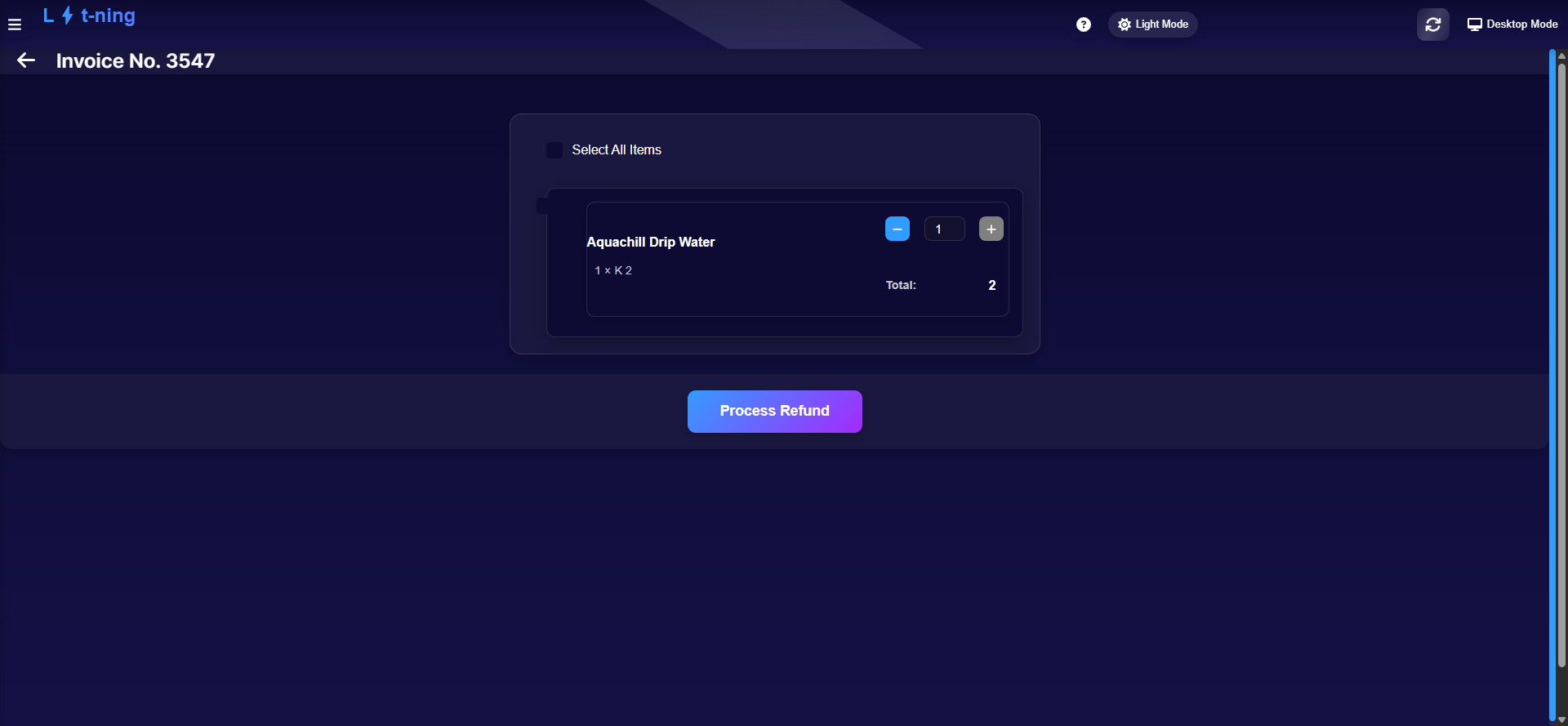
- Click Process Refund, then choose the reason — Missing Quantity, Missing Item, Damaged, Wasted, Raw Material Shortage, Refund, or Wrong Customer TPIN — and Submit.
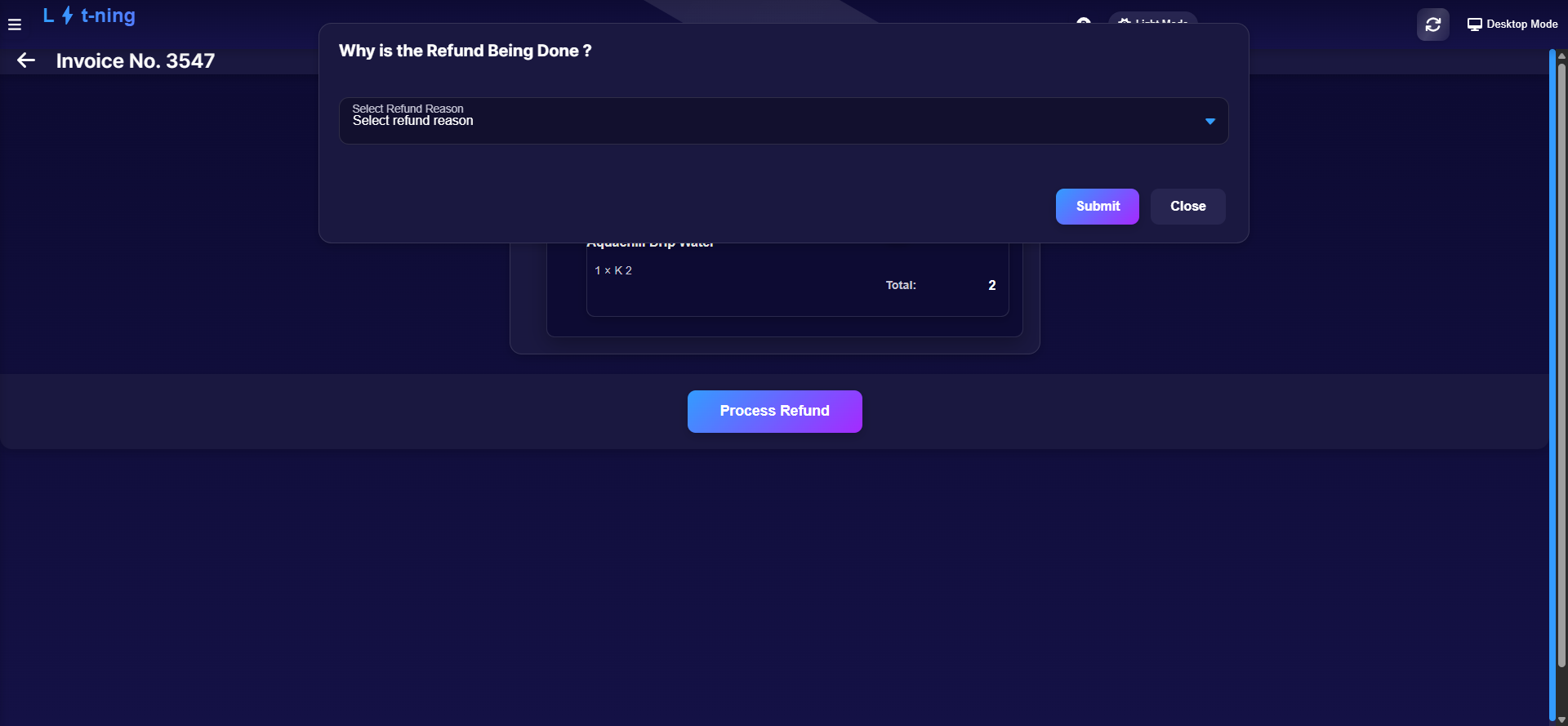
- Choose how the money goes back — the same choices as a sale (Cash, Card, Split, store extras).
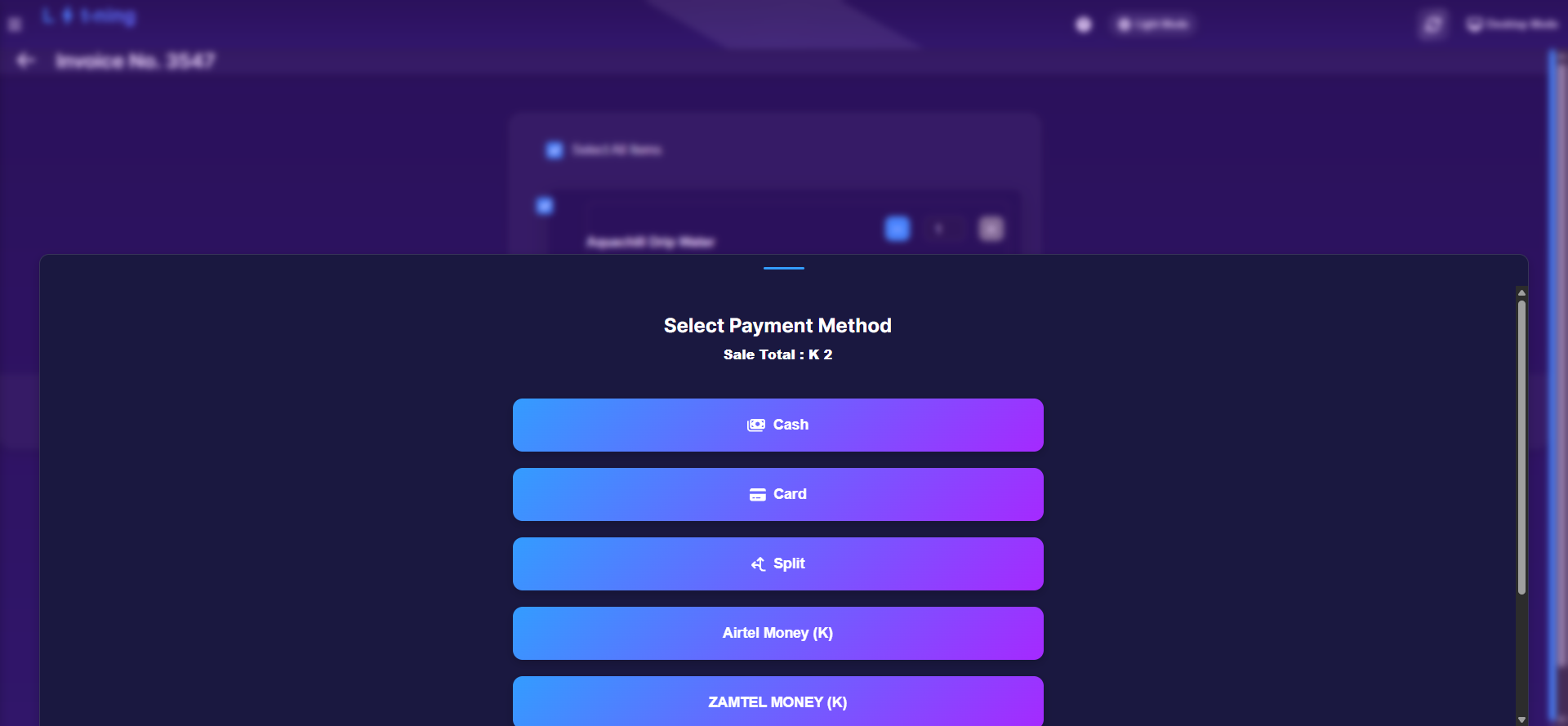
- Hand back the money and keep the reason on record — the refund is traceable to your sign-in.
Refund rules worth knowing
- An offline invoice must sync before it can be refunded. The refund works against the stored invoice - sync the till first (see Working offline).
- The refund goes back on the original payment method. Card sale refunds to card, cash refunds in cash. Account (debtor) sale refunds are processed through the back office so the customer's account balances.
- A refund hits today's cash-up and this month's VAT - not the day or month of the original sale. See ZRA / VAT questions.
- Older invoices can be refunded - open them from the invoice history by date or number.
Expected result
The invoice opens with every line and total matching the sale; a refund returns exactly the selected quantities and the reason is stored against your name.
Edge cases
- You cannot open Refund, or nothing happens. Refunds are permission-controlled — ask a supervisor.
- Only some items are being returned. Do not use Select All Items; tick the lines and set quantities individually.
- The customer paid by card. Return the money the same way where possible — pick Card in the refund payment step so it reconciles.
- The invoice is not in the list. Check the date tab — it defaults to a recent range — or search by invoice number.
- Reprint asks for a supervisor. Old-invoice reprints are permission-controlled by design.