
Appearance
Sell at the till (Retail POS App)
Goal
Build a sale — find products, adjust quantities, and hand the customer a total — on the Retail POS App's Sales screen.
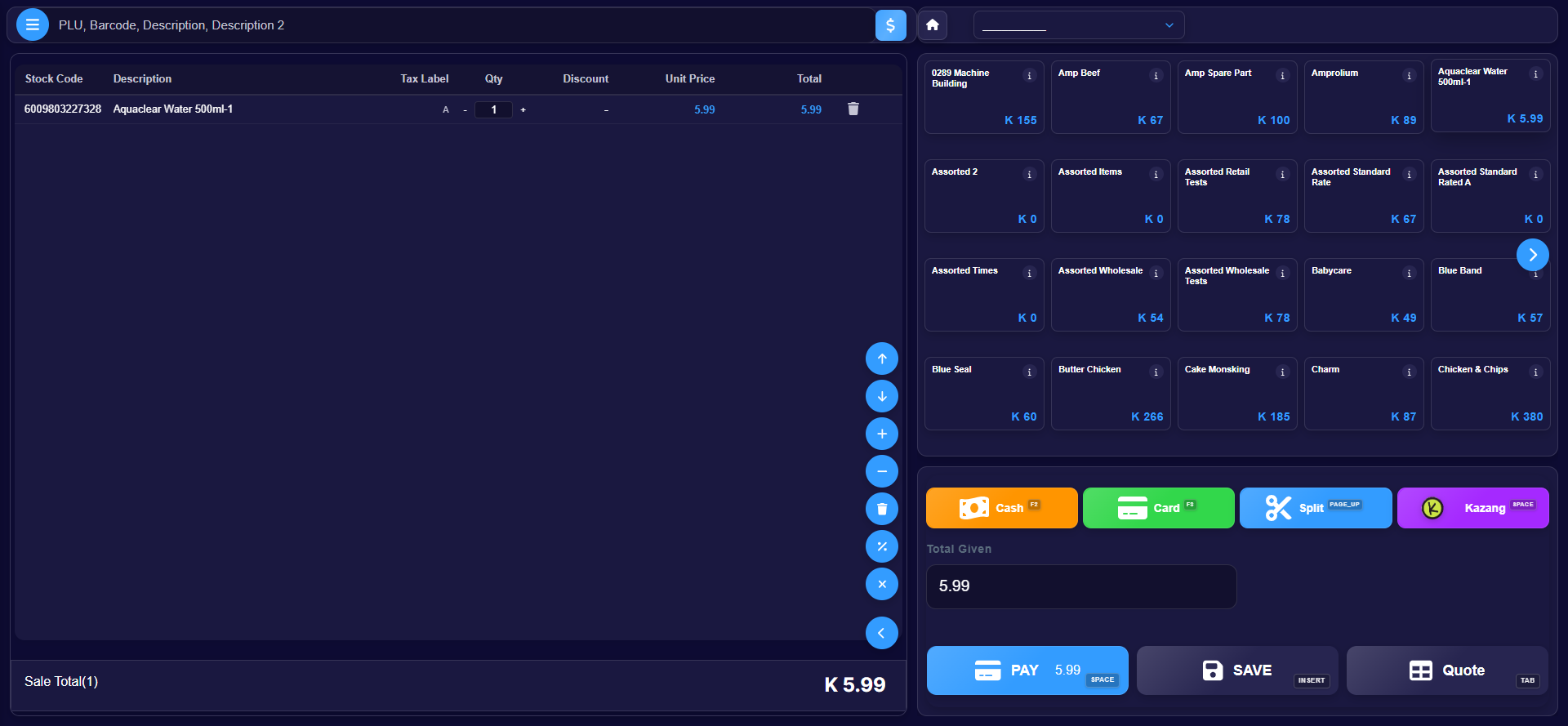 The Sales screen: search bar on top, the sale table on the left, product tiles on the right, payment buttons at the bottom right.
Where this happens
On the till, after signing in — see Sign in on the Retail POS App. The Sales screen is the first thing you land on.
Steps
1. Find the product
- Search: type a PLU, barcode, or description in the search bar at the top.
- Browse: scroll the product tiles on the right, or pick a category from the dropdown above them.
2. Add it to the sale
Click the product tile. It appears as a line in the sale table with its stock code, description, tax label, quantity, and price. Click tiles again for multiples, or use the quantity stepper (+ / −) on the line.
3. Adjust the sale (as needed)
| Do this | How |
|---|---|
| Change quantity | Select the line, use + / − or Set Quantity |
| Remove a line | Select it, then Void Selected Item (dustbin icon) — needs permission |
| Discount a line | Select it, then Apply Discount (% icon) — needs permission |
| View product info | The i icon on the product tile |
The sale total shows at the bottom left — for example Sale Total(1) · K 5.99.
4. Hand over, save, or quote
- PAY — take the customer's money. See Take a payment.
- SAVE — park the sale as a quotation so a colleague can reopen it later.
- Quote — open saved quotations to continue or convert one to a sale.
Expected result
Every scanned or clicked product sits as a priced line in the sale table, and the total matches what the customer was quoted.
Edge cases
- The till asks for a supervisor when you discount or void. Your sign-in's permissions do not include that action. A supervisor can approve with their password, or a manager can approve from the back office. See Till roles and screen access.
- You cannot edit a line's price. Price editing is permission-controlled and your group does not have it.
- A product tiles but does not add to the sale. The store may still be downloading stock — wait for Preparing store… to finish at sign-in, then try again.
- The price on the tile is not the price the customer expects. Price levels are permission-controlled; call a supervisor rather than overriding.