
Appearance
Sales reports (Analytics)
Goal
Find the sales number behind any question — by day, cashier, store, category, online vs in-store, and more.
The Sales Reports section in the drawer is the single entry point. It opens the Sales Dashboard and gives you access to every sales-flavoured report.
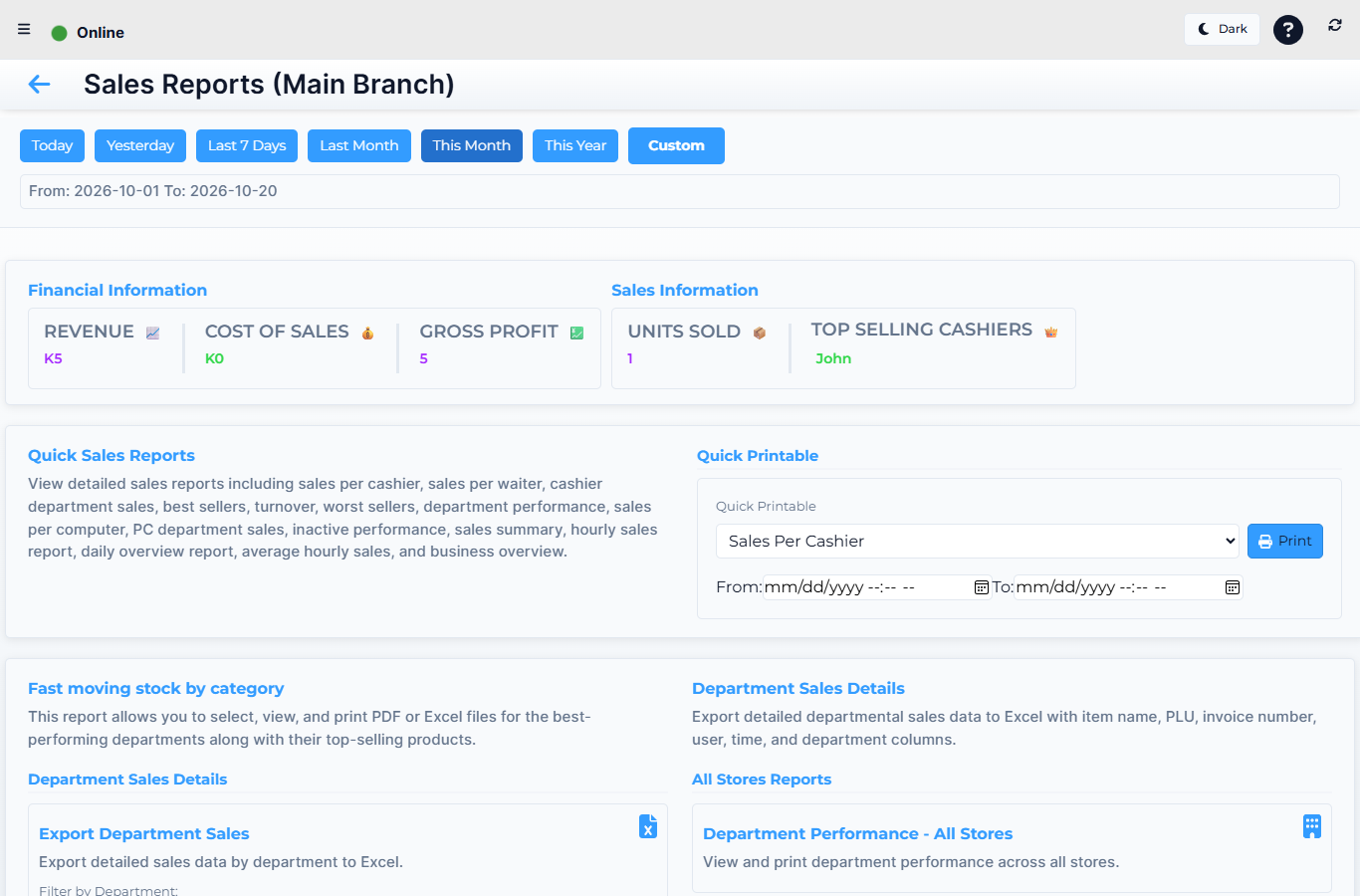 Lytning Analytics v2.2.6 at https://analytics.pos.co.zm/dashboard, captured 2026-10-19. See the evidence doc for the full route inventory.
Where this happens
Open the menu and click Sales Reports. You land on the Sales Dashboard — the KPI tiles for sales. From there, the sub-reports below.
The reports behind Sales Reports
| Route | What it shows |
|---|---|
| Sales Dashboard | The home: total sales, average ticket, sales by hour/day, top categories at a glance — pick the store and date range at the top |
| View Invoices | Every invoice on the tills — search by number, date, customer, cashier; drill into any invoice |
| View Invoice | A single invoice in full — line items, VAT, tender, cashier, timestamp, any refunds or void lines |
| View Orders | Purchase orders from the back office — what was ordered from suppliers and where it stands |
| View Uncashed-Up Sales | Sales that have been completed at a till but whose cashup has not yet been closed — useful for end-of-day catch-up before cashing up |
| Sales Reports | The canonical sales reports screen: a wide table of sales with filters and groupings (date, store, cashier, tender) |
| Multi-Store Department Performance | Compare departments across stores — which department sells most in which store, and how that changes over time |
| Sales Person Reports | Sales attributed to each sales person (where the till records a sales person rather than a cashier) |
| Sales by Cashiers | The same totals broken down by cashier — who sells the most, who sells the fewest |
| Online vs Offline Sales | A side-by-side of online orders (from the online ordering channels) vs in-store till sales |
| Top Sell by Category | Your best-selling categories in the chosen period — useful for promotions and stock planning |
The two sub-items
Both live under Sales Reports in the drawer:
- Table Audit Log — every action on a restaurant table: when it was opened, items added, who saved it, who paid, who transferred it. The same screen is also surfaced under Supervisor Report for the audit IA.
- Sales Dump Export — pick a date range and click Generate Sales Dump; the app opens a per-store Excel download of every sale in that range. Use it for ad-hoc analysis in a spreadsheet, or to hand to your accountant.
How to read a sales report
- Pick the store (or "All") at the top.
- Pick the date range — most reports default to the current period; widen it if you are looking for a trend.
- Apply the report's specific filters (cashier, tender, category…).
- Read the totals at the top, then the lines below.
- Click a total or a line to drill into the underlying invoices.
- Export to PDF or Excel from the toolbar when you need to share the numbers.
Expected result
Any sales question — "how much on Tuesday", "who sells the most in Lusaka", "what was our best category last month" — answers in one or two screens, with the option to drill to the underlying invoice.
Edge cases
- A number looks wrong. Check the store selector and the date range. An "All" store view of one week is very different from a single store of a month.
- An invoice is missing. It may be in View Uncashed-Up Sales if the cashier hasn't closed their cashup yet. If it is missing there too, check the till's Offline Invoices (the sale was done while the till was offline) or raise a ticket.
- "No data" on a brand-new store. The store has not run any sales yet, or the date range is wrong. Widen the range.
- Sales Dump Export produces an empty file. Pick a specific store (not "All") and a non-empty date range. The export only runs per store.
- Online vs Offline totals don't add up to Sales Dashboard total. Online orders are routed through a different path and may post on a different day; this is normal.
Related
- Analytics — the franchise reporting app
- Stock reports
- Finance reports
- Supervisor report
- Exports and PDFs
- Invoices, reprints and refunds (Retail POS App) (the till-side view of the same invoice)