
Appearance
Device registration & licenses
Goal
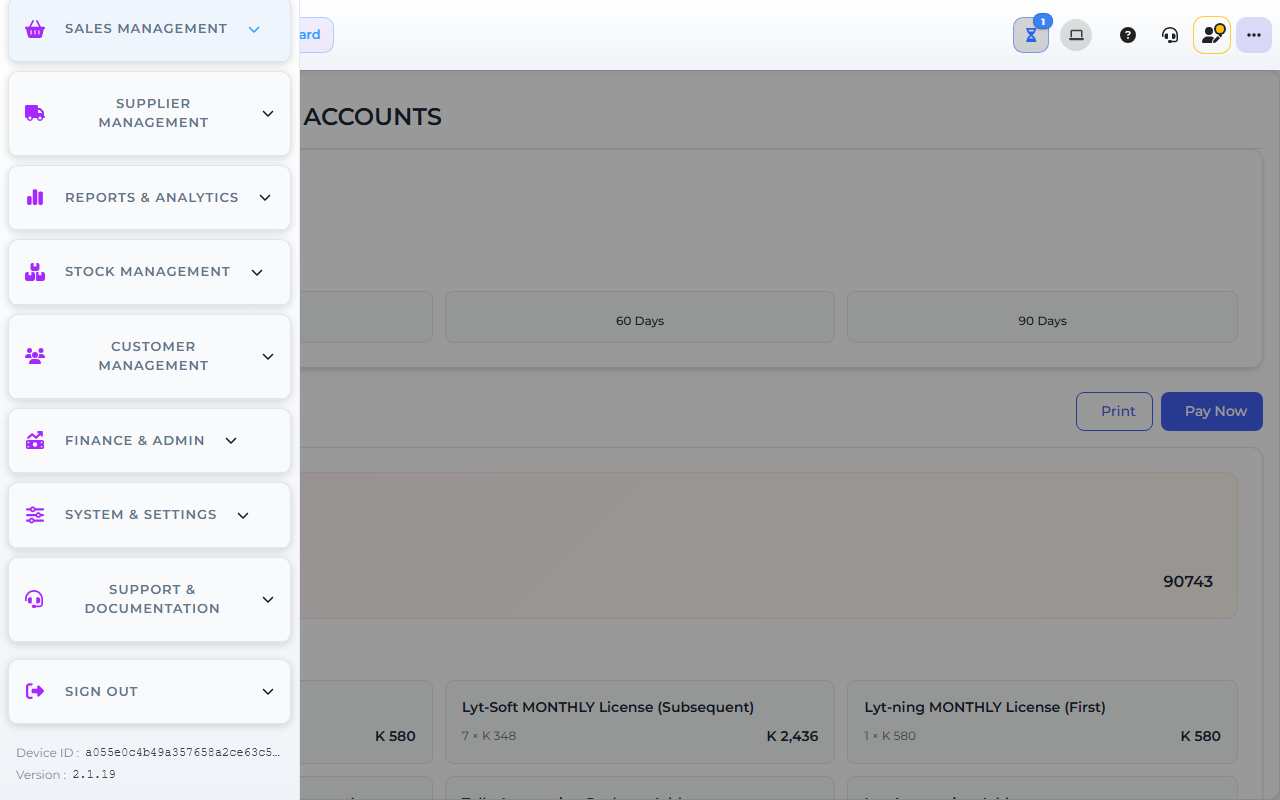
Core App demo store — screens may differ slightly by version.
Check which devices are registered for your franchise, how many desktop and mobile licences are in use, and give devices friendly names — so staff and Support can tell which till is which when someone needs help signing in.
Where this happens
- In the back office (Core App): devices and licences are managed at the franchise level. The Store Licenses & Devices screen (under Franchise Management) shows the licence count and every registered device. There is no per-store or per-device cap setting in the Core App — if a device needs to be registered or removed, contact Support.
- On the till (Retail POS App or Restaurant POS App): the till app keeps its own updates — see Device settings, updates and support (Retail POS App).
Device registration itself happens when a device signs in to your store for the first time — there is no manual "add device" form. Removal and blocking of devices are handled by Support.
The franchise admin reviews the device list. The supervisor checks it when a cashier cannot sign in. Cashiers do not see this screen.
Prerequisites
- Franchise-admin access to the Core App (supervisors: ask your franchise admin to check the list).
- The device name or alias of the device you are looking for, if you are checking one specific till.
Steps
1. Open Store Licenses & Devices
- In the Core App, open System & Settings → System Configuration → Franchise Management (the exact path is configured at the franchise level) and open the store's Licenses & Devices screen.
- The licence cards show your store, licence count, desktop devices in use against the licence count, mobile devices in use, subscription fee, and billing cycle.
2. Check the registered devices
- The Registered Devices list shows each device's name (or alias), platform, type (desktop or mobile), who registered it, when it was last registered, its status, and its volume ID.
- Use search and the type filter to find a specific device.
- Use Export if you need the list for a licence review or a support ticket.
3. Name a device so staff can identify it
- Find the device in the list (or the card view on smaller screens).
- Click Set alias (or edit the existing alias) and give the device a descriptive name — for example "Main POS Terminal" or "Kitchen Display".
- Save. Staff and Support can now match the friendly name to the physical till.
4. When a device is replaced, retired, or lost
- Device slots are governed by your licence count — when the count is full, a new device cannot register. Contact Support to retire an old device or review the licence count.
- If a device is lost or stolen, raise an urgent support ticket so the device can be blocked from signing in.
5. Put the app on a device that has never run Lyt-ning
Adding a device is two separate jobs: the Lyt-ning app has to be on the machine, and the machine has to register itself against your store. Registration is the job this page covers — it happens by itself the first time the device signs in. Getting the app onto the machine is the other one.
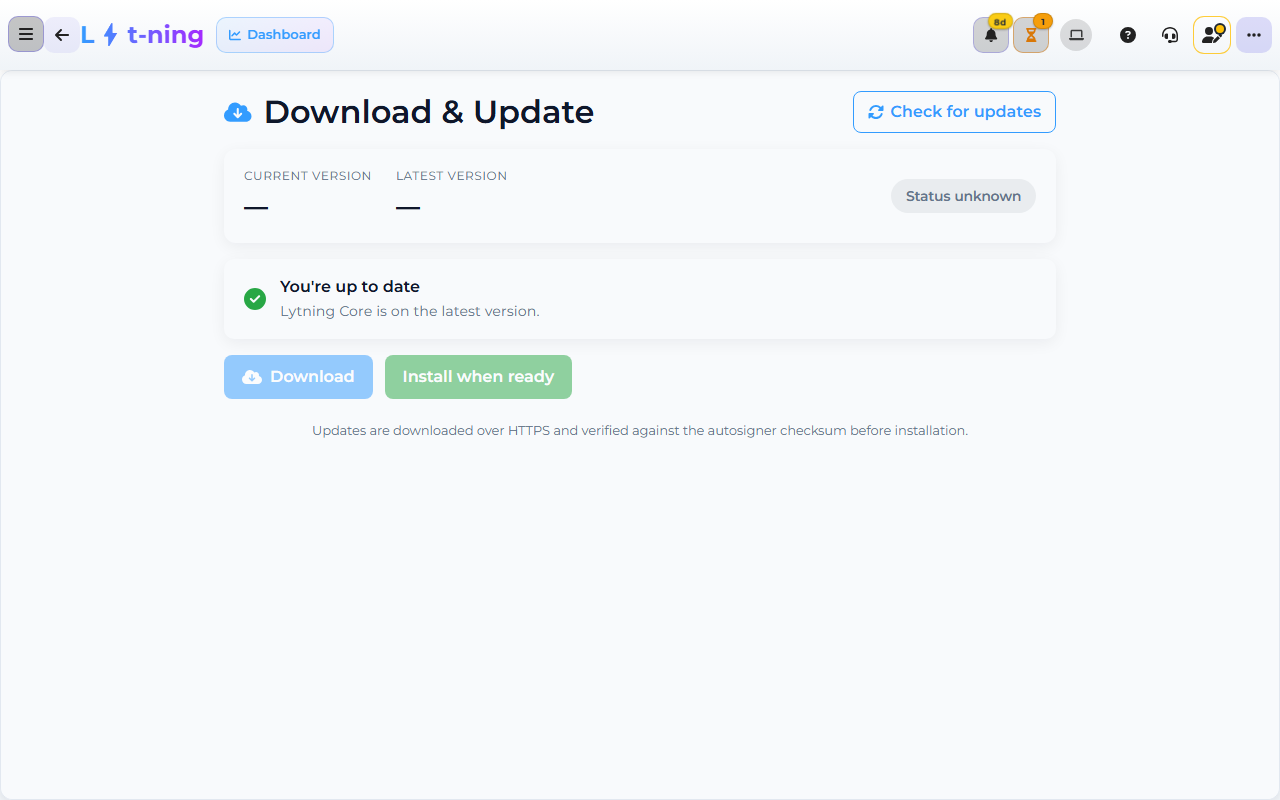
Core App demo store — screens may differ slightly by version.
If the machine already runs Lyt-ning, the app can fetch its own installer. Open Download & Update in the Sign Out section of the app menu. The screen shows the version you are running against the latest release. You can check whether a newer version has been published, download the installer, and install it when you are ready — the app closes and reopens while the install runs. The installer is downloaded over a secure connection and checked against Lyt-ning's release signature before it runs.
If the machine has never run Lyt-ning, that screen cannot help you. It belongs to an installation that is already on the machine. Ask your franchise admin or Support for the installer for that machine, then sign in once with a user your store allows. That first sign-in is what registers the device, and it takes one licence slot.
The till app is a separate program from the back office and updates itself from its own settings screen.
Expected result
- You know how many desktop and mobile devices are registered against your licence count.
- Each till has a friendly alias that staff and Support recognise.
- A new device can sign in whenever a slot under the licence count is free.
- A device that is new to the store has the app on it and has registered itself.
Edge cases
- The cashier is locked out because the licence count is full. Ask Support to retire a retired or duplicate device, or to review the licence count. Do not register extra devices on your own.
- You cannot find the device in the list. Search by alias or by the person who registered it. If it still isn't there, the device may never have signed in — have the till sign in once, then re-check.
- A lost device is still in the list. Raise an urgent ticket — the device may be able to sign in until Support blocks it.
- The counts look stale. Use the refresh button on the licence information, or sign out and back in.
- The update will not install and the app asks you to finish something first. The app holds an install back while a print job is still running in the background. Let the printing finish, then install again.
Before you open a ticket
- Your store name
- How many devices are already in use
- Whether a licence upgrade was purchased
- The registration error text, if any