
Appearance
Mobile POS — the waiter's handheld
Goal
Take orders at the table on a handheld or tablet, save them to the table, and send them to payment — without walking to the counter.
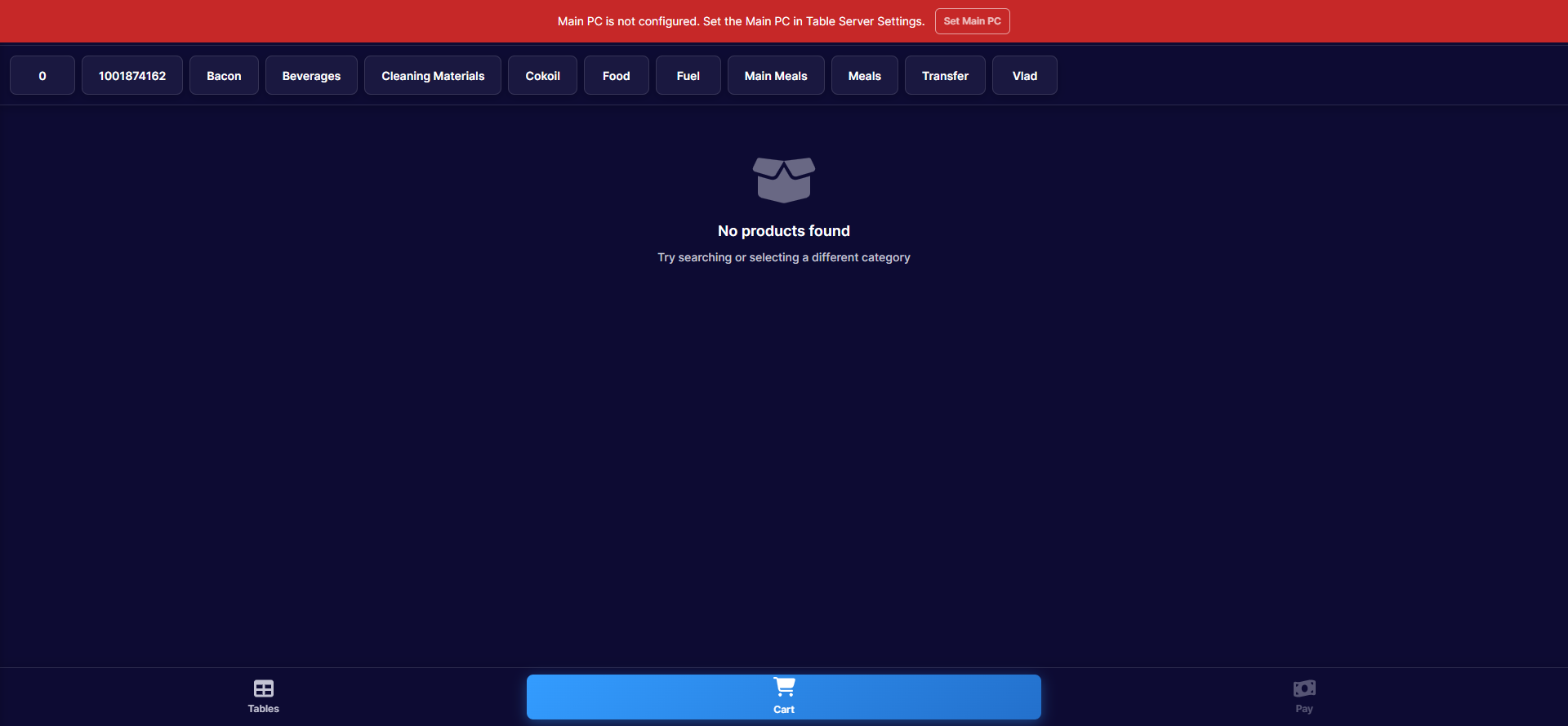 Mobile POS: category tabs on top, the product grid below, and the Tables / Cart / Pay bar at the bottom. The red banner shows the till cannot reach its Table Server — see Restaurant settings and the Table Server.
Where this happens
Handhelds and tablets land here automatically — sign in and the Restaurant POS App switches itself to the mobile layout (desktop tills keep the full screen). Waiters sign in exactly as in Sign in on the Restaurant POS App.
Steps
1. Pick the menu section
Tap a category tab — Beverages, Main Meals, and so on — and the product grid fills with that section.
2. Build the order
Tap products to add them. The Cart button grows a badge with the line count and running total.
3. Review the cart
Tap Cart:
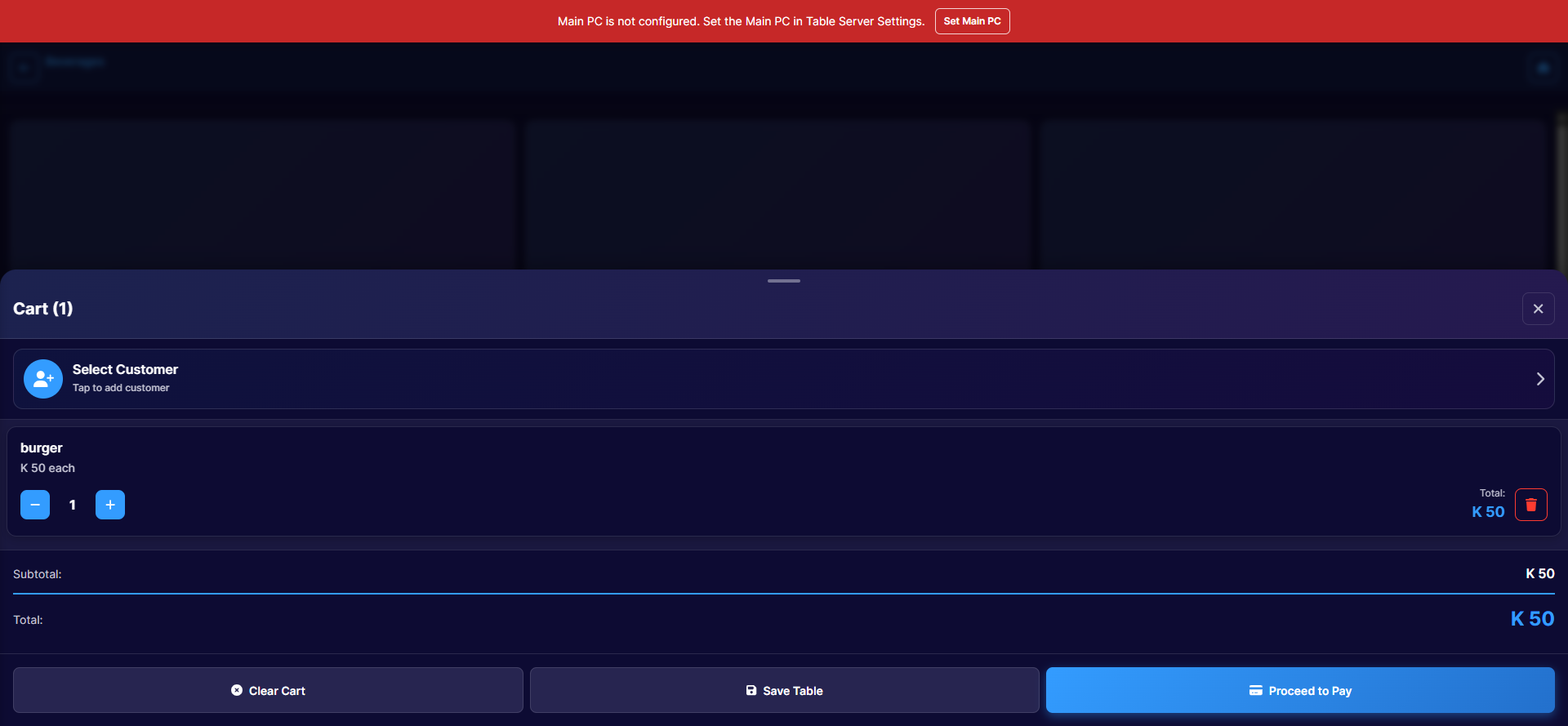 Cart (1): attach a customer, adjust quantities, then Save Table or Proceed to Pay.
- Select Customer — attach a loyalty or account customer.
- − / + — adjust quantities; the dustbin removes the line.
- Save Table — park the order on the table (this is the normal waiter flow — see Floor and tables).
- Proceed to Pay — take the order straight to payment.
Expected result
The order sits on the table under your name, the kitchen gets it when you save, and the table reopens instantly when the guest orders more.
Edge cases
- "No products found". Try another category tab, or use the search on the sales screen.
- The red "Main PC not configured" banner. The handheld cannot reach the Table Server that keeps tables in sync — tap Set Main PC and follow the Table Server steps, or ask your manager.
- Cart does not reach payment. If the till asks for a supervisor, the payment type is not in your group — see Till roles and screen access.