
Appearance
Kitchen Orders — the kitchen display (KDS)
Goal
Understand what the kitchen display is for, who works it, and how it connects to the orders waiters take at the table.
Kitchen Orders (KDS) is the screen the kitchen works from. When a waiter saves a table on the Restaurant POS App, the order appears on this board so the kitchen can see it, work it, and mark when each dish is ready.
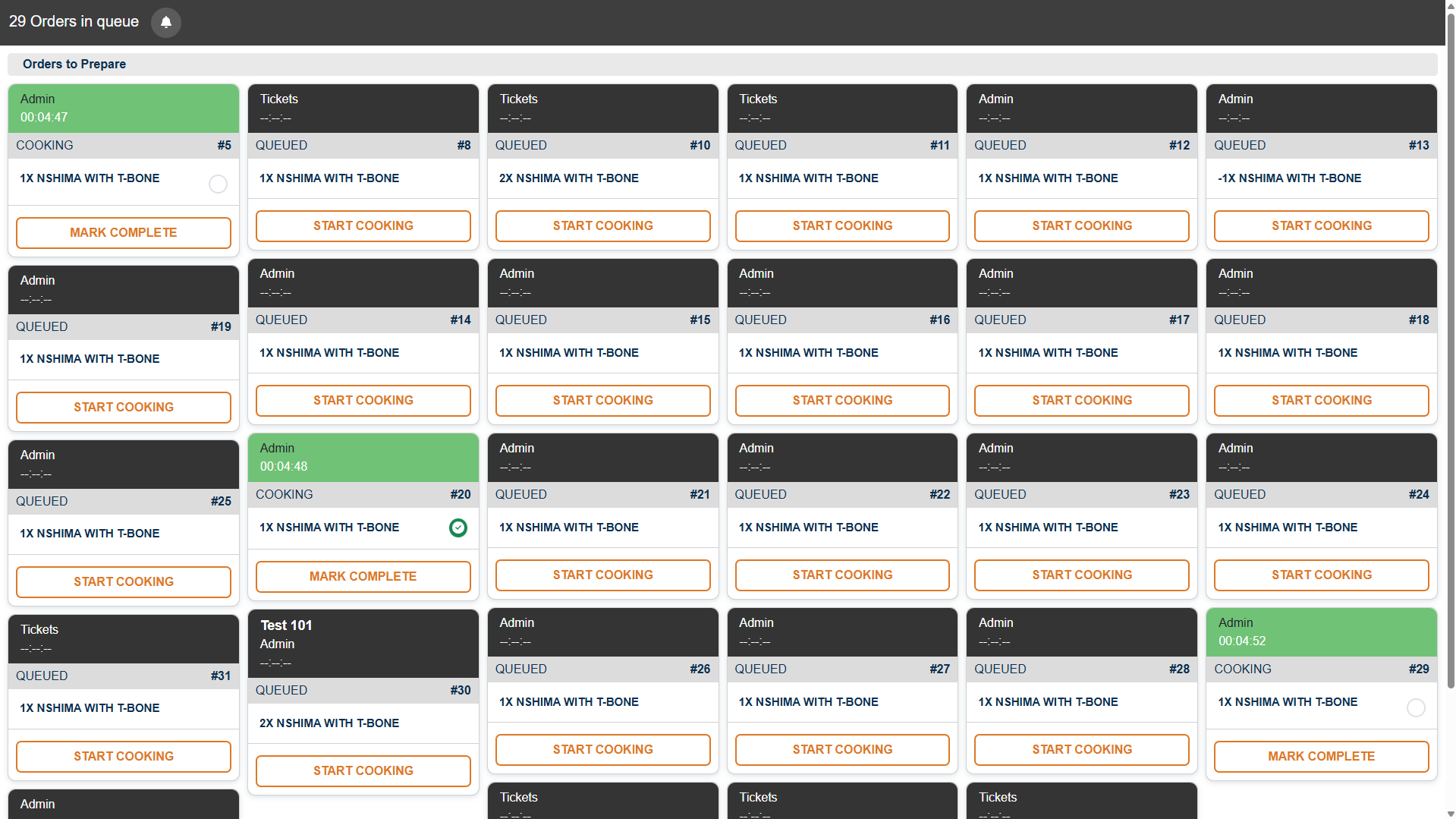 Live orders for your station, split into the queue and what is being prepared.
How an order gets here
- A waiter takes the order at the table and presses Save Table on the till.
- The order prints at the kitchen printer and lands on the Kitchen Orders board for that store.
- The kitchen works the ticket — the board is the shared, glanceable version, often on a screen above the pass or on a tablet in the kitchen.
- As the kitchen works, cards move through their statuses by colour.
- When the kitchen finishes an order it is marked complete on the board - from then on the waiter's till lists it as ready for collection, showing who prepared it and from which station.
That last point is why a kitchen screen is given a station (Order Location) — it is the "from {device}" you later see on collected orders.
Who uses it
Kitchen staff and whoever runs the pass. It is designed for that environment: large order cards, status colours you read across the room, big touch targets (wet or gloved hands), and glanceable timings so an ageing ticket stands out.
Sign-in is per station
Each kitchen screen signs in once and remembers which store and which station it is. If you run more than one station — grill, fry, cold — each gets its own screen or its own station selection.
Expected result
Every order a waiter takes is visible in the kitchen, worked, and marked ready — without anyone shouting across the room or relying on a printer tape.
Edge cases
- An order does not appear on the board. It only arrives when the waiter saves the table. If the waiter typed it but did not save, the kitchen never sees it.
- You see orders for the wrong station. Each screen is tied to one station; use Change Store / station selection at sign-in.
- A ticket is old. Colour and timing are meant to be read at a glance — a long-waiting ticket should be called out, not ignored.
- You are looking for the till's Kitchen Orders screen. That screen still exists on the Restaurant POS, but the kitchen itself works here — see Kitchen orders (Restaurant POS App).