
Appearance
Device settings on the DSR app
Goal
Change what this device does — which store it serves, and who is signed in on it.
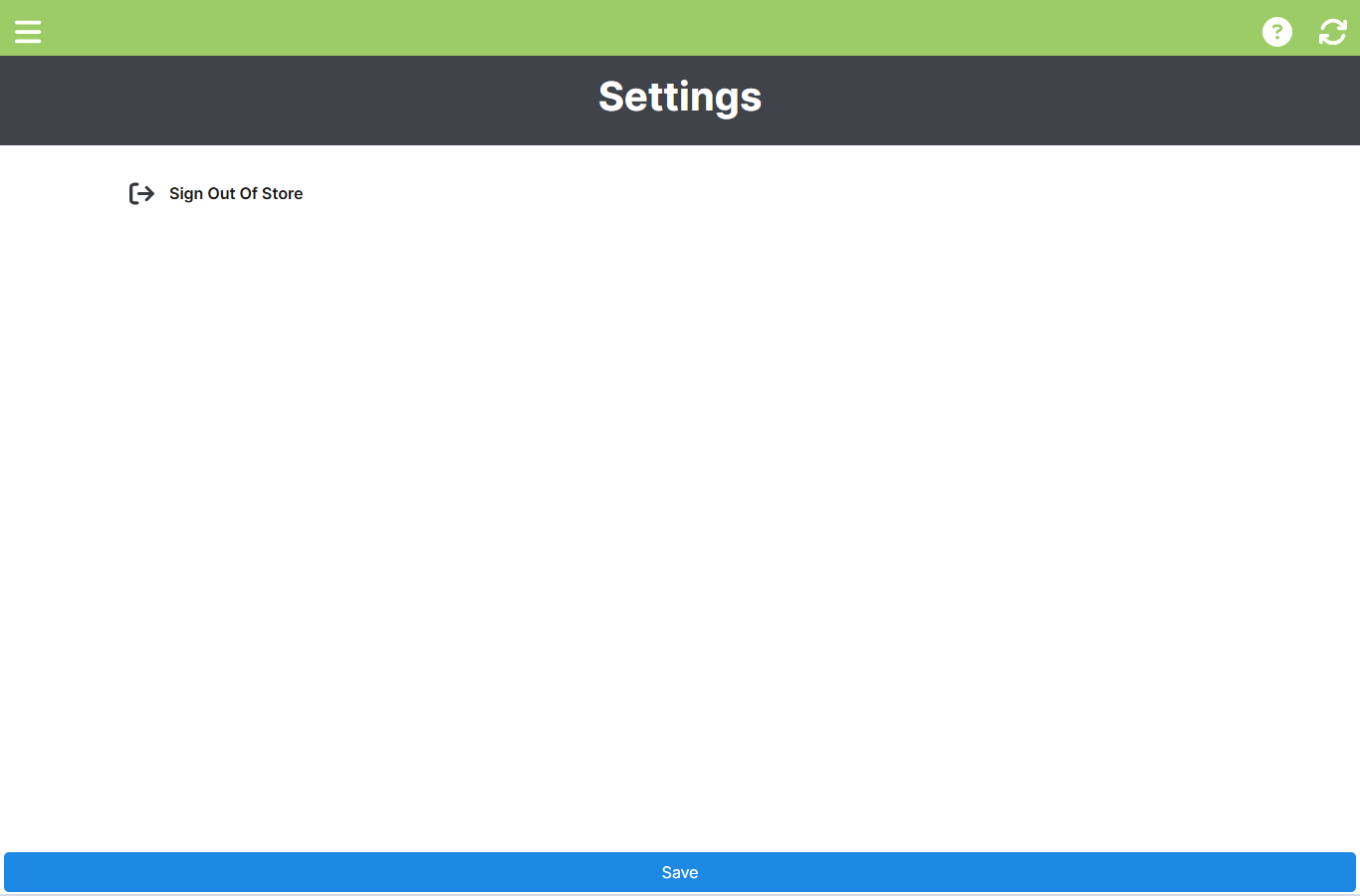 A cashier's Settings screen — the device options are admin-only, leaving Sign Out Of Store.
Who sees Settings
Settings is admin-only. In the menu it is hidden for anyone whose role is not admin, and if a cashier reaches the screen another way, the device options are not shown — only Sign Out Of Store.
What an admin can change
- The store this device is set to (one store per device).
- The Sign Out Of Store action, which returns the device to store selection so it can be re-pointed at a different store.
Steps (admin)
- Open the menu and click Settings.
- Change what you need.
- Click Save.
- Use Sign Out Of Store if the device is moving to another store — then sign in again and pick the new store.
Expected result
The device serves the correct store, and staff can sign in and out without a reinstall.
Edge cases
- Settings is not in your menu. You are signed in as a Cashier — that is by design. Ask an admin or your franchise owner.
- The device is on the wrong store. Sign Out Of Store, then sign in and choose the right one.
- A settings change did not stick. Press Save and confirm; do not close the app mid-change.