
Appearance
Take a payment (Retail POS App)
Goal
Turn a built sale into a paid invoice — cash, card, split, Kazang, or a mobile-money method — and give the customer their receipt and change.
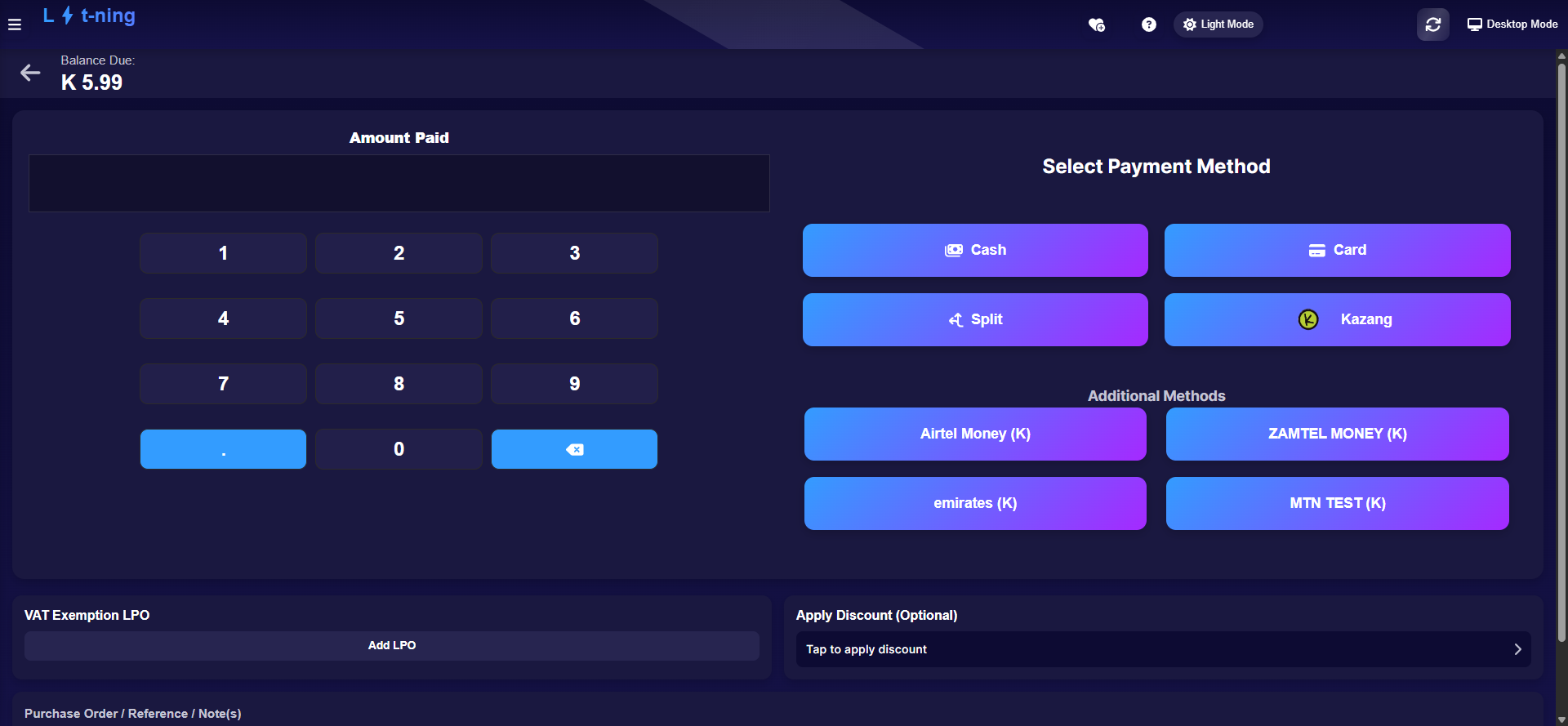 The payment screen: balance due, amount keypad, payment methods, and the discount and reference fields.
Where this happens
On the Sales screen with a sale built — click PAY. The payment screen shows the Balance Due and the keypad.
Steps
1. Choose the payment method
- Cash — the customer hands you notes/coins.
- Card — the customer pays by card machine.
- Split — part cash, part card (or any mix). Enter each part in turn.
- Kazang — mobile-money or voucher services where your store is registered.
Your store may also show Additional Methods (for example Airtel Money, Zamtel Money, MTN) — these depend on what your franchise has enabled.
2. Enter the amount paid
Type the amount on the keypad, or use Total Given on the Sales screen and let the till work out the change.
3. Complete and give change
The till processes the payment, asks whether to print the receipt, and shows the change due. Hand over the receipt and change together.
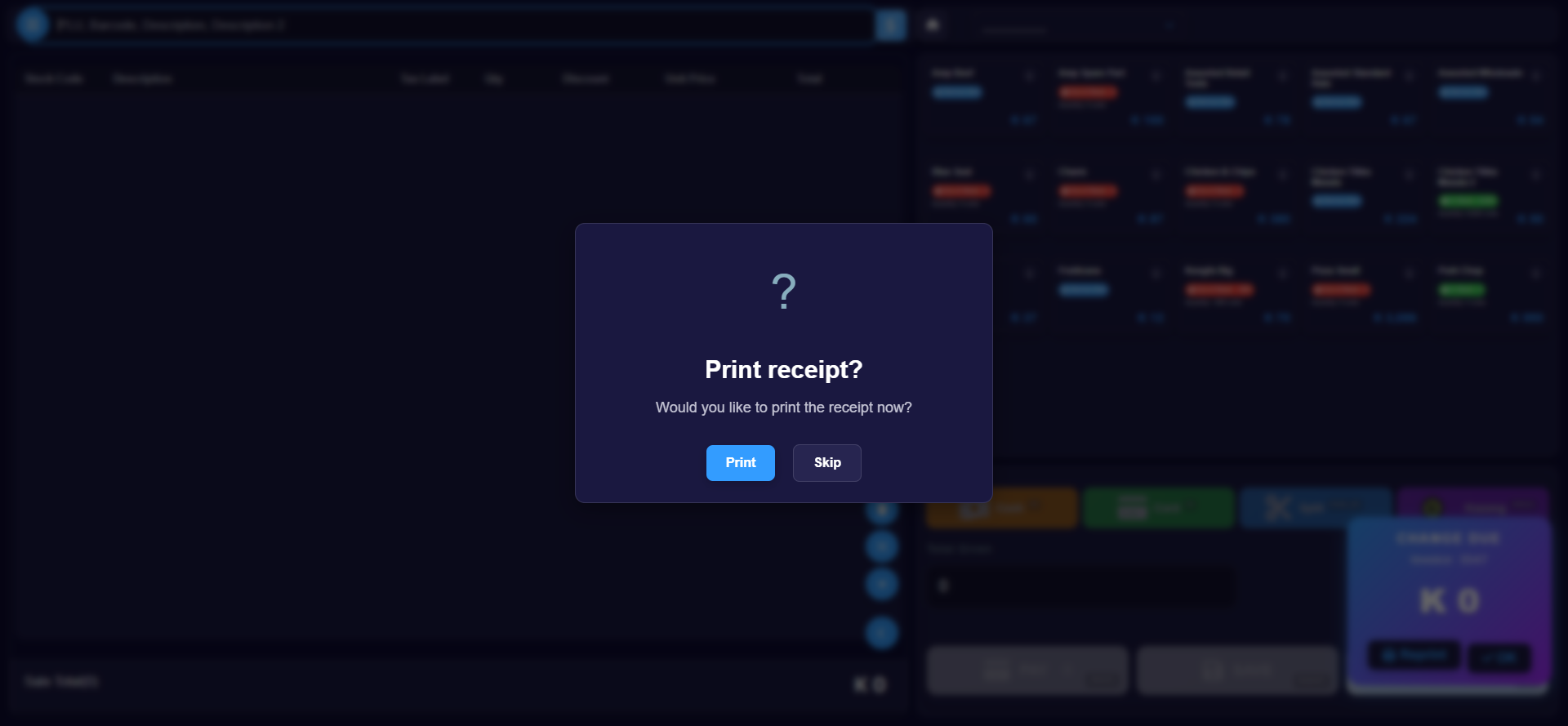 After a cash payment: the print prompt appears, with the change due (K 0) showing behind it. Skip keeps the sale without printing.
4. Add extras (optional, before paying)
- Apply Discount — percentage or amount off; needs permission.
- Purchase Order / Reference / Note(s) — a reference printed on the invoice, useful for account customers.
- VAT Exemption LPO — attach an exemption reference where it applies.
Expected result
The sale becomes an invoice, the till shows the receipt (and change owed), and the sale appears in Invoices.
Edge cases
- "Supervisor Approval Required" when you try to pay. Your group's permissions do not include completing that payment type. A supervisor enters their password on the box, or a manager approves the request from the back office — the till waits and continues automatically once approved. See Till roles and screen access.
- The internet drops while paying. The sale is saved on the till and appears in Offline Invoices for syncing — see Working offline.
- The card machine fails halfway. Cancel on the till, then take the payment again — check Invoices afterwards to make sure no duplicate went through.
- Kazang does not respond. Do not re-tap repeatedly; give it a moment, then ask your supervisor. A stuck Kazang payment should be checked in the Kazang records before retrying.
- The customer wants a receipt again later. Open the sale in Invoices and reprint — reprinting an old invoice needs permission.