
Appearance
Smart Lodging — room charges
Goal
Post a restaurant bill to a lodge guest's room, and see what a guest already owes — without leaving the till.
Where this happens
Open the menu and click Smart Lodging. The option appears only for restaurants inside a lodge that has switched the integration on — if you do not see it, the lodge does not use room charging.
When you settle a table, the payment screen can also ask you to Select Room — pick the guest's room and the bill posts to their stay:
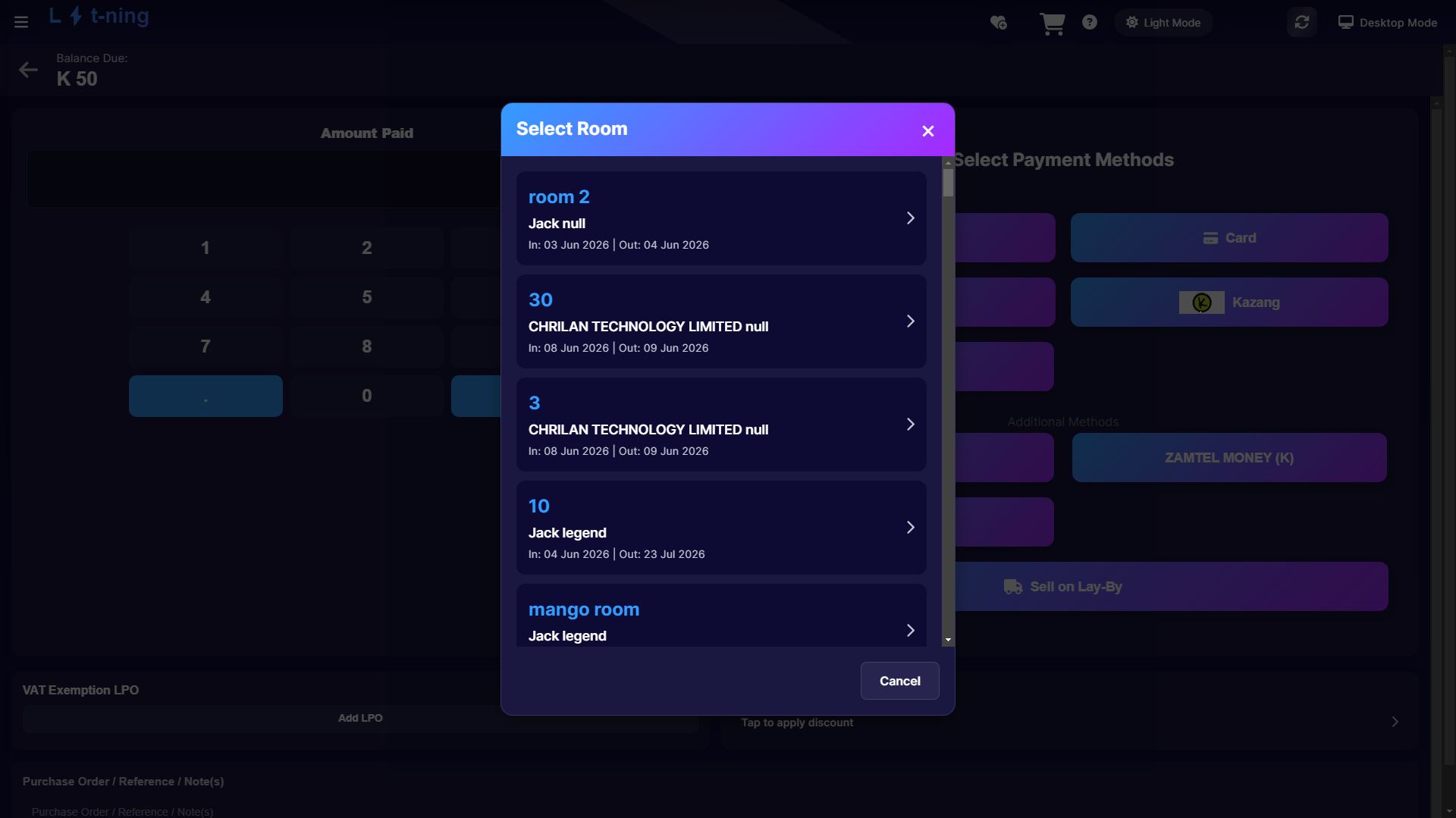 Each room shows the guest and their stay dates. Pick the room and the sale is charged to their account.
Steps
1. Find the guest's room
Search by room number or guest name, and filter by status — Checked In, Checked Out, Reserved. Only checked-in rooms can take charges.
2. Check the room's bill
Each room card shows the guest, their stay dates, and the Balance Due / Total on the room account. View Bill opens the detail before you add anything.
3. Charge the sale to the room
- On the room card, click Make Payment to move a amount onto the room, or
- On the payment screen while settling a restaurant sale, choose the charge to room option, then pick the room.
The charge lands on the guest's room account and appears on their final bill at checkout.
Expected result
The restaurant sale is settled at the till and the amount appears on the guest's room bill — the guest pays once, at checkout.
Edge cases
- The room is not listed. Check the status filter — reserved and checked-out rooms cannot take charges.
- "Failed to process room charge". The lodge link is down; retry, and if it keeps failing take a normal payment and raise a ticket — do not leave the guest waiting.
- The guest disputes a charge. View Bill on their room shows every posting with its origin — check it together before adjusting anything.
- The Smart Lodging menu is missing. The integration is off for this site; only the lodge can switch it on.