
Appearance
Build a quote with DSR
Goal
Build a customer's quote on the road — scanning and searching products, adjusting quantities, and saving the quote.
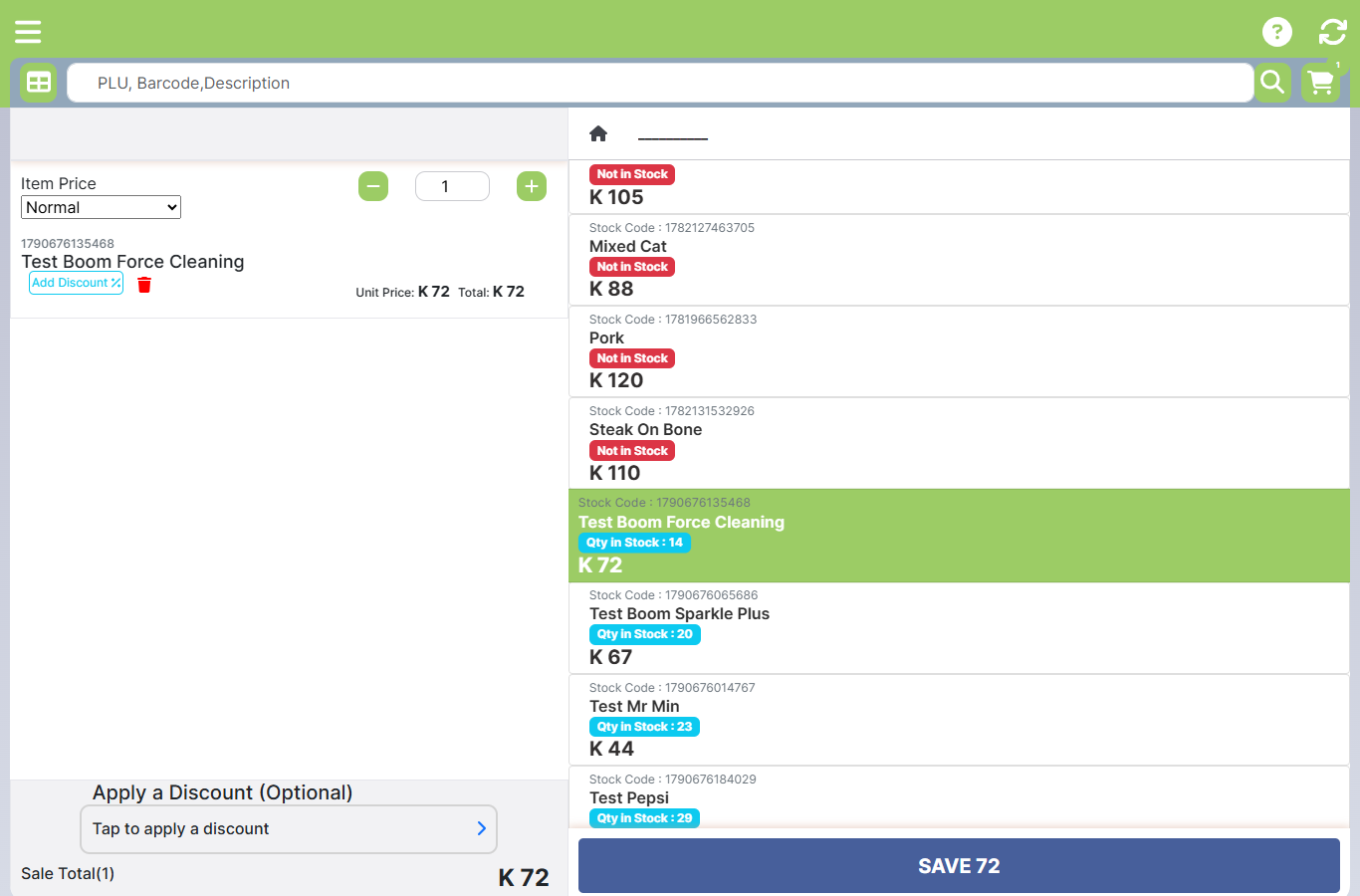 The quote on the left, the product catalogue on the right with live stock badges, and the total on the SAVE button.
Steps
1. Add items
Use the search bar — it takes a PLU, a barcode, or a description:
- Scan with the handheld scanner or phone camera — the item is added as you scan, no extra tap.
- Type a PLU or part of a name and press enter.
- Browse the product grid, or pick a category from the category bar.
Each product tile shows its stock — Qty in Stock: n when available, Not in Stock in red when it is not. Scanning many units of one item adds them in sequence; that is the normal way to work.
2. Adjust the quote
The quote on the left lists each line with its stock code, unit price and total. Use − / + to change the quantity, the dustbin to remove a line, and the Add Discount tag to apply a discount. Apply a Discount (Optional) at the bottom applies it to the quote.
3. Save the quote — press SAVE
When the quote is right, press the SAVE button (it shows the total).
SAVE creates the quote. It is not "save for later" — it saves the quote against the customer, ready to download.
- If no customer is attached, DSR asks you to select a customer (or create one) before it can save the quote.
- The quote is saved with a reference — the customer's name and the date — which you can read back to them.
- On the confirmation, choose Download to get the quote document, or Next Order to start the next quote.
Payment and documents
DSR does not take payment — it produces the quote. Once the customer accepts it, settle payment through your store's normal process; the till apps handle the cash side.
The quote document is downloaded to the device, ready to send to the customer or print.
Expected result
The customer has a saved quote with a reference and a downloaded document.
Edge cases
- A scanned item does not appear. The barcode may not match the store's items — search by name instead. If the store uses a scale with flag-prefixed barcodes, scan the item normally; DSR reads the weight/price from the barcode.
- Everything shows Not in Stock. The store's stock is genuinely empty or out — confirm with the store before quoting on availability.
- SAVE asks for a customer. A quote must belong to someone: pick the customer, or create a new debtor account.
- The document will not download. Re-open the saved quote from Saved orders and download again; the quote is still saved either way.