
Appearance
Float and cashup (Retail POS App)
Goal
Start your shift with the right money in the drawer, close it with a cashup that matches, and find every past cashup afterwards.
The float — starting your shift
When your store uses cash floats, the till asks for your starting float right after you sign in with your PIN: count in the notes and coins you were given, confirm, and the Sales screen opens. If you have already been assigned a float this shift, the till skips this step and goes straight to Sales — that is normal. See Sign in on the Retail POS App.
End User Shift — closing your shift
- Open the menu and click End User Shift.
- Count the money in the drawer, denomination by denomination, into the cashup form.
- Complete the cashup. Completing it and printing the report are both permission-controlled — if the till asks for a supervisor, see Till roles and screen access.
- Your totals are recorded under your sign-in and appear in Cashup Records.
"Cannot Cash Up" — the safety stop
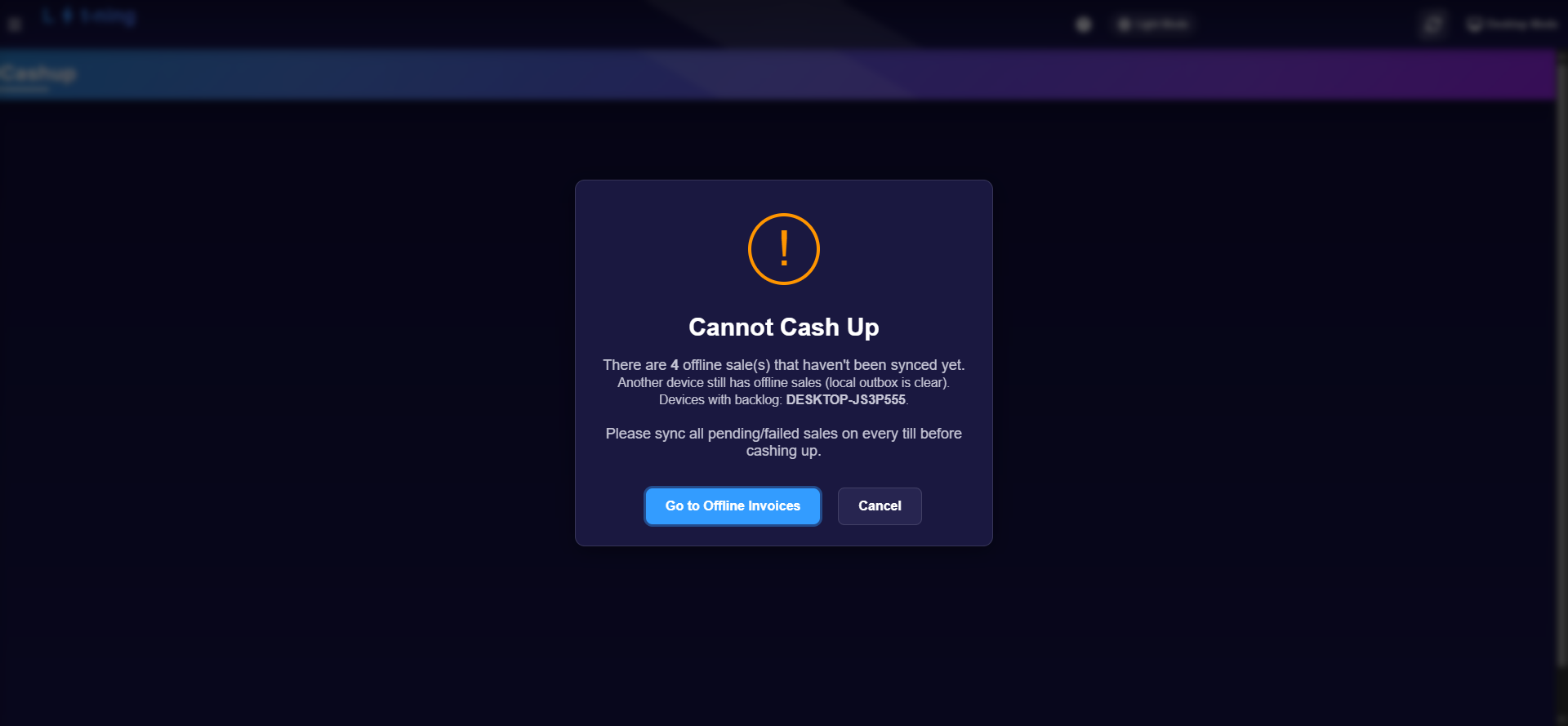 The till refuses to close the shift while any till in the store still has unsynced offline sales.
If any till in the store still has offline sales waiting to sync, the cashup blocks with Cannot Cash Up and names the device holding the backlog. Nothing is wrong with your count — the store simply refuses to close a day it has not fully seen.
- Click Go to Offline Invoices.
- Sync or retry every pending and failed sale on that device (see Working offline).
- Return to End User Shift and complete the cashup.
Cashup Records
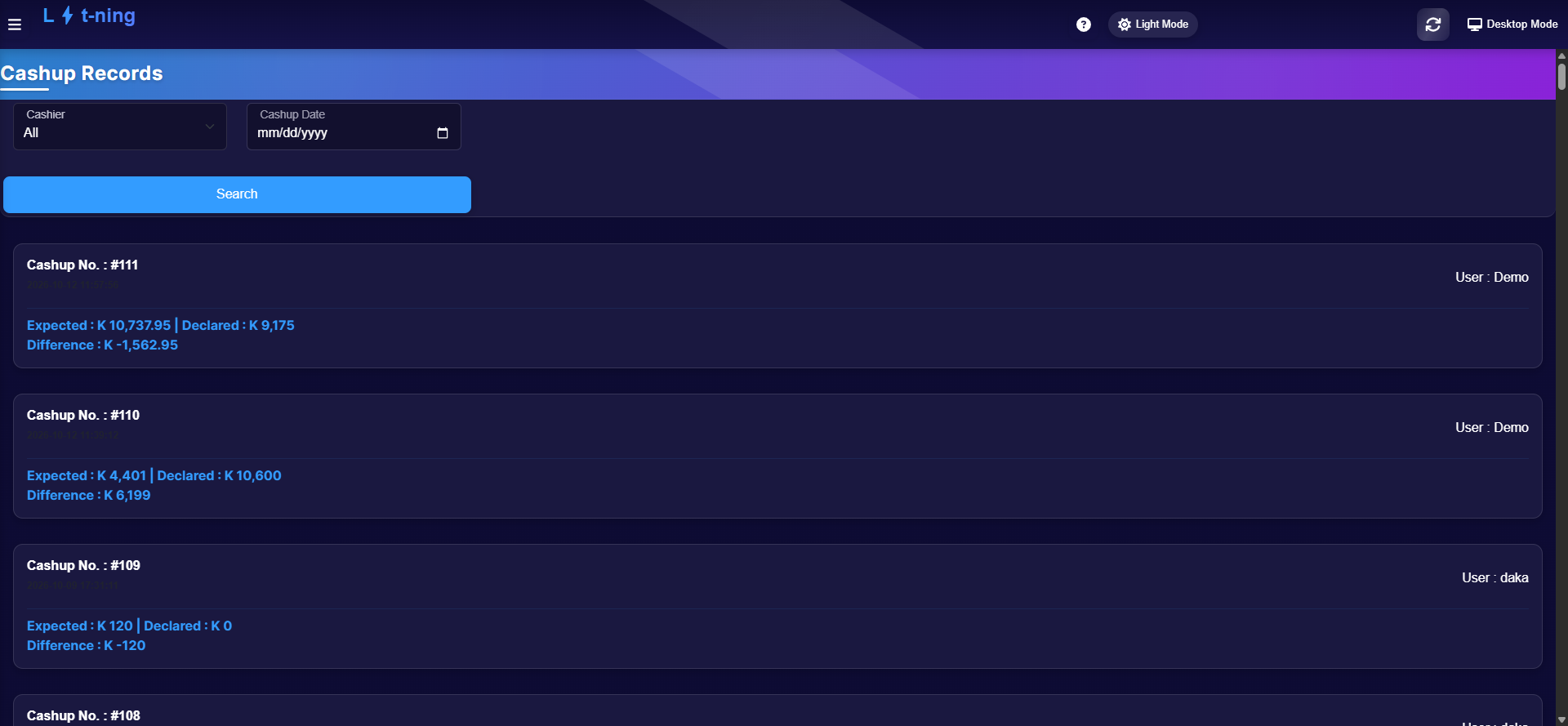 Every cashup for the store: who closed it, when, and whether the money matched.
Each record shows:
- Cashup No., date and user — who closed the shift.
- Expected — what the system says should be in the drawer.
- Declared — what you counted in.
- Difference — Expected minus Declared. K 0 is a perfect shift; anything else is a variance your franchise will want to understand.
Filter by Cashier or Cashup Date and click Search. Opening this screen needs the cashup-records permission — if clicking it does nothing, your group does not include it.
Expected result
Your shift closes with a recorded cashup, and the Difference line either reads K 0 or is a variance you can explain.
Edge cases
- "Cannot Cash Up" keeps appearing. The other device still has offline sales. Sync them on that device — you cannot clear its backlog from yours.
- The End User Shift menu is missing. Your group does not include it; ask a supervisor.
- Clicking Cashup Records does nothing. Same reason — the permission is missing from your group.
- A large Difference on an old record. Records are never edited; raise it with your franchise owner who can check the invoice history against it.
- The float step did not appear at sign-in. A float is already assigned for this shift.