
Appearance
Stock take and stock transfers (Retail POS App)
Goal
Count what is on the shelves and move stock between stores — the two stock jobs a till can do besides selling.
Stock take
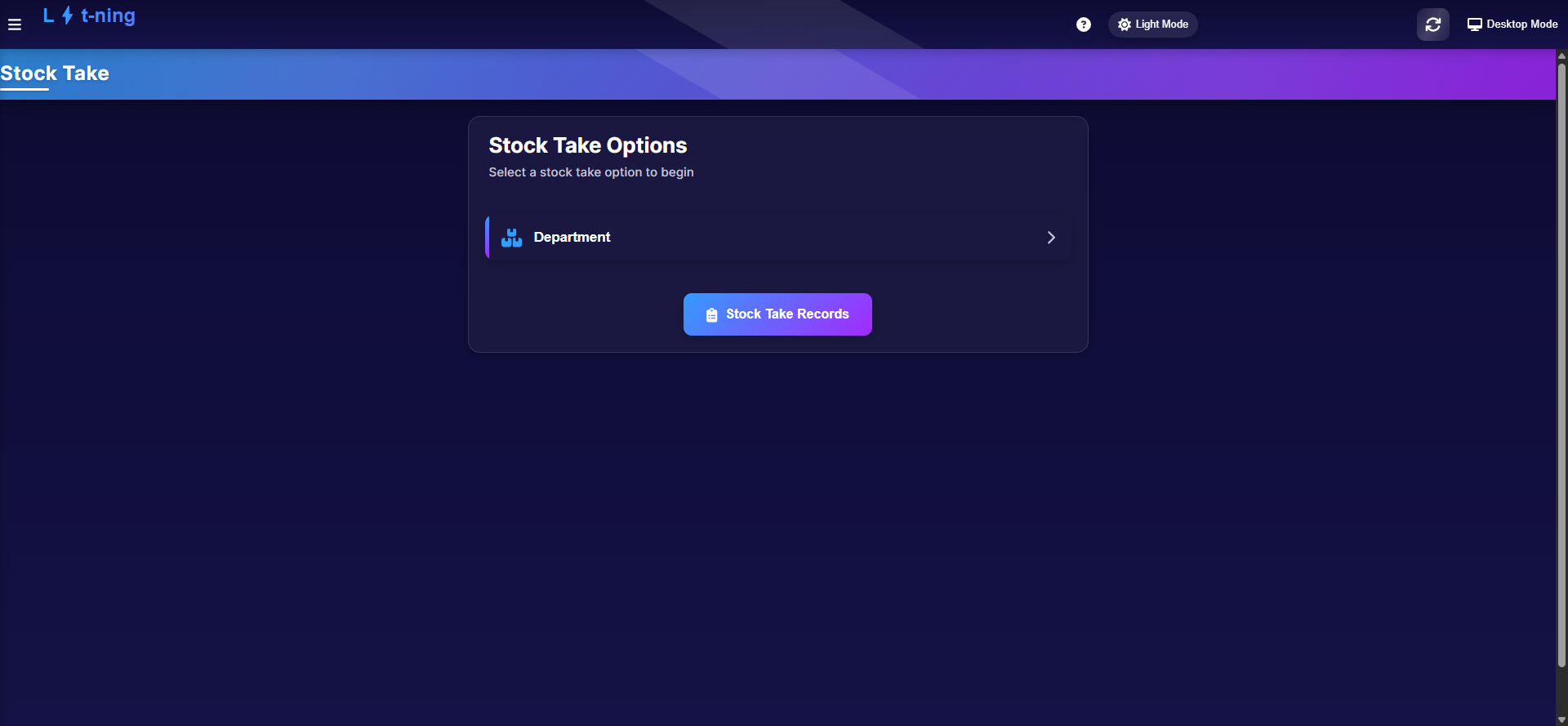 The Stock Take hub: pick a count type, or open past records.
- Open the menu and click Stock Take.
- Choose Department to count.
- Pick the Main Category — or Full Stock Take (All - Items) to count everything — and click Start Stock Take.
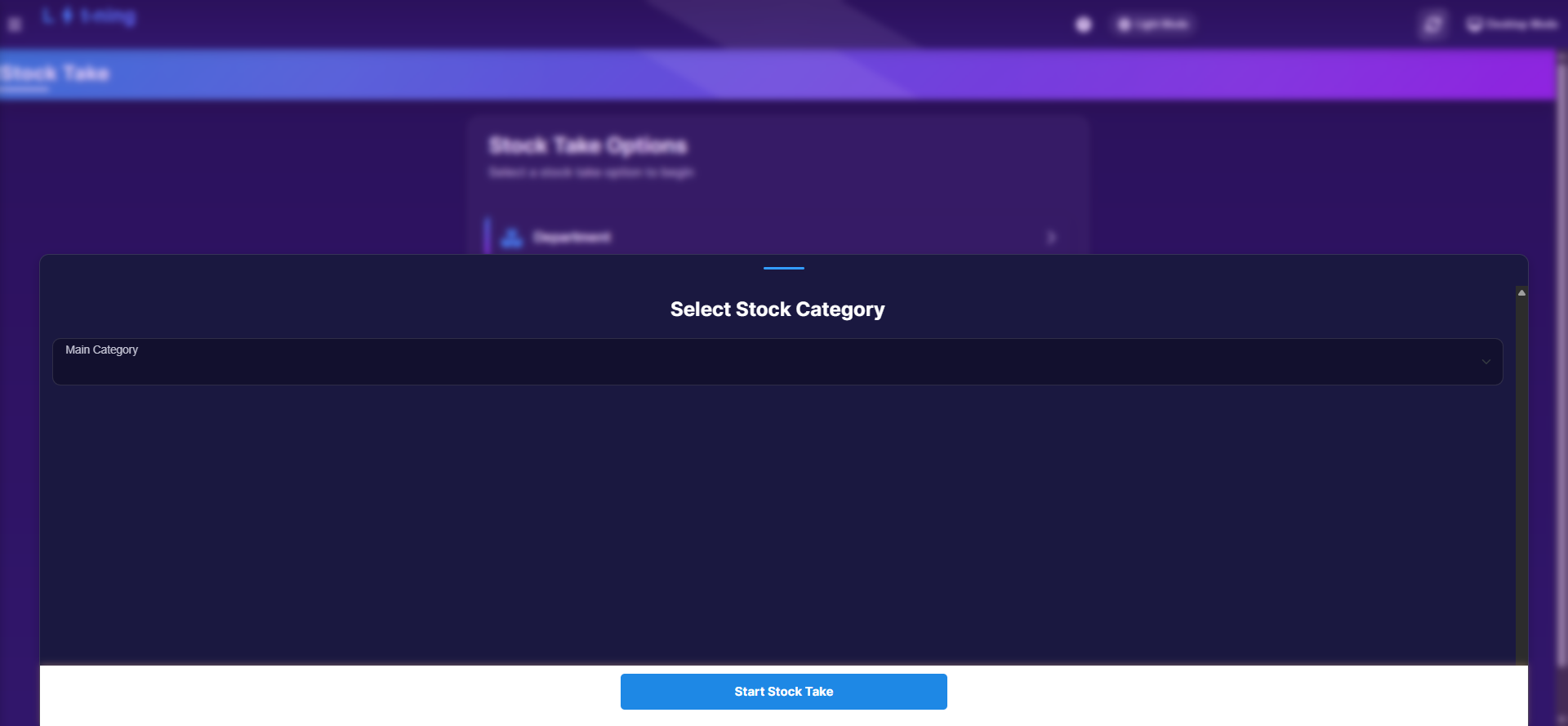
- Walk the shelves and enter counted quantities on the counting sheet, then finalise. Finalising sends the count to the back office and emails the record — do it once, deliberately.
- Stock Take Records on the hub lists past counts.
Starting a stock take is permission-controlled — if the menu click does nothing, your group does not include it.
Stock transfers
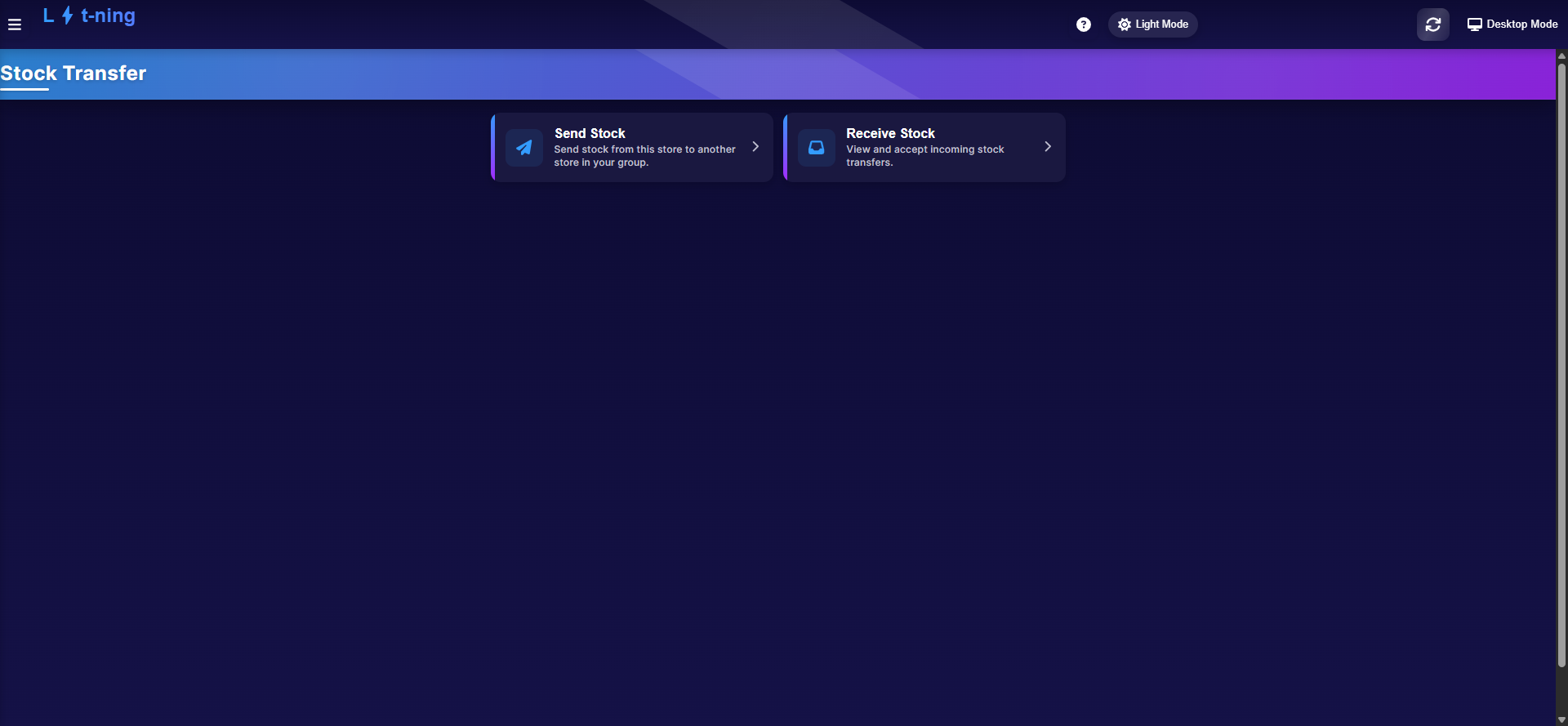 Two jobs: send stock out, or receive stock in.
Send stock to another store
- Open the menu and click Stock Transfer, then Send Stock.
- Pick the receiving store from your group (the till remembers the last one).
- Search items to send by PLU / Stock Code or Item Description.
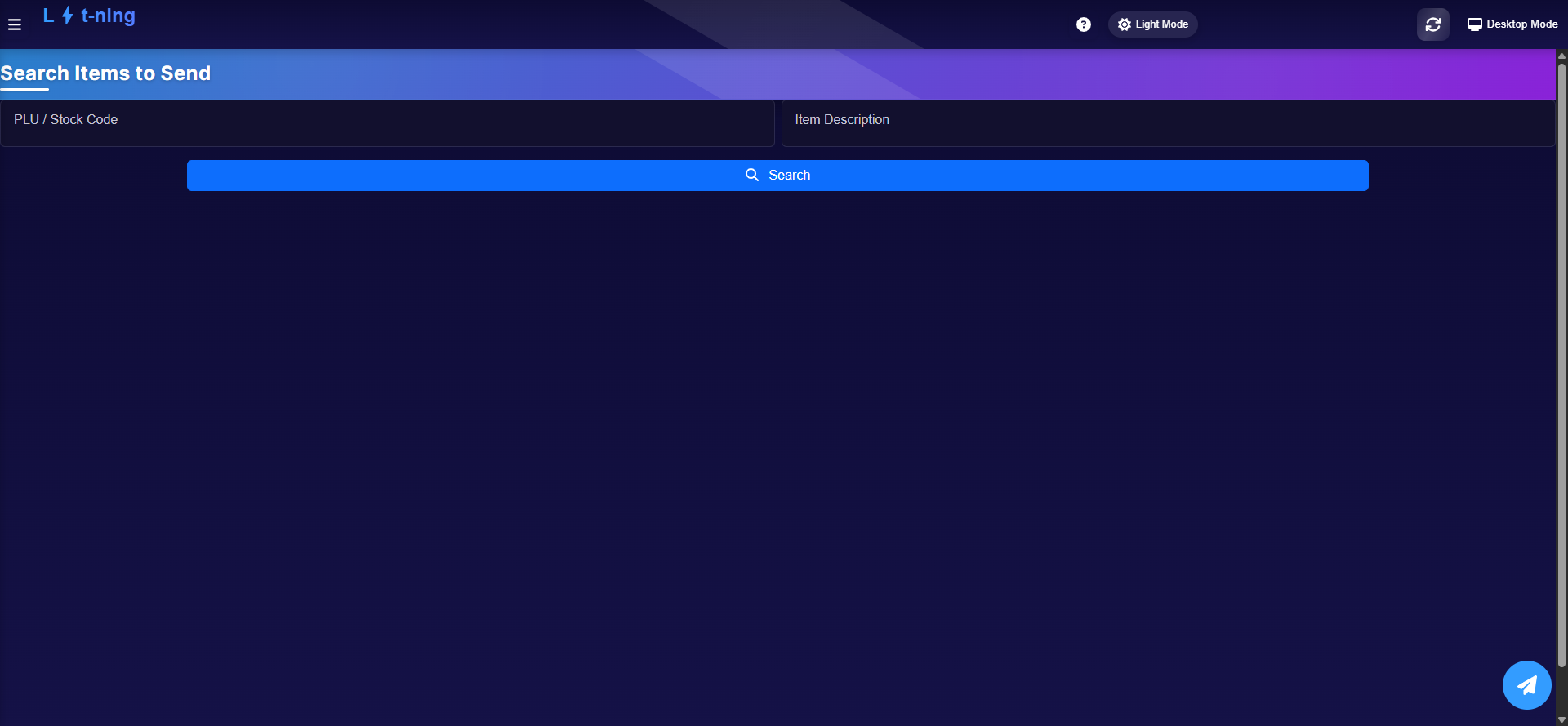
- Add quantities to the transfer, review the list, and send it. The receiving store sees it under their incoming transfers.
Receive stock
- Click Receive Stock (or Incoming Transfers in the flow).
- Search by Document No. or sender store, open the transfer, and accept it — the stock lands in your store on acceptance.
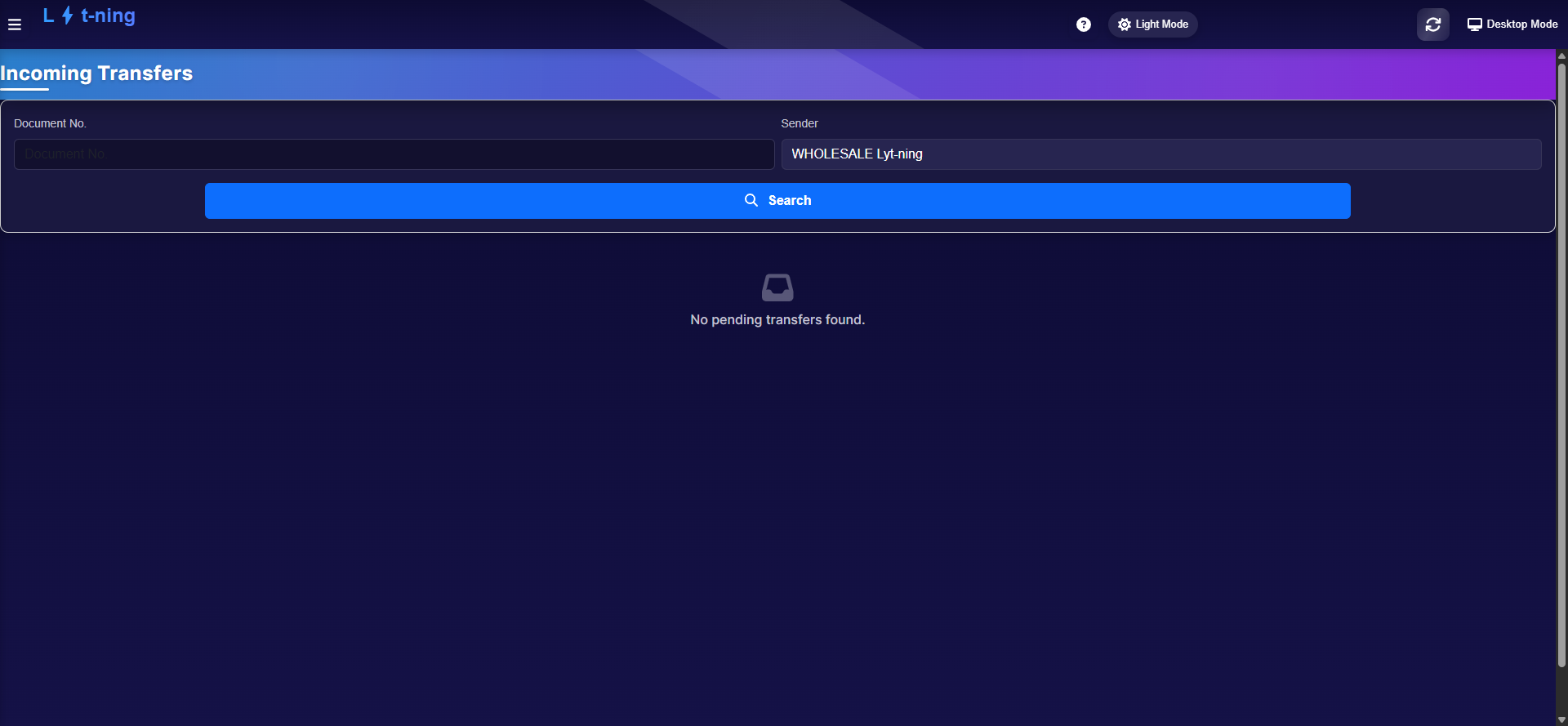
Saved, rejected and not-received transfers have their own lists in the transfer flow, so nothing goes missing halfway.
Expected result
A finalised stock take appears in Stock Take Records (and the back office); a sent transfer appears at the receiving store, and accepting it moves the stock.
Edge cases
- Stock Take menu click does nothing. Permission missing from your group.
- The Stock Transfer menu is missing entirely. It is hidden unless your group has the franchise-section permission.
- "No pending transfers found." Nothing is waiting from other stores — widen the sender filter if you are expecting one.
- You finalised a count with wrong numbers. Tell your franchise owner immediately — corrections go through the back office, not the till.