
Appearance
Sign in on the Retail POS App
Goal
Get a cashier from the login screen to the Sales screen in under a minute.
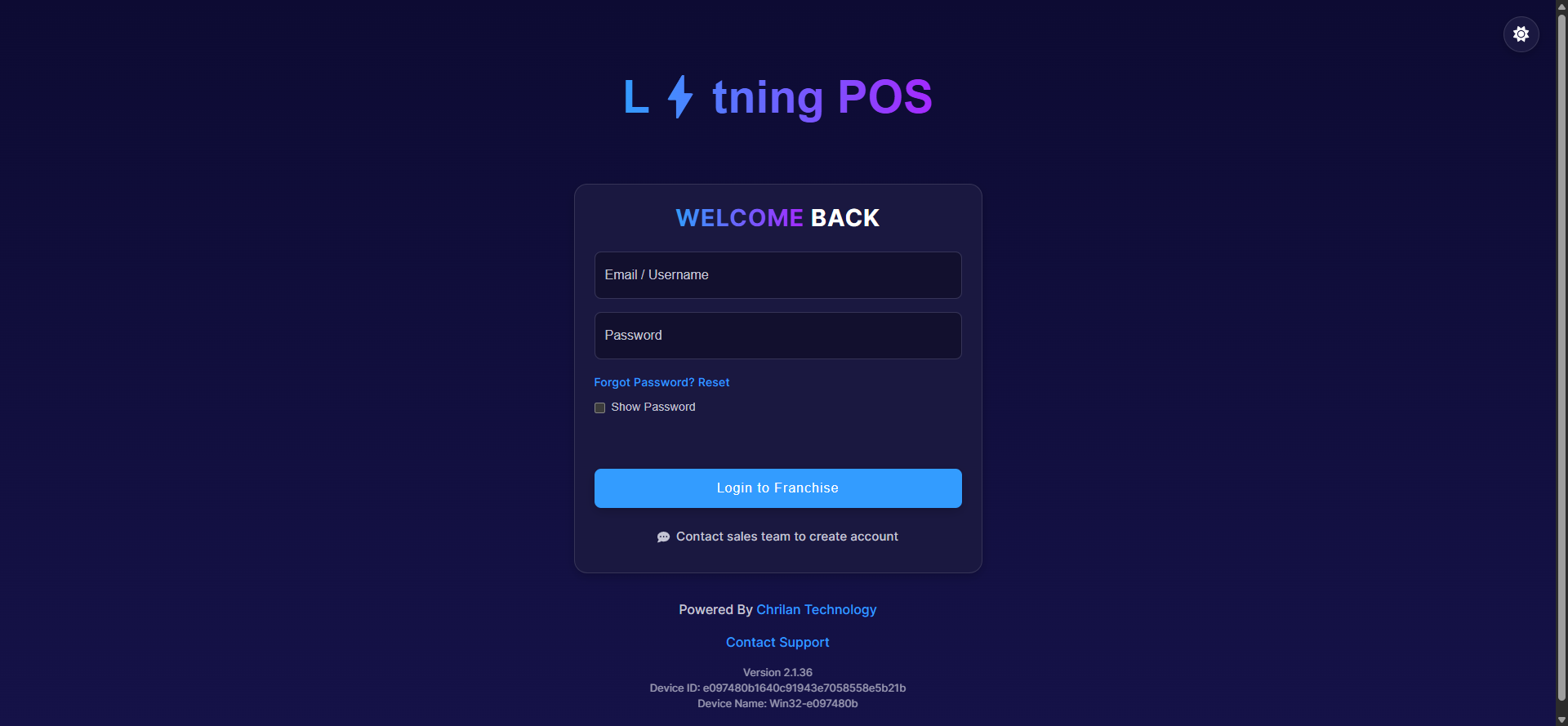 Retail POS App sign-in — enter your franchise username and password.
Before you start
- You have your franchise username and password (from your franchise owner).
- You know your store and your personal PIN. Never use another person's PIN.
Steps
1. Sign in to the franchise
- Open the Retail POS App.
- Type your Email / Username and Password.
- Click Login to Franchise.
If the app opens on a store list straight away, a franchise is already signed in on this device — skip to step 2.
2. Select your store
- Click your store in the Select Your Store list — for example Smart Store-Lyt-ning.
- Click Continue.
The first sign-in to a store downloads its stock to the till. Wait for Preparing store… to finish — it is quicker every time after that.
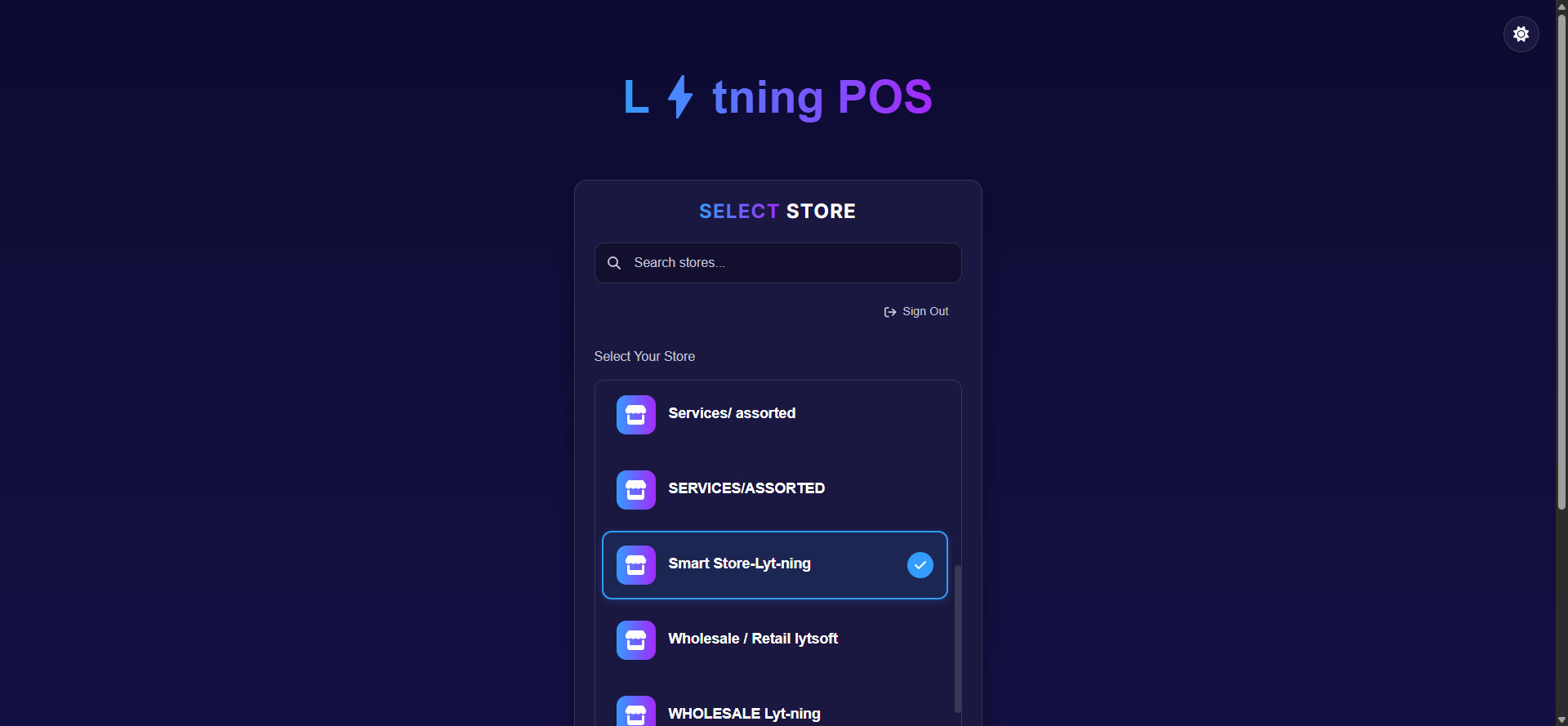 One device can serve any store in the franchise — pick the one this till belongs to.
3. Enter your PIN
- Type your 4-digit PIN on the keypad.
- Click Login.
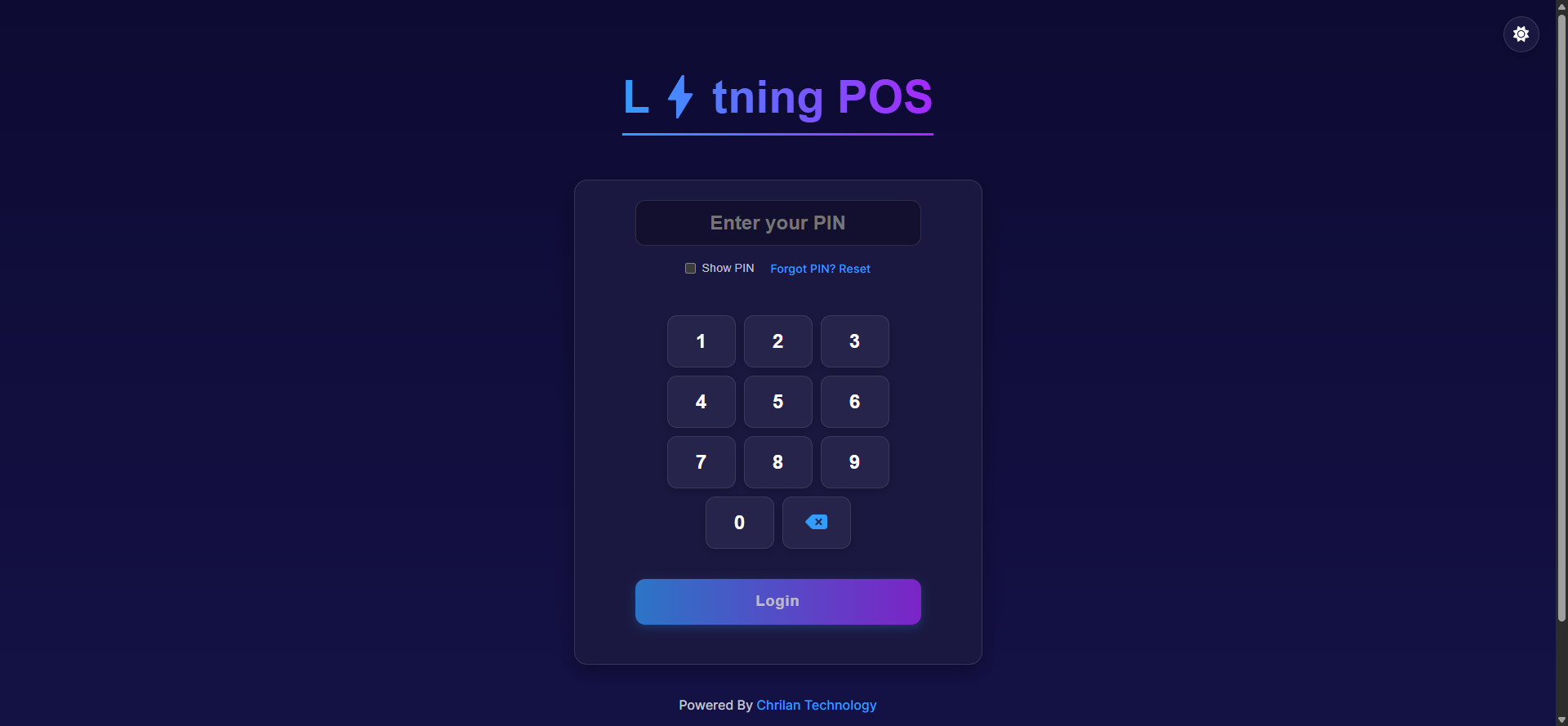 Tap Show PIN to check what you typed. Forgot PIN? Reset asks your supervisor to reset it.
4. Start your shift
- If your store uses cash floats, the float screen asks you to count in your starting cash before you sell. Enter it and start the shift.
- If no float is needed, the till goes straight to Sales — this is normal.
5. You are in
You land on Sales with your name and role at the top of the menu — for example jose, Cashier, Smart Store-Lyt-ning.
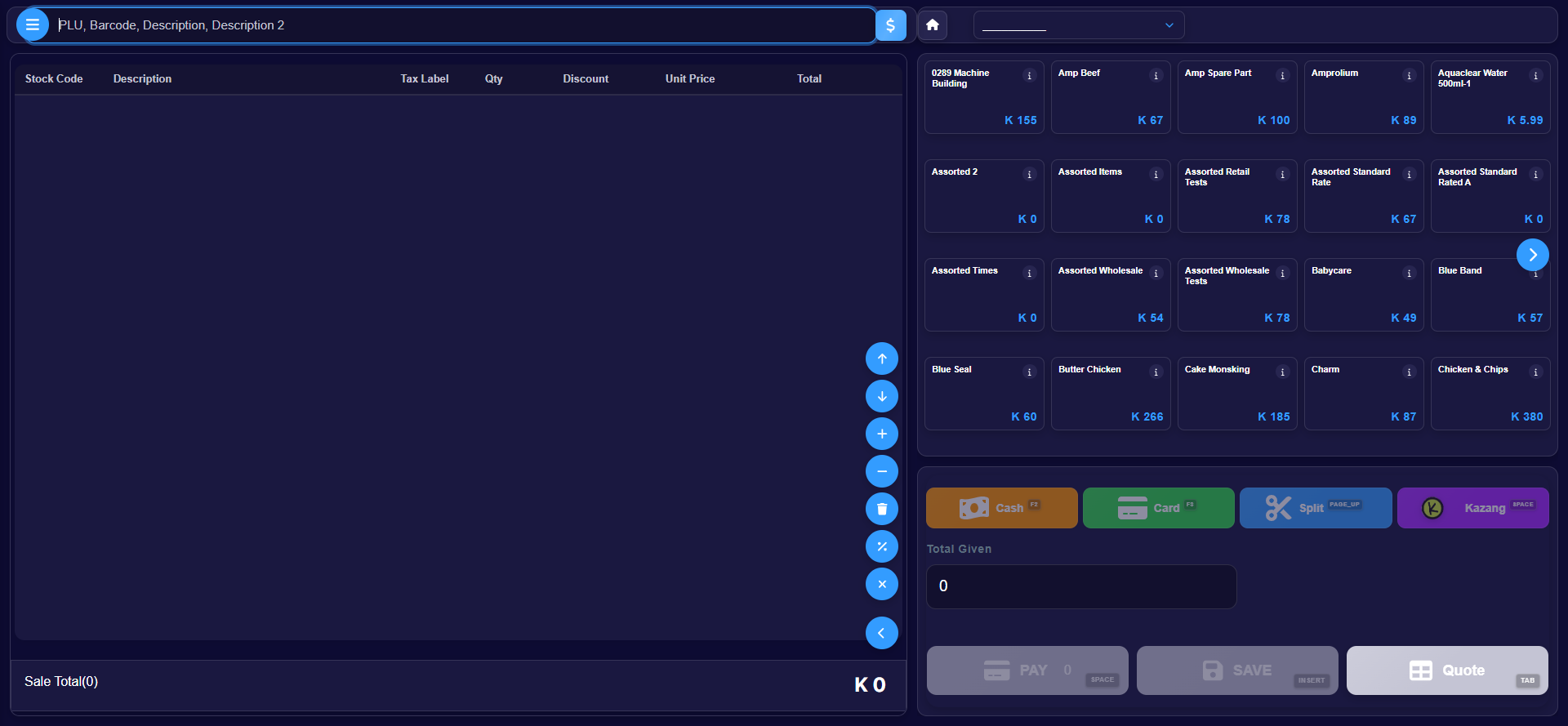 The menu holds Invoices, Offline Invoices, Loyalty Customers, Stock Take, End User Shift, Cashup Records, tickets, settings and more.
To end a session, open the menu and click Log out — the next person signs in with their own PIN at step 3.
Expected result
Your name, role, and store show in the menu, and the Sales screen is ready to scan or search products.
Edge cases
- "Incorrect PIN". Re-enter it slowly. Still failing? Ask your supervisor to reset your PIN from the back office, then use Forgot PIN? Reset.
- Your store is not in the list. The device is signed in to the wrong franchise. Click Sign Out and use the franchise sign-in from step 1.
- "This till can't be used until it's updated." The app is out of date. Follow the on-screen steps to request the update before signing in.
- The store is stuck on "Preparing store…". Check the network cable or Wi-Fi, then click the refresh arrow at the top. Still stuck? See Troubleshooting.
- The menu shows fewer items than a colleague's. Your sign-in's permissions differ. See Till roles and screen access.