
Appearance
Cash-up & finance
Goal
Close a till, record money safely, or capture a store expense without losing the audit trail.
In the app, this section is called Finance & Admin. Open it for employees and security settings (HR Management), asset management, financial management (currency, expense categories, expense records, ledger entries, VAT reports), and most store settings. The end-of-day cashup lives elsewhere — see the Where this happens block below.
Where this happens
- In the back office: open Till Management → Edit Float to record a float change, or Till Management → Store Cashups to review past cashups.
- On the till (Retail POS App / Restaurant POS App): open End User Shift to close the shift and reconcile the day's totals.
Roles that can do this: supervisor or franchise admin (back-office cashup and finance settings); cashier with the right permission (till cashup).
Problem
You need to close a till, record money safely, or capture a store expense without losing the audit trail.
Prerequisites
- You are signed in to the correct store and till.
- You have the physical cash, payment slips, and approved expense document.
- A supervisor is available when your role cannot approve a variance.
Steps
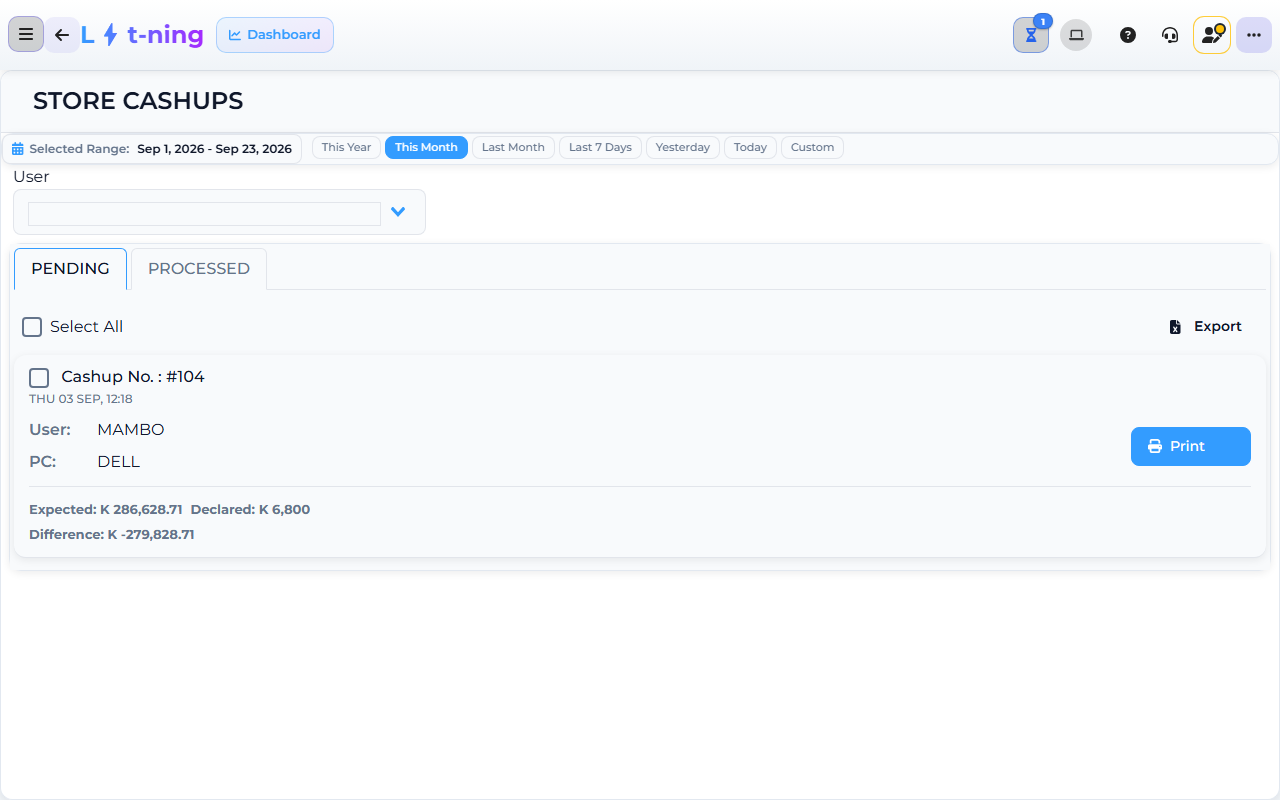
The image shows the Core App Store Cashups screen. Screens may differ slightly by version.
Complete a cashup
- Open Till Management → Store Cashups in the back office to review the day's cashups. (The till-side counting itself happens in End User Shift on the till. Cashup reports run from Sales Management → Cashup Reports.)
- Set the date range and pick the till user whose cashups you want to see.
- Each cashup record shows the Expected total, the Declared total, and the Difference — review these against the day's slips.
- Open a record to see its details and print it if you need a paper copy.
- Select the cashup records that check out and click Finalize to process them.
- Keep the Cashup No. reference from each record.
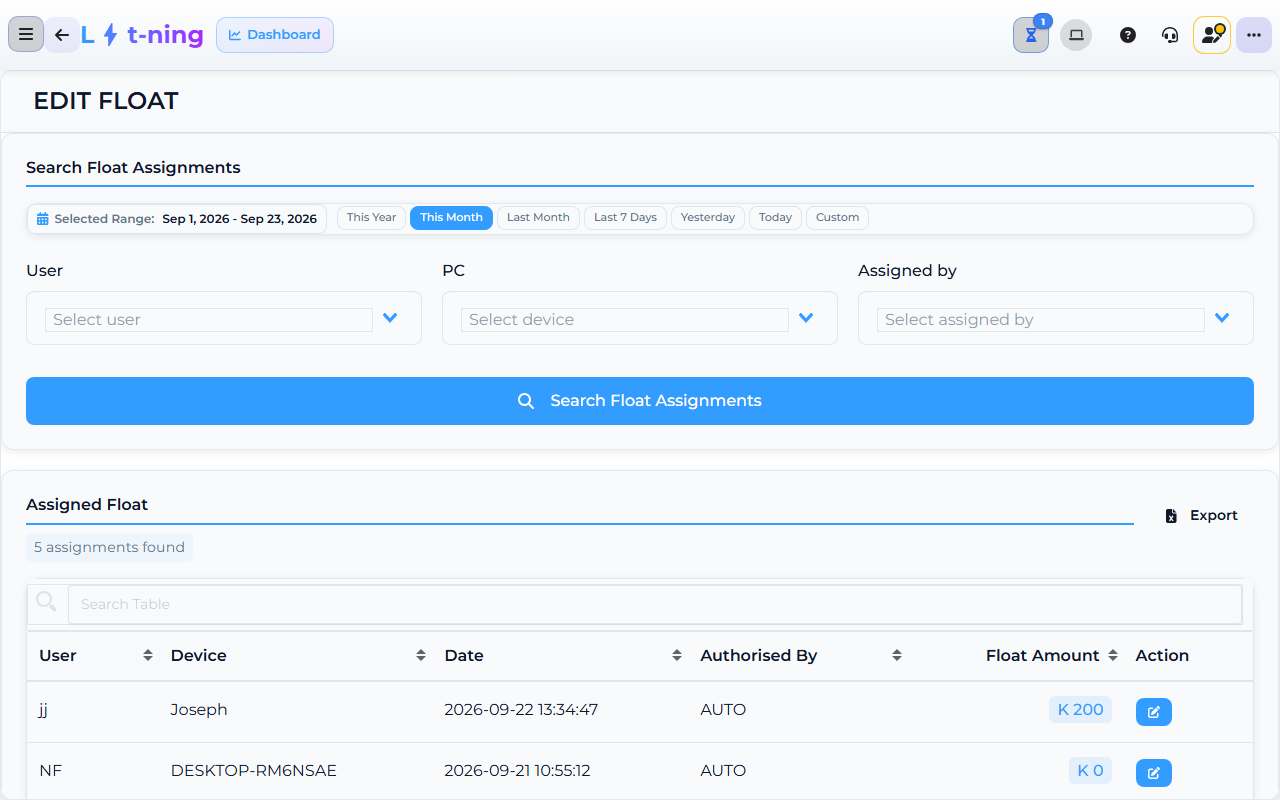
The image shows the Core App Edit Float screen. Screens may differ slightly by version.
Check the float (till float assignments)
- Open Till Management → Edit Float to review the float assigned to each till user and device.
- Set the date range, then filter by User, PC (device), and who assigned the float.
- Review the list of float assignments and their amounts.
- Click Edit Float on an assignment to correct its amount, and save.
Check the safe (Cash and Accounts → Safes)
Safe balances and money movements live in Cash and Accounts (Finance & Admin → Financial Management → Cash and Accounts), which opens the Safes & Accounts screens:
- Open the safe account you need.
- The screen shows the safe Balance, total Money IN, and total Money OUT.
- Review the transaction list below the balance.
- Record only approved movements, and use Close Safe for a safe close when your store's procedure calls for one.
Record an expense
- Open Expense Categories and confirm the category exists.
- Open Expense Records and enter date, supplier, amount, and reason.
- Attach the receipt if the screen allows it.
- Review tax and payment details, then save.
Review payment methods
- Open Payment Methods.
- Check that the methods used at your store are enabled and named clearly.
- Ask a supervisor before changing a method used by an active till.
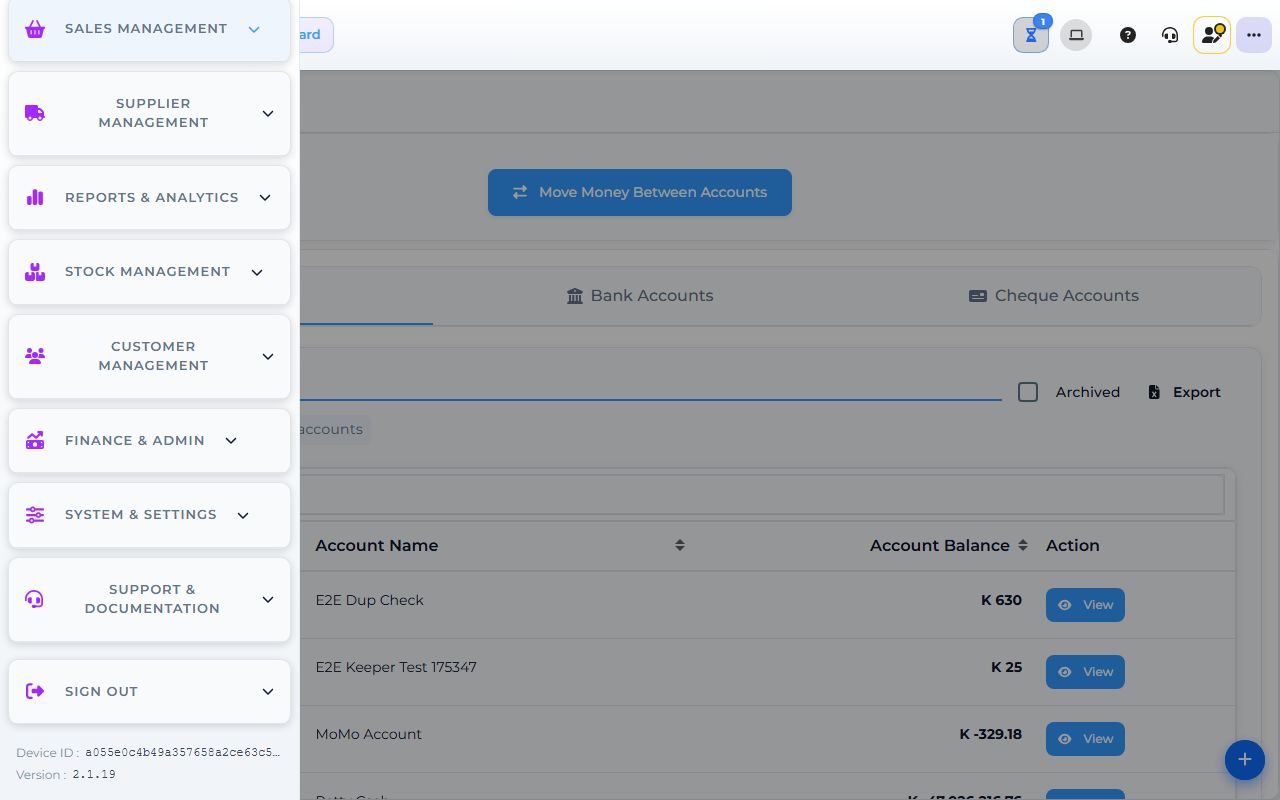
The image shows the Core App Cash and Accounts screen. Screens may differ slightly by version.
Cash & Accounts (Lyt-Accounting screen)
Cash & Accounts is the back-office view of your store's cash, bank, and ledger accounts — what is in the safe, what is in the bank, what has been paid out, and what is owed. In the live Core App the item is labelled Cash and Accounts and sits under Finance & Admin → Financial Management (Lyt-Accounting).
Use it when you need to:
- See the current safe balance and the bank balance.
- Reconcile an expense payout against the cash drawer or the bank.
- Trace a payment to its source account.
- Open Finance & Admin → Financial Management → Cash & Accounts.
- The screen shows the safe, the bank accounts, and any active ledger entries.
- Pick the account you need (safe, bank, ledger).
- Filter by date range and transaction type (cash-in, cash-out, transfer, expense).
- Click any line to see the linked transaction (sale, GRV, expense, payout).
Notes:
- Cash & Accounts is read-only from the till side — changes happen in the Core App.
- The screen is add-on gated (Lyt-Accounting). If your franchise has not enabled the add-on, the link does not appear in the sidebar.
Payment Methods
Payment Methods is the list of every payment type the till accepts — cash, card, mobile money (Kazang, Airtel Money, MTN Money), store credit, gift voucher, room charge (Smart Lodging), and any franchise-specific methods. In the app the screen is titled Additional Payment Options.
- Open System & Settings → Till & Payments → Payment Methods.
- The list shows each Payment Option with its Currency and a Status badge (Active or Inactive).
- To deactivate or reactivate a method, use the status button on its row — supervisor or franchise admin permission required.
- To change the on-screen name the cashier sees, open the edit (pencil) action on the row and update the name in the dialog. Do not change the underlying code (it is used for reconciliation).
- Save.
Notes:
- Disabling a payment method removes it from the till immediately. The cashier will get a plain-language message ("This payment method is not enabled") if they try to use it.
- Some methods (Kazang, Smart Invoice) need their own integration enabled separately under System & Settings → Till & Payments before they appear here.
- A method used on an active till should not be disabled mid-shift; wait for cash-up first.
Expected result
The cashup, safe movement, expense, or payment setting is saved with a reference and the totals can be explained.
Edge cases
- Cash does not match. Recount and check each payment type separately; never change figures just to remove a variance.
- A receipt is missing. Save only if your policy permits it and tell your supervisor what is missing.
- An expense category is unavailable. Ask a supervisor to add or approve the category.
- A payment method is missing. Do not use a similar method; ask a supervisor to enable the correct one.