
Appearance
Restaurant settings and the Table Server
Goal
Keep a restaurant's devices working together: the Main PC and the waiter handhelds share live tables through the Table Server, and each device's hardware is set in Device Settings.
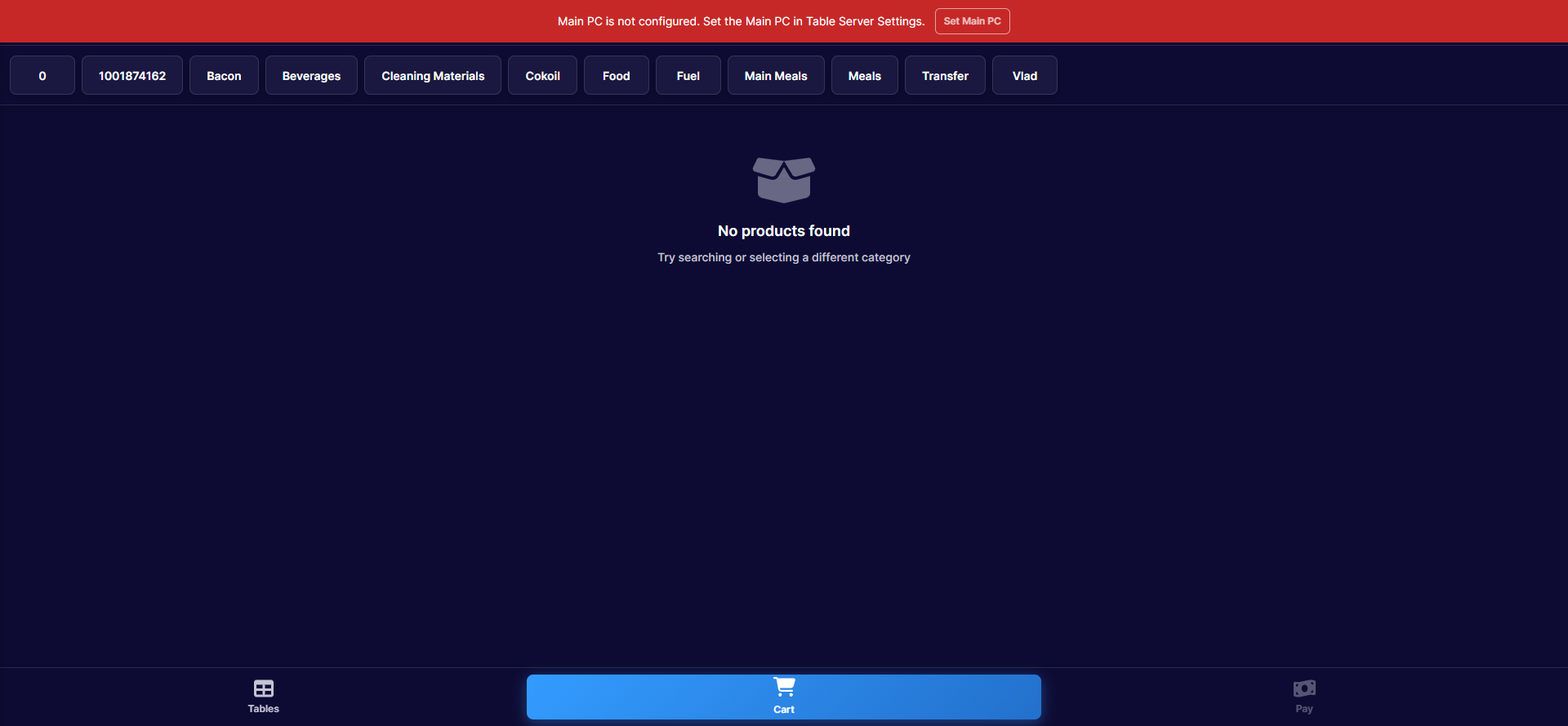 The red banner means this device cannot reach its Table Server — tap Set Main PC to fix it.
Device Settings
Open the menu and click Device Settings. As on the Retail till, the tabs cover general behaviour, printers and receipt format, void and document options, the customer-facing display and LED panels — plus restaurant extras: scale setup and the Table Server screens below. Settings are permission-controlled; if the menu click does nothing, your group does not include them.
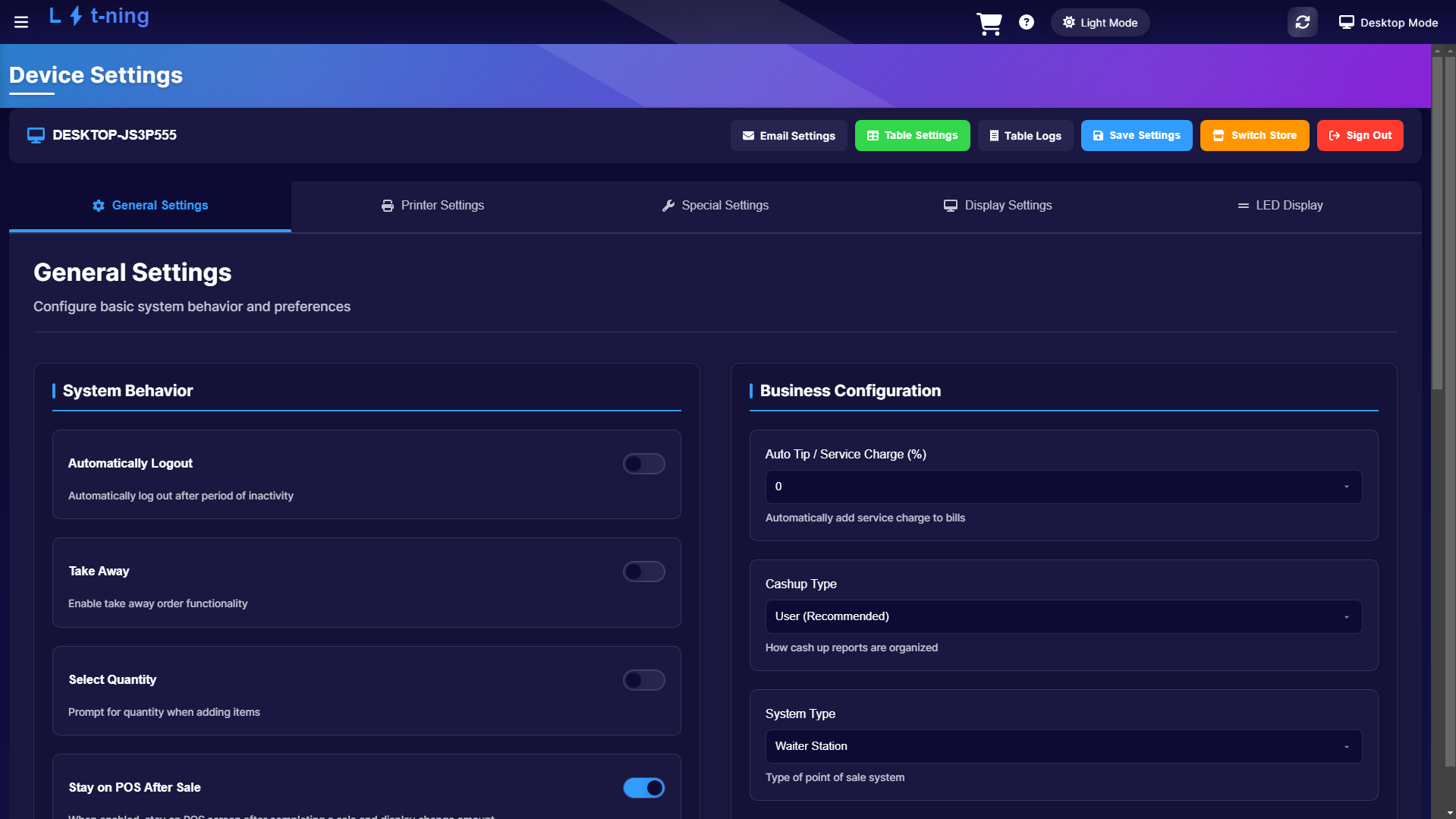 Device Settings: system behaviour, business configuration (service charge, cashup type, system type), printers, specials, displays and LED panels - with the store actions along the top.
The Table Server
The Table Server is what lets a Main PC and every waiter handheld see the same tables live. One device per site must be the Main PC; the others connect to it over the local network.
Configure it (first time, or after a change)
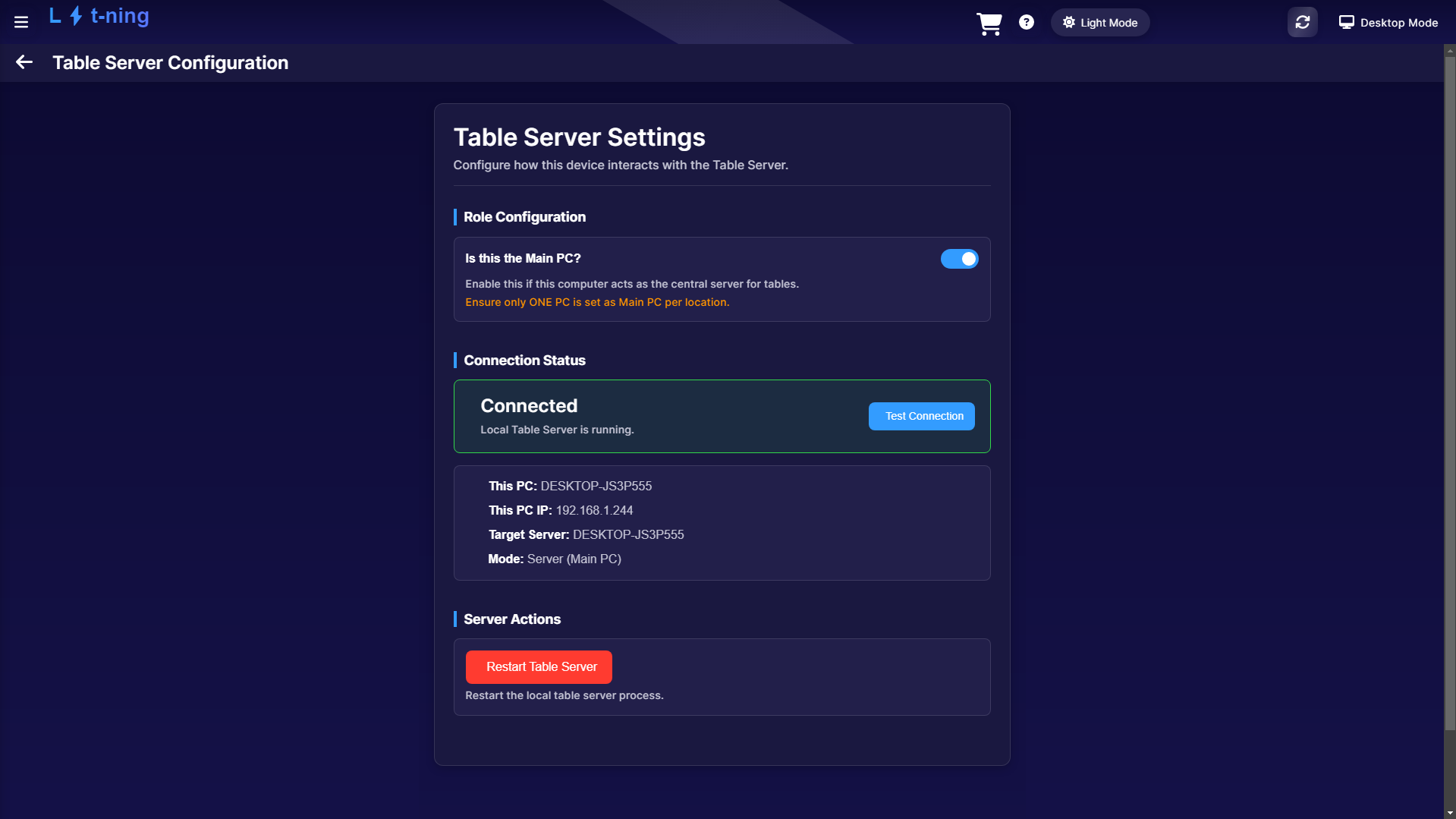 The Table Server screen once connected: this device is the Main PC, its IP, and the restart action.
- Tap the red Main PC not connected banner — or Set Main PC on the sign-in screen.
- The till asks for the manager password before opening the configuration. (Your franchise owner holds it — it is deliberately not a staff PIN.)
- Choose the device's role:
- Is this the Main PC? — for the counter machine. Only one Main PC per site.
- Use Table Server (LAN Mode) — for handhelds: enter the Main PC IP address and test the connection.
- Save. The banner disappears once the link is up.
Watch it (Table Server logs)
From Device Settings, open Table Server Logs — the offline activity view: pending, synced and failed tables, the offline tables still held on this device, and the event history. Sync Now pushes everything waiting; Clean Up clears synced entries.
Expected result
Every handheld's tables match the Main PC's tables, the red banner is gone, and the logs show pending counts at zero after a sync.
Edge cases
- "Main PC is not configured" on a handheld. It has no Main PC address — run the steps above with the manager password.
- "Main PC not connected" appeared mid-service. The Main PC slept or dropped off the network. Wake it, check the cable/Wi-Fi, then tap the banner to reconnect. Tables saved meanwhile are held as offline tables and sync on reconnect (see Floor and tables).
- Two devices both claim to be the Main PC. Stop and call Support — a site must have exactly one.
- You do not have the manager password. That is by design — only managers hold it.