
Appearance
Sign in to Kitchen Orders
Goal
Get a kitchen screen signed in to the right store and the right station, so it shows the orders that belong to you.
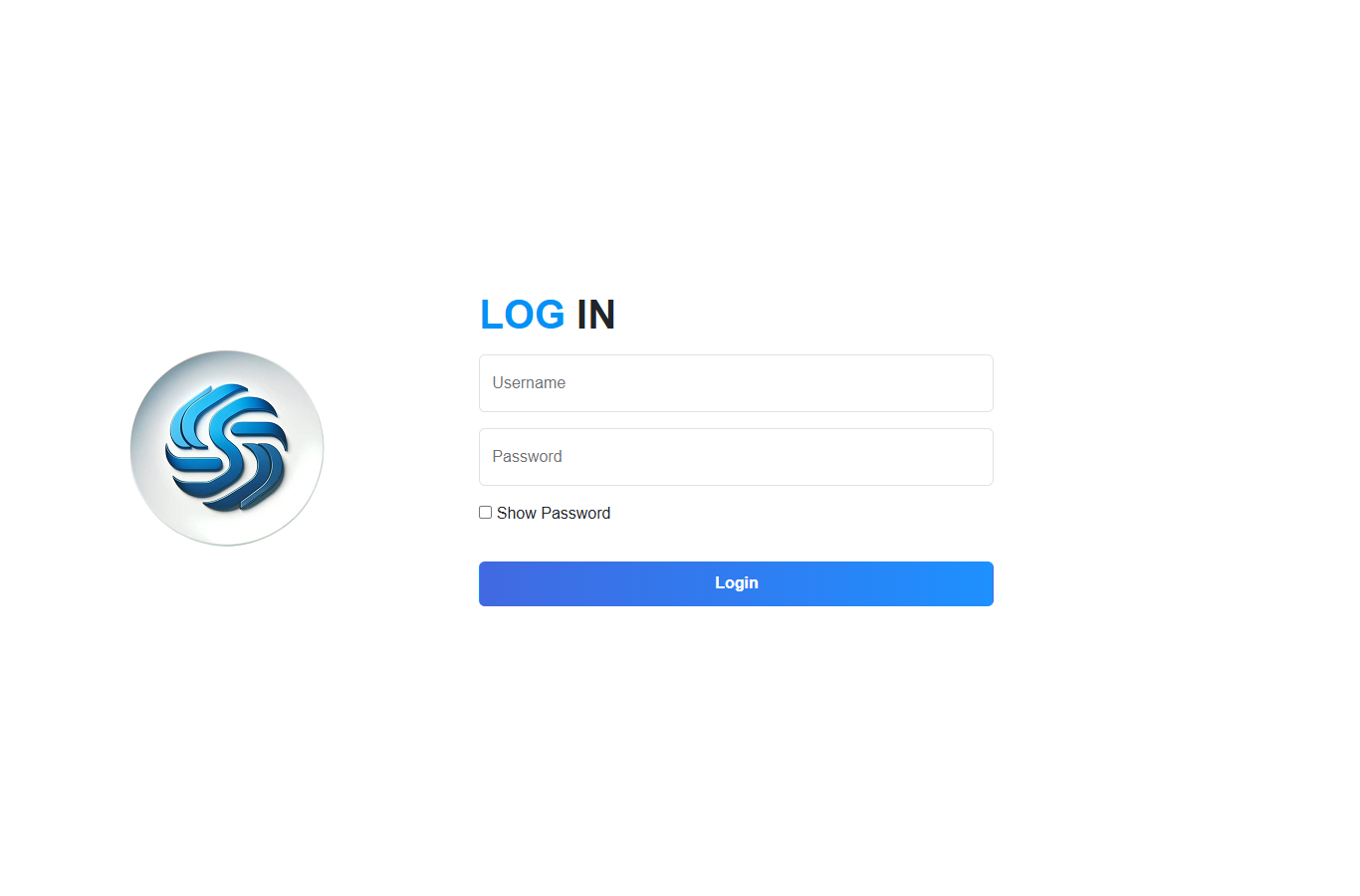 Sign in with the franchise username and password used for the back office.
Steps
1. Sign in to the franchise
Open http://kitchen.abc.co.zm/ (or the Android build on the kitchen screen). Enter your username and password and click Login.
2. Set the store
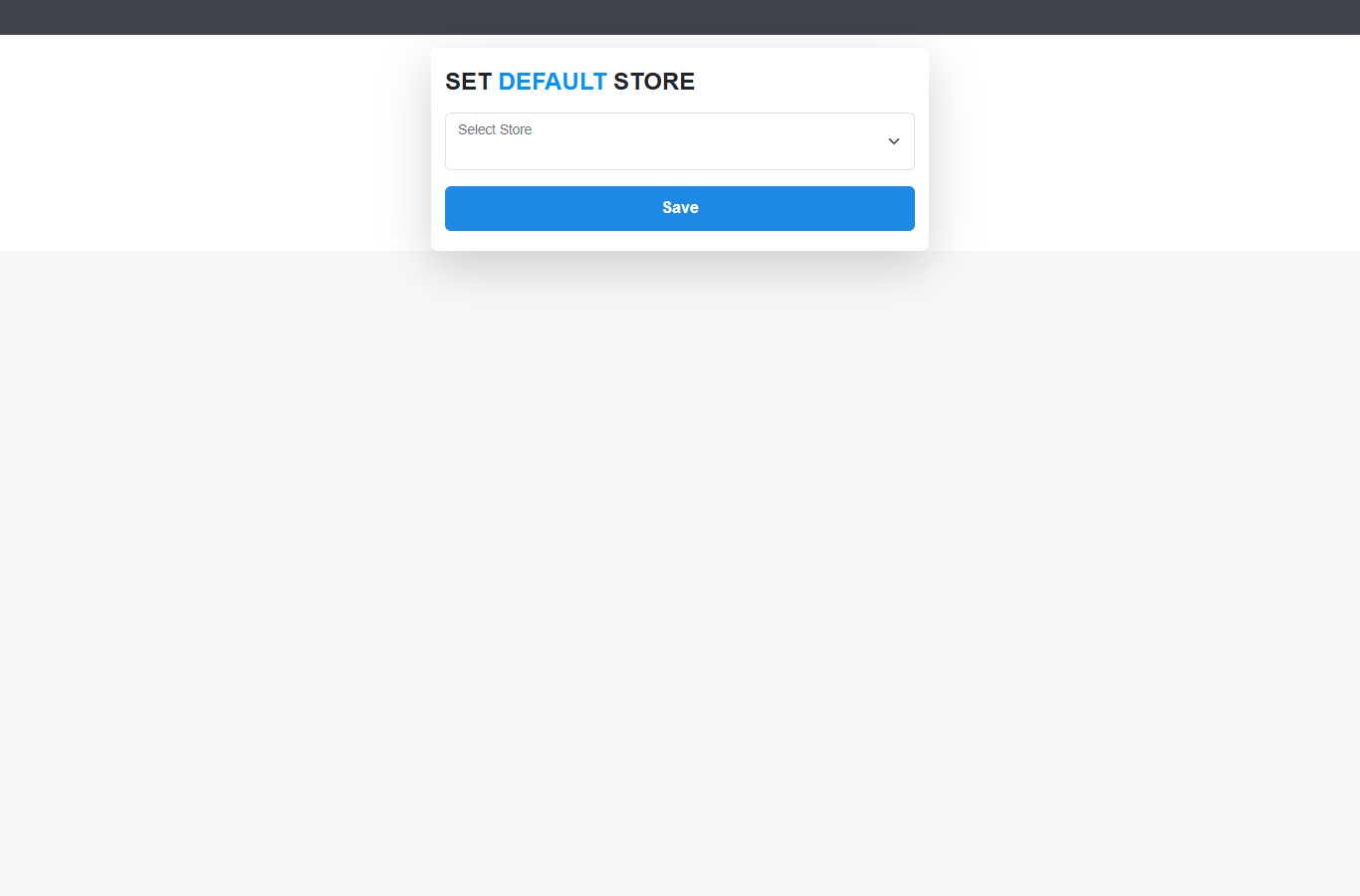
Choose the store this kitchen serves and click Save.
3. Set the station (Order Location)
The screen asks which station it is — the grill, fry, cold, or whatever your kitchen calls its sections. If none exist yet, Add Order Location and create one.
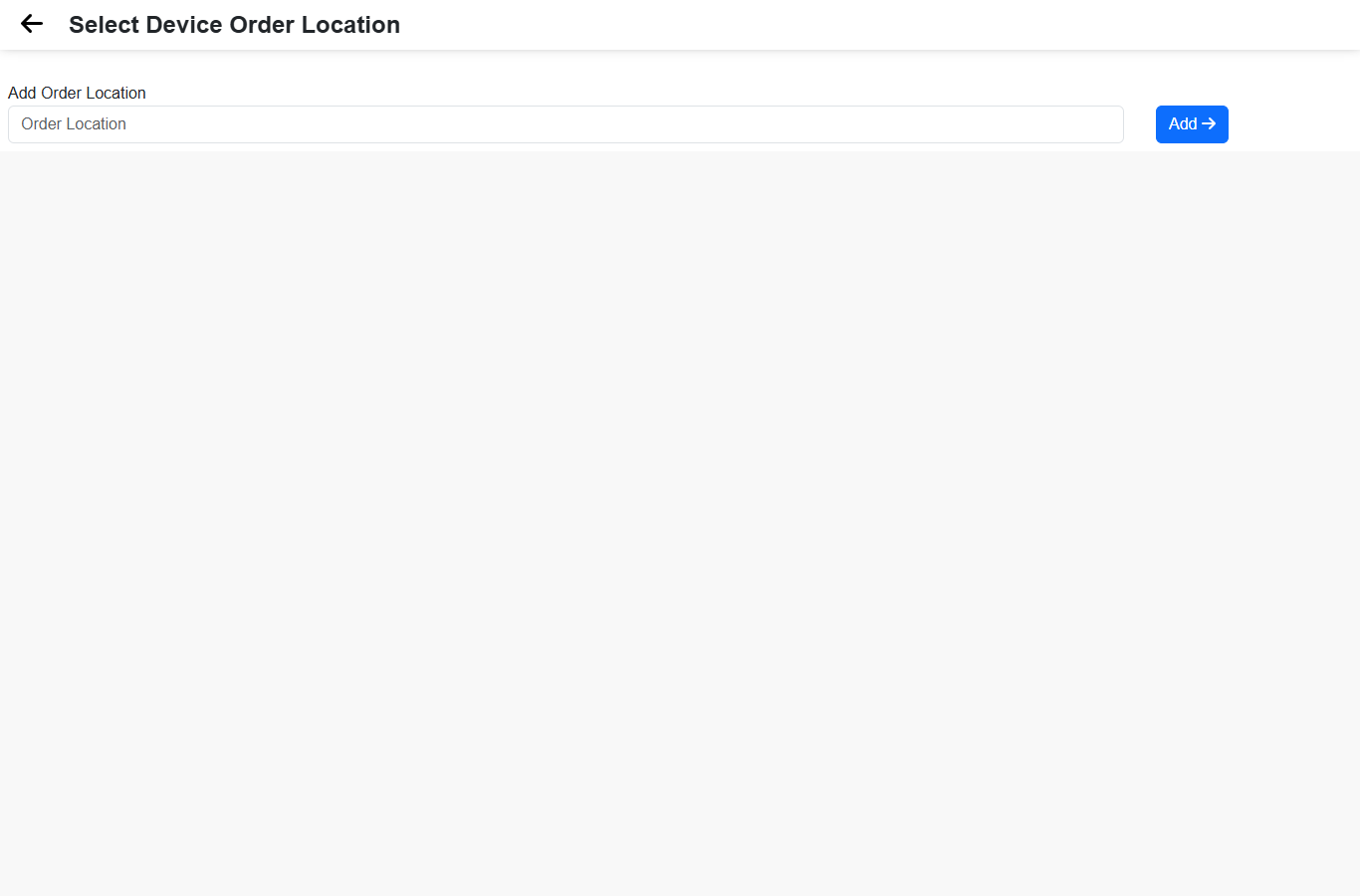 One station per kitchen screen. The station name is what the till later shows as "prepared from".
4. Enter your PIN
Type your own PIN — the same one you use to sign in elsewhere — and click Login.
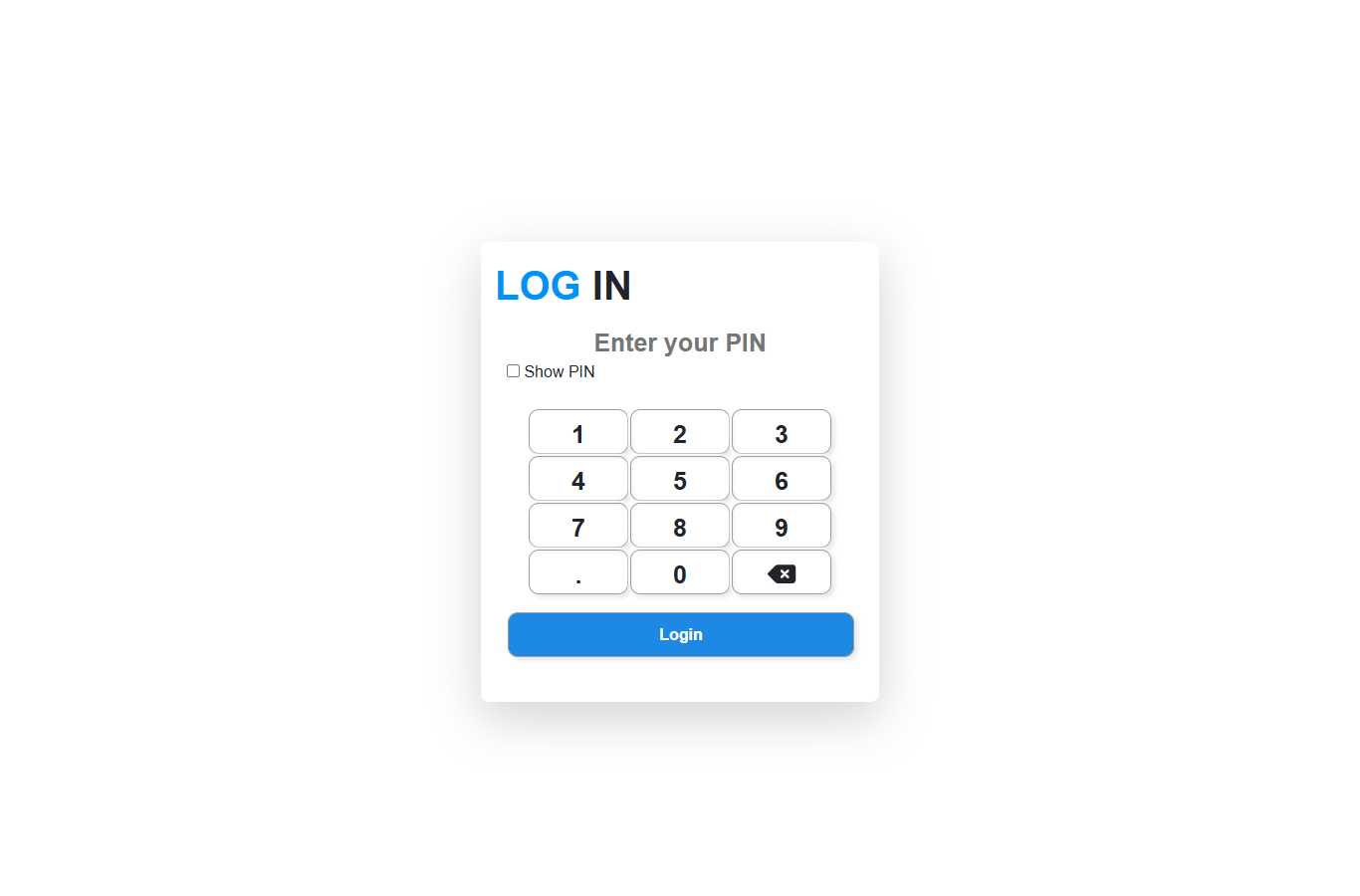
You land on the orders board for your station.
Expected result
The board shows the orders for the store and station this screen is set to.
Edge cases
- "User Not Found". The app needs your email-style sign-in, not a short username.
- Your station is missing. Add it at step 3, or check the name your franchise uses — stations must match what the till expects.
- Wrong store on the screen. Sign out and choose the store again before entering your PIN.
- The board is empty. Either there are genuinely no saved tables, or the tickets belong to another station.