
Appearance
How to sign in and select your store
Goal
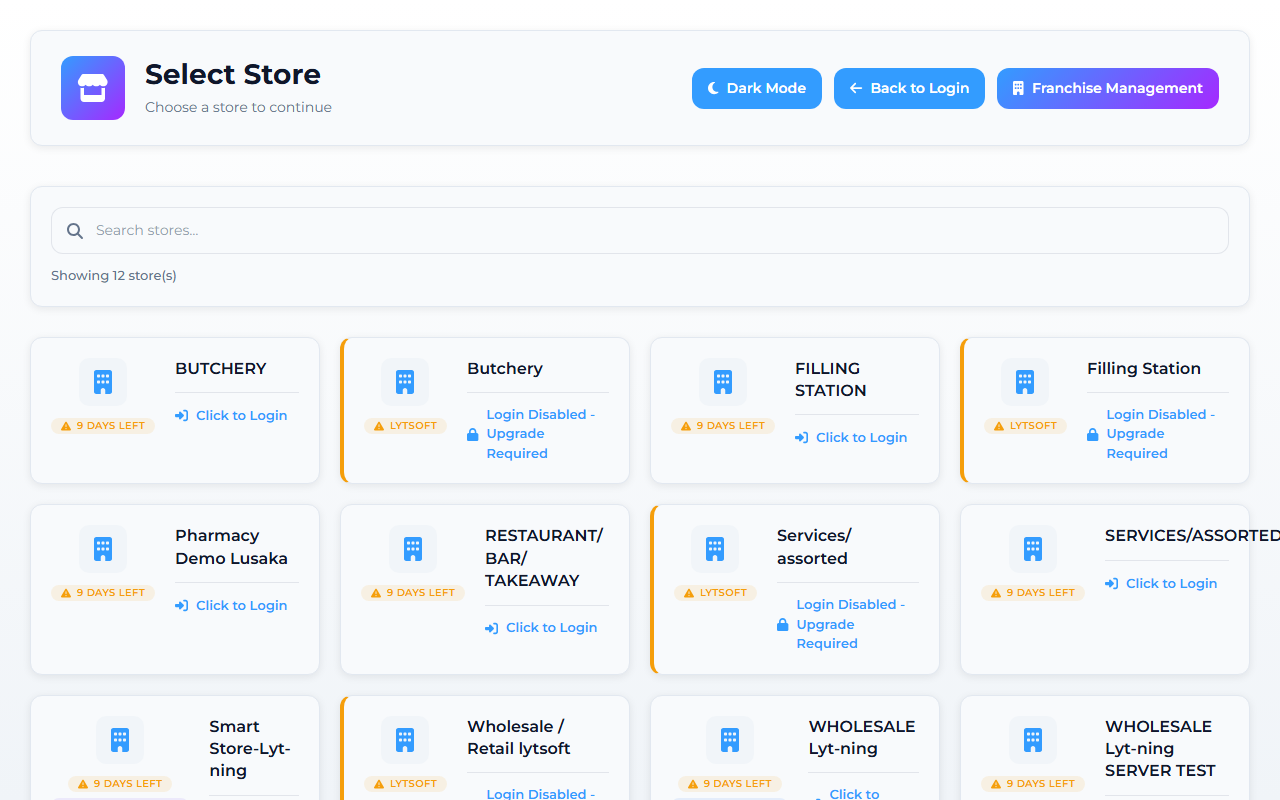
Core App demo store — screens may differ slightly by version.
Open Lyt-ning, choose the correct store, and reach the dashboard.
Where this happens
- In the back office (Core App): sign in at the browser.
- On the till (Retail POS App or Restaurant POS App): PIN sign-in at the counter.
Lyt-ning separates franchise sign-in (who owns the business) from store sign-in (which store you are working in today) from user sign-in (who you are at the counter). You sign in three times in one sitting — this is normal for a multi-store franchise, not three different passwords. This page walks you through all three steps in order.
Problem
You need to open Lyt-ning, choose the correct store, and reach the dashboard.
Prerequisites
- A sign-in name and password from your supervisor
- A device connected to your store network
- Browser open to your store's Lyt-ning URL
Steps
1. Open the franchise sign-in screen
In your browser, go to the Lyt-ning URL your supervisor gave you (for example, the bookmark Lyt-ning on your desktop).
You will see the FRANCHISE LOGIN screen with the Lyt-ning logo, a Username field, and a Password field. A Show Password checkbox sits under the password. A Reset Password link sits below the checkbox.
2. Sign in to your franchise
- Type your franchise username in the Username field.
- Type your franchise password in the Password field.
- Click Login.
3. Select your store
After franchise sign-in, the Select Store screen lists every store in your franchise.
- Use the Search stores box to narrow the list (optional).
- Click the store card for the store you are working in today. A card shows the store name and a status badge (Active / Deactivated / Lytsoft / Smart Invoicing / Main Branch / days left).
- Click Back to Login if you need to start over, or Franchise Management for the admin tools.
If you only have one store in your franchise, the list may open straight to the user sign-in step.
4. Sign in as the user at the counter
After you select a store, the USER LOGIN screen opens with the store name and TPIN at the top and a Password field.
- Type your user password in the Password field.
- Click Login.
From this screen you can also click Switch Store (top-left) to change store without signing out, or Log Out to end the franchise session.
You will land on the dashboard.
Expected result
- You are on the main dashboard for your store.
- The store name at the top matches where you are working today.
- The sidebar shows the menu items for your role.
Edge cases
- "Subscription expired" on the store card. Your franchise needs to renew this store's subscription. Ask your supervisor.
- "Login disabled" instead of a store card. Same as above — the store cannot accept new logins until the subscription is renewed.
- You do not see your store. Ask your supervisor to confirm your user account is linked to that store.
- You signed in but ended up on the wrong store. Switch Store is on the USER LOGIN screen, not the dashboard top bar. From the user sign-in screen, tap Switch Store and pick the right store. You do not need to sign out and back in.
- The app will not register this device — every licence slot is taken. A device takes one licence slot the first time it signs in, so a new till cannot register while all the slots are in use. Lyt-ning's Help screen names this error "Can't Add Anymore Devices" and "Registration Failed". To get in again: close the app on the devices you no longer use, or ask your franchise admin to request an extra device licence. The licence counts, how to free a slot, and what Support does with a lost or retired device are on Device registration & licenses.
- "User Not Found!" when you sign in. The sign-in screen shows User Not Found! when the username it was given cannot be matched to a user. Three things cause it: the user was never created, the user is not linked to this store, or the user account is not active. First type the username exactly as it was given to you and check that Caps Lock is off; then ask a supervisor or franchise admin to check in the back office that the user exists, is active, and is linked to your store. If the same user signs in normally on another device, the account is fine and the problem is this device — look at the licence case above. New users are created and linked to a store under Grant employee permissions.
- Your PIN or password will not work, or you have forgotten it. Both sign-in screens carry a Reset Password link — under the password box on the FRANCHISE LOGIN screen, and on the USER LOGIN screen at the till. On the franchise screen it opens a Reset Password dialog asking for the email address on the account (the box says Enter your email): enter it and click Submit to send the reset link, or click Cancel to close the dialog and carry on signing in. If that route does not work for you — no email address on the account, or you are signing in at the till — ask your supervisor or franchise admin to reset the PIN or password for you.
Before you open a ticket
- A screenshot of the exact message on your screen
- The username (or staff code) you typed
- The device you are signing in on — till PC, phone or tablet — and its operating system
- Whether the same user signs in normally on any other device
- Your store name, and the branch if you have more than one