
Appearance
Currency setup
Goal
You need to set up the currencies your store accepts, set the exchange rate for each, and keep the rates current so sales, cashup, and customer accounts balance.
Where this happens
- In the back office (Core App): Finance & Admin → Financial Management → Currency Setup. The Wiki groups this under 'Administration'. The page renders as Currency Management with a Currency Configuration card (router
/currency).
Use Currency Setup before a store starts trading in a second currency, and any time the exchange rate changes enough that till floats, customer balances, or supplier statements start to drift.
Prerequisites
- You are signed in as a franchise admin or supervisor with the right permission.
- You know which currencies the store accepts (for example, Kwacha and US Dollar) and the exchange rate you are approving.
- You have approval from the franchise owner for any change to a rate used by an active till.
Steps
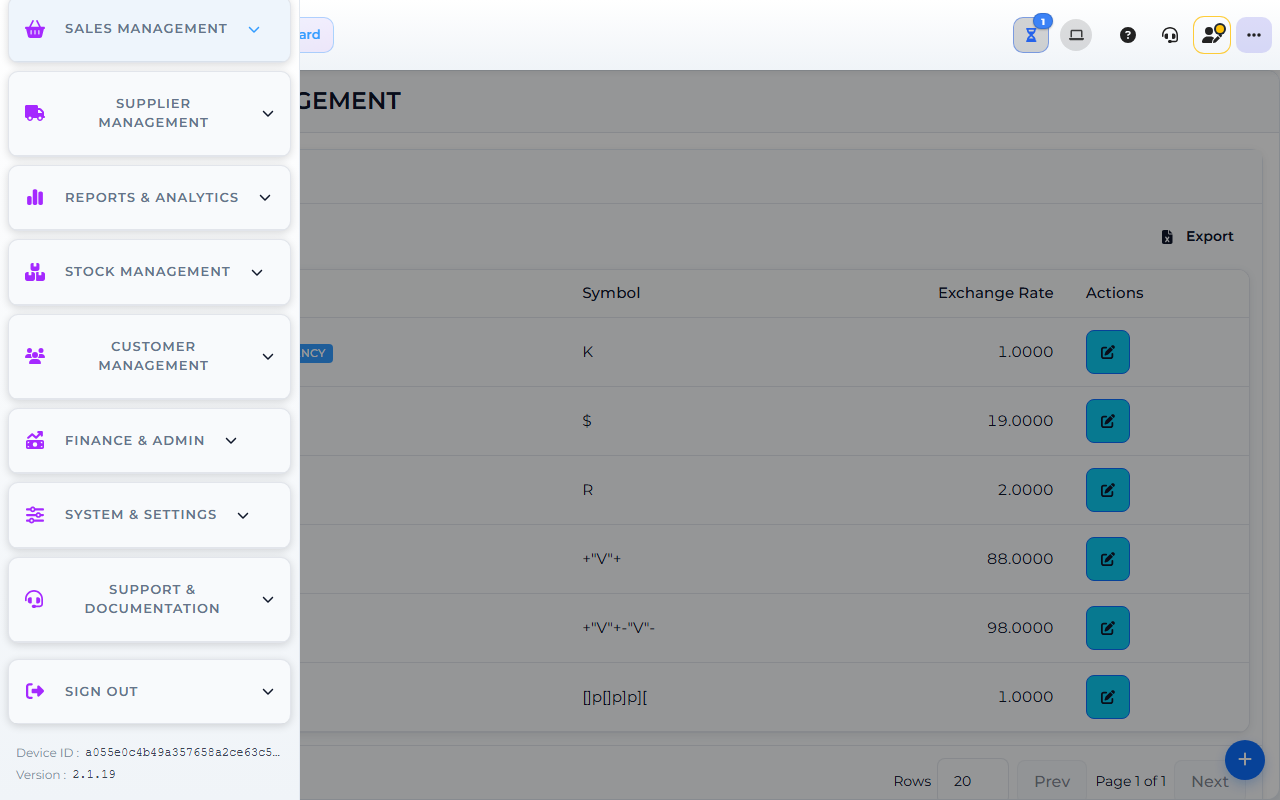
The image shows the Core App Currency Setup screen. Screens may differ slightly by version.
1. Open Currency Setup
- In the sidebar, expand Finance & Admin → Financial Management.
- Click Currency Setup.
The screen opens on the Currency Management page (heading + Currency Configuration card). The table lists every currency currently set up for the store. There is no separate Add Currency item in the sidebar — the action is the floating "+" button on the page itself.
2. Add a new currency
- Click the floating + button at the bottom-right of the Currency Configuration card.
- The Add Currency modal opens. Fill in Currency Name, Currency Symbol, and Currency Rate (against your base currency — the Kwacha for Zambian stores).
- Tick Base Currency if this is your home currency. When ticked, the rate is locked at 1 and becomes read-only.
- Click the modal's submit button. The currency appears in the table with a Base Currency badge if applicable.
If the currency is already in the list, skip to step 3 and update the rate.
3. Update an existing rate
- In the table row for the currency, click the pencil (edit) button.
- The Update Currency modal opens with the current values pre-filled.
- Edit Currency Name, Currency Symbol, or Currency Rate as needed. The rate field is read-only when Base Currency is ticked — untick first if you genuinely need to change it.
- Click the modal's submit button. The table refreshes with the new rate.
The new rate takes effect immediately for new sales. Old sales keep the rate that was active when they happened.
The Update Currency modal has no free-text "note" field for the rate source, effective date, or approver. If your franchise policy requires an audit trail, record the change (old rate → new rate, source, date, approver) in your own change-log before clicking submit.
4. Review currency-aware screens
After changing a rate, check these screens to confirm the change has landed where it should:
| Screen | What to check |
|---|---|
| Till (POS) | Open the till and confirm the currency picker shows the new rate. |
| Cashup | Run a cashup and confirm the expected totals match the new rate. |
| Customer accounts | Open a customer who trades in the changed currency and confirm their balance reflects the new rate. |
| Reports | Pull a sales or cash report for the day the rate changed and confirm totals match what the till recorded. |
Expected result
- The currency appears in the till's currency picker and on every customer account that trades in it.
- Sales, cashups, and customer balances convert using the new rate.
- The change is logged in your franchise's change-log (Core App does not store a rate-history note in v2.1.19).
Edge cases
- A rate change seems to have shifted past sales. Past sales keep the rate that was active when they happened. Confirm the date before telling the supervisor the rate is wrong.
- The currency picker is missing on the till. Ask your supervisor to enable the currency at the till — see Grant employee permissions.
- A customer account shows the old rate. Open the account and re-save the rate from Currency Setup so future transactions use the new rate.
- Two rates exist for the same currency. One is historical; the active rate is the most recent. Ask your supervisor which one to use before invoicing.
- The till total does not match the cashup. Recount the day's cash and card totals and confirm the rate used at the till matches the rate in Currency Setup.